iPhone 18 Pro Max on AT&T Stuck in SOS? Updates and Replacement Advice
If your iPhone 18 Pro Max on AT&T has lost cellular service, contact Apple or AT&T rather than assuming an update will restore it. In its October 2 statement to 9to5Mac, Apple distinguished preventive software and carrier updates from hardware replacement for devices already affected. If your phone still works, install the available updates. Keep another way to contact people while the case is being assessed; an SOS label alone does not identify the cause.
Source announcement:
The latest advice is more specific than “update and wait”
Apple told 9to5Mac that the combination of iOS 27.0.1 and a carrier update is intended to prevent additional failures. The company says affected devices that have already lost service need hardware replacement, and directs those owners to Apple or AT&T. This is a reported statement from Apple, not an SFByte diagnosis of your phone. Read the original Apple statement.
The practical decision is whether your phone is working normally or has already developed the persistent failure. Do not treat someone else’s successful restart as proof that your own case is resolved.
If your phone still has service
Use the available iOS update and check for the separate carrier update. For the latter, connect to Wi-Fi, open Settings → General → About, and follow any update prompt. Note the carrier version on that screen if you need to discuss it with support. Apple explains the carrier-update process.
Our iOS 27.0.1 fixes explainer covers the published release notes. The carrier settings check is a separate operation.
If it is already stuck in SOS
Contact Apple Support or AT&T and describe the model, when service stopped, whether it returns intermittently, and which updates are installed. Keep the case number. Ask what replacement or service path applies to your device rather than repeatedly erasing it.
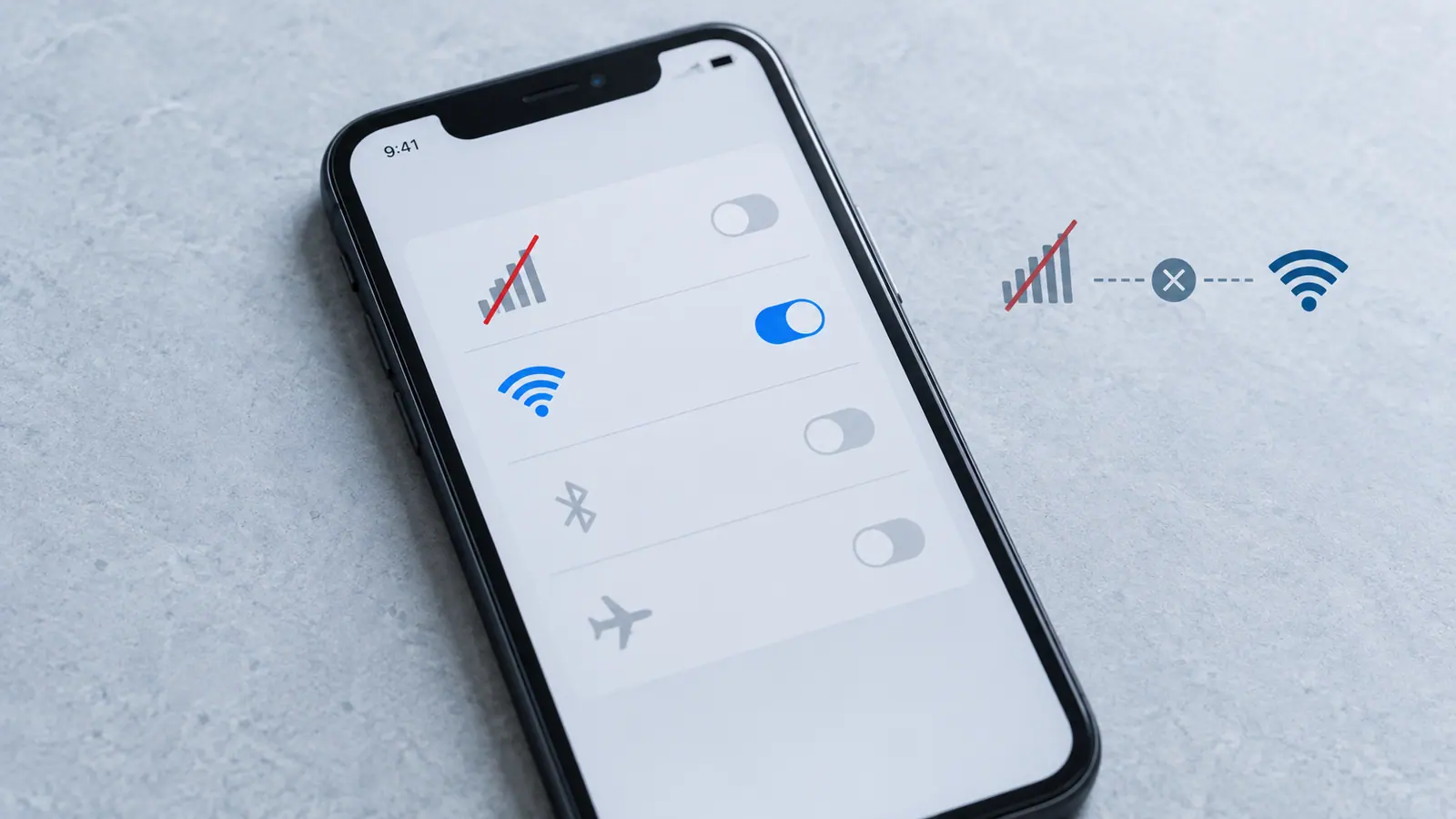
For general connection failures, Apple also recommends checking account status, local coverage and outages with the carrier. Its basic reconnection advice includes briefly enabling Airplane Mode and restarting. Those general steps are not a promise to repair the specific failure described above. See Apple’s SOS troubleshooting guidance.
If you need emergency assistance, use another working phone or get help from someone nearby if this device cannot connect. Do not place a test call to an emergency number.
Prepare for a support visit
Bring a concise record instead of a long list of speculative fixes:
- Exact model and installed iOS/carrier versions.
- Approximate start time and whether calls, messages, and data all fail.
- Support case numbers and what each representative advised.
- A current backup and access to your account recovery information.
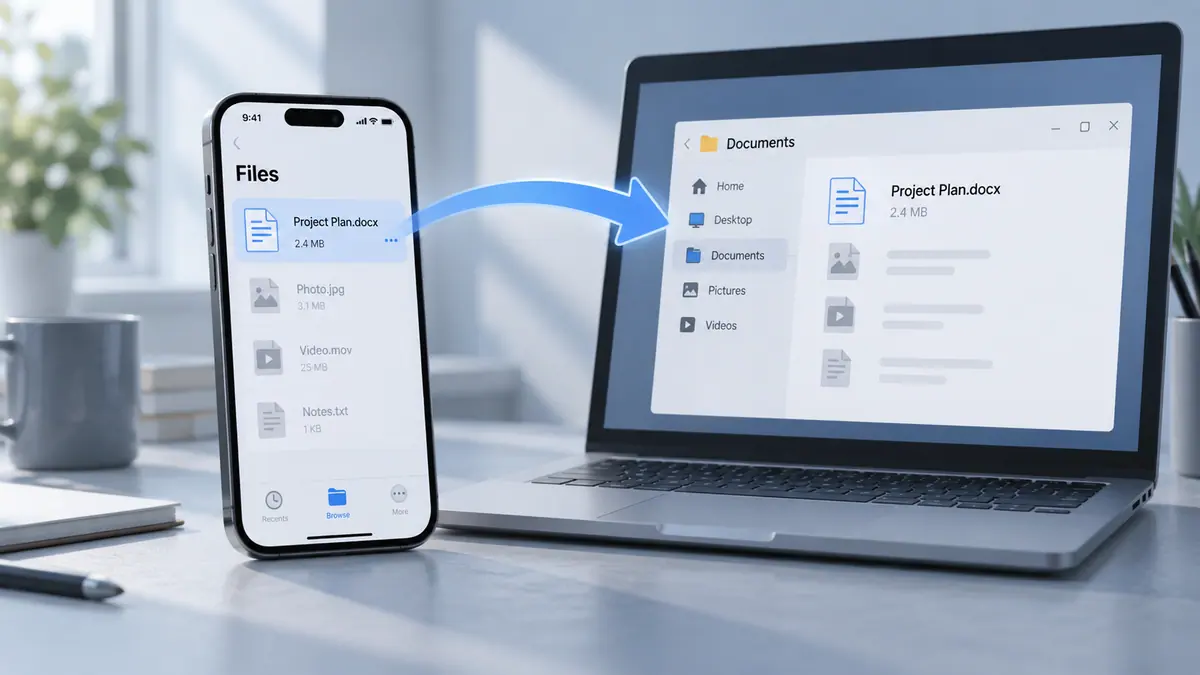
Our iPhone-to-PC transfer guide can help preserve individual documents. A document transfer is not a replacement for a complete device backup.
What this report does not establish
An SOS indicator can have other causes. We do not have an affected-unit count, a serial-number eligibility checker, or an independently confirmed technical root cause. We have not tested a repair. Ask support to assess your individual case and use the Apple & iOS hub for related updates.
Sources & further reading
- 9to5Mac — original Apple statement · Checked Oct 3, 2026
- Apple Support · Checked Oct 3, 2026
- Apple Support · Checked Oct 3, 2026