How to Transfer Files From iPhone to Windows PC
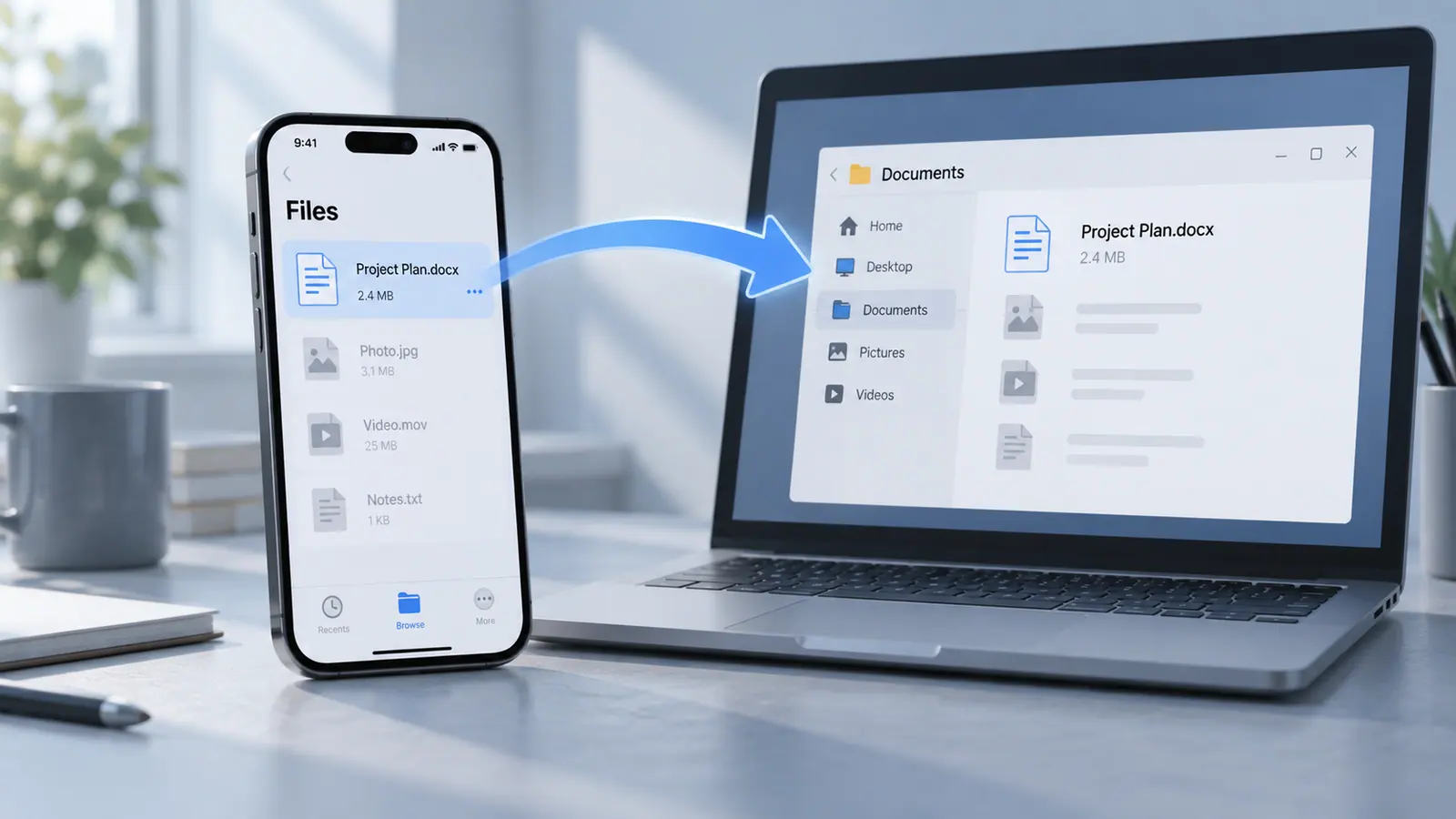
To transfer files from iPhone to a Windows PC, choose the route for the file type. Photo-library items can use the Windows Photos import workflow; documents inside a compatible app can use Apple Devices File Sharing. Files already in a cloud service need a completed download on the PC. Start with one representative file, check that Windows can open it, and keep the phone copy until you have verified the whole transfer.
Choose a route before connecting everything
| Where the item is now | Suitable starting point | Check before transferring a large batch |
|---|---|---|
| iPhone photo library | USB photo/video import to Windows | Whether originals are available on the phone |
| Documents stored in a compatible app | Apple Devices File Sharing | Whether that app appears in the sharing list |
| A cloud folder | Download from the same service on Windows | Whether the PC has a real local copy |
| A project inside an editing app | That app’s export workflow | Whether you need an editable project or a finished file |
The goal is a usable file at the destination. Connecting a cable does not make every app’s private data visible as ordinary Windows folders.
Photos and videos: use the documented import path
Install Apple Devices on Windows, connect the iPhone using a suitable USB cable, unlock the phone, and respond to the trust prompt when it appears. Continue through the Windows Photos import workflow linked in Apple’s photo-transfer instructions.
When iCloud Photos is enabled, Apple’s USB-import instructions require the original full-resolution versions to be downloaded to the phone first. A visible thumbnail does not establish that the complete original is ready for import.
Begin with a small mix: one ordinary photo, a longer video and an item whose format has caused problems before. Put the result in a clearly named destination folder. Open each file on Windows before starting the rest.
App documents: check File Sharing support
In Apple Devices, select the connected device and open Files. Choose a compatible app, select the documents you want, click Save, and select the destination folder on the PC. If Files is absent, Apple says there are no apps supporting that file-sharing route. Apple documents the requirements and copy steps.
This route applies to participating apps; it is not a general export of everything shown anywhere in Files. If the desired app or document is missing, use that app’s own supported export or sharing route instead of repeatedly reconnecting the cable.
Cloud and transfer-app alternatives
For a cloud-backed file, sign in to the intended service on Windows and download the item into a local folder. Verify the download before assuming it will be available without internet. An app project may need a separate export even when the project appears in a synced folder.
File Transfer: Phone to PC is an SFByte option to consider for its supported sharing workflow. Check the installed app’s connection requirements. Do not publish private material to a public link simply to make a failed transfer easier.
Verify counts, content and destination
Use a written checklist for the transfer: source collection, selected count, destination folder, received count, and files you opened. Include the longest video and the last file in the batch. A matching count is useful, but does not establish that every file is intact or playable.
For an important original, compare exact bytes or a file hash when your tools and export route support preserving the same file. If the route converts the format, different bytes may be expected; document that conversion rather than describing it as a byte-for-byte copy. Our transfer-verification guide covers the next checks.
If Windows cannot open the video
A successful copy and a supported playback format are different questions. Keep the original and inspect the format before trying another transfer. MOV versus MP4 explains why the extension does not fully identify the codecs inside.
For an interrupted batch, identify what arrived and what is missing. Continue into the same planned folder only after deciding how duplicates will be handled. Use a simple naming scheme for source files and delivery copies.
Before removing the phone copies
Open the important destination files, make a separate backup, and check whether deletion would also affect a synced cloud library. The original-photo backup guide explains why another view of the same synced library is not automatically an independent archive. This guide provides a verified workflow, not measured transfer speeds for your hardware.
If the file does not appear on the PC
| What is missing | First distinction | Next action |
|---|---|---|
| An app document | File Sharing only exposes supporting apps | Open the correct app in Apple Devices or use its own export |
| A photo or long video | The phone may show a cloud-backed item | Confirm the original is downloaded before USB import |
| A project visible inside an editor | A project is not necessarily a finished media file | Export the deliverable the recipient needs |
| A file that appears online but not offline | A synced listing may not be a local download | Download to a known Windows folder and reopen it |
| A copied video that will not play | Copying and codec support are different | Inspect the saved format before repeating the transfer |
Example: copy a PDF and a video without confusing the routes
For a PDF stored inside a File Sharing app, choose that app’s Documents list in Apple Devices and save the PDF to a Windows folder. For a video in the photo library, follow the Photos import route instead. This is an illustrative two-file checklist, not a measured transfer session.
Open both destination files, check the last page and the end of the video, and confirm the filenames and actual sizes. If the destination is a cloud-backed Windows folder, verify that the copy you need is actually downloaded. Before removing anything from the phone, keep the backup you intend to rely on.
Is AirDrop the Windows transfer method?
Use the Windows routes above. Do not describe Apple Devices as AirDrop or imply that connecting a cable exposes the entire iPhone filesystem. The correct method depends on where the source file is stored and which sharing capabilities its app supports.
Can I transfer without compressing first?
Compression is a separate choice, not a prerequisite for every copy. If a destination size limit is the problem, large-video sharing helps choose between a delivery copy and another route. For documents, photo-to-PDF conversion is useful only when the recipient actually wants one PDF instead of separate images.
Sources & further reading
- Apple Support · Checked Oct 5, 2026
- Apple Support · Checked Oct 5, 2026