Guide · Files & Transfer
How to Transfer Files From iPhone to Windows PC
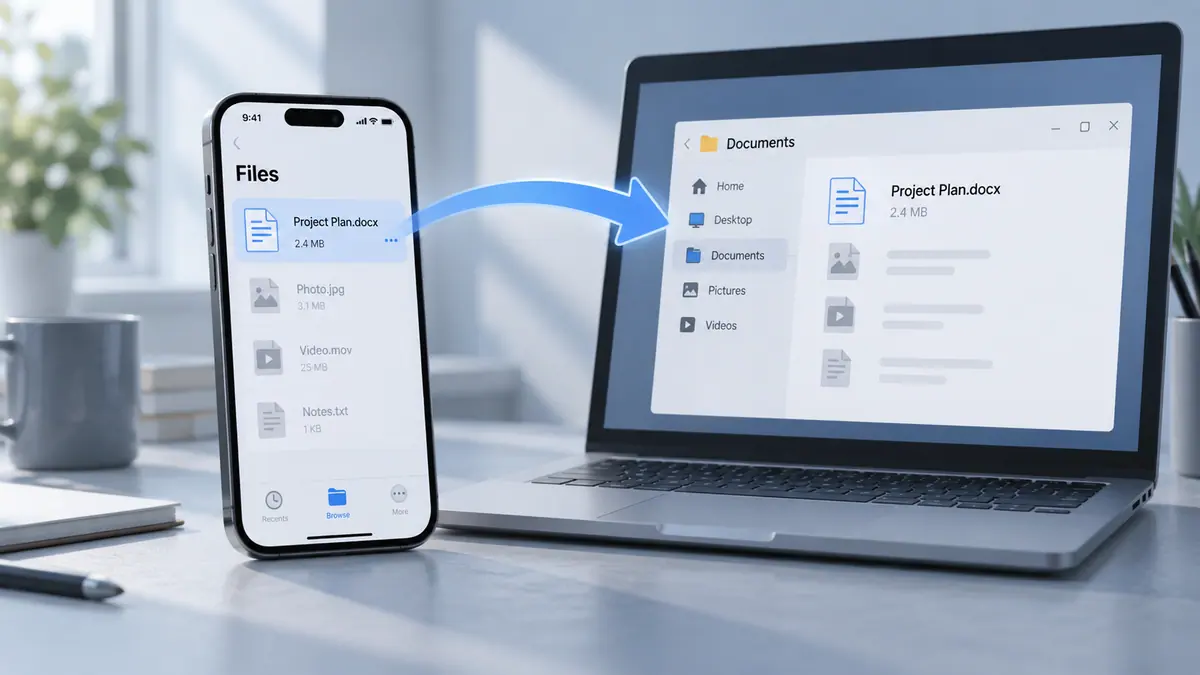
Copy iPhone documents with Apple Devices File Sharing, import photos and videos, or download cloud files to Windows. Fix missing files and verify the result.
6 min readMove, name, organize, and check files across devices.
A successful transfer is more than a completed progress bar. The destination device must be able to open the file, the entire file must arrive, and you need to know which copy is the original. Decide whether you are sending a document, a photo-library item, or data stored inside an app; each may use a different export route.
For repeat work, choose a consistent folder and naming system. Include a date or version when files will pass through several people, and avoid names that reveal sensitive information on a shared screen. Before deleting a source, open the destination copy and compare its size and contents. A cloud icon can mean a file still needs downloading, so verify offline access before leaving a reliable connection.
Use the guides below for a specific task, then follow the related tools and apps when they fit your workflow. Each article links to its sources and separates a general explanation from instructions that depend on a particular app or device.
Copy iPhone documents with Apple Devices File Sharing, import photos and videos, or download cloud files to Windows. Fix missing files and verify the result.
6 min readUse counts, sizes, and opening checks before treating a copy as a backup.
1 min readPackage several files together while keeping realistic expectations about compression.
1 min readUse dates, a short subject, and explicit versions instead of a pile of final-final copies.
1 min readCheck the destination, file count, and accessible size. A progress indicator alone is not proof that every file is usable.
Compare dates and contents, then use a consistent naming scheme. Keep uncertain originals until you know which result is complete.
Use dates, a short subject, and explicit versions instead of a pile of final-final copies.
1 min read
Copy iPhone documents with Apple Devices File Sharing, import photos and videos, or download cloud files to Windows. Fix missing files and verify the result.
6 min read Files & Transfer
Move photos, videos, and documents from your phone to a computer.
View app Files & Transfer
Collect incoming attachments before sorting them into folders.
View app Files & Transfer
Share photos, videos, and documents between devices.
View app Files & Transfer
Save attachments from other apps and organize them in one place.
View app