How to Create and Open ZIP Files on iPhone
Package several files together while keeping realistic expectations about compression.
Create an archive in Files
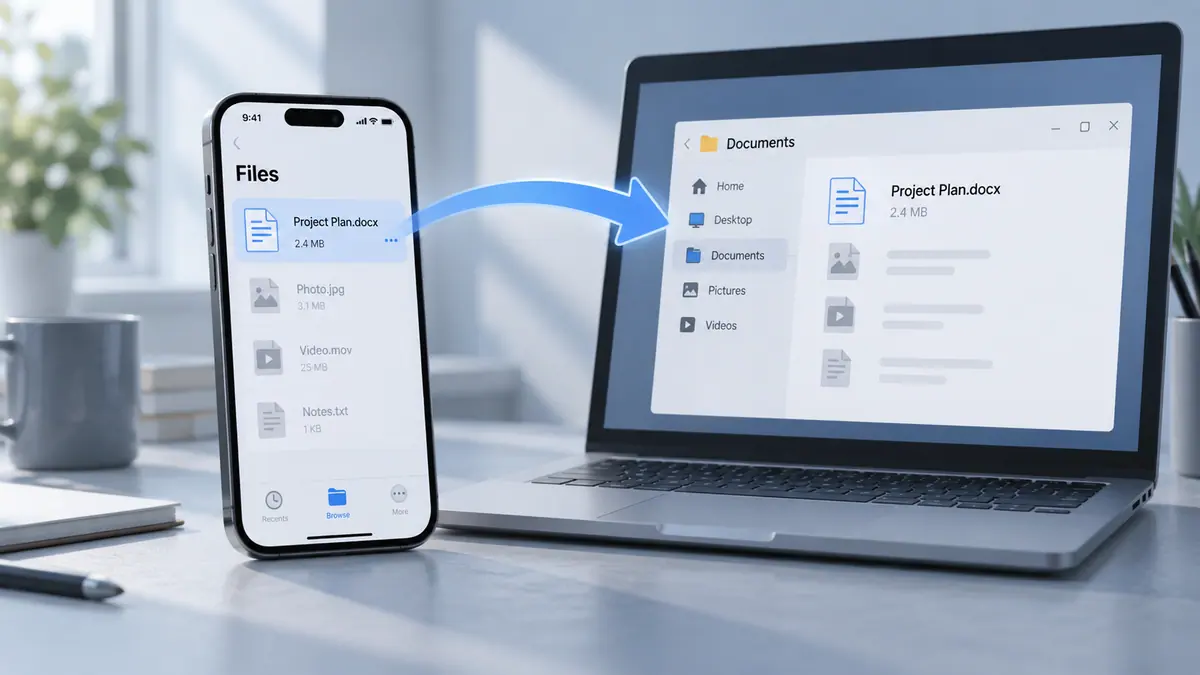
In the Files app, select the files or folder you want to package and use Compress. Give the resulting ZIP a clear name before sharing it. To open a ZIP, tap it in Files and inspect the extracted contents.
What ZIP solves
An archive can preserve a group of filenames and simplify sending several items. It is useful for a project with a document and supporting images. Already compressed JPEGs and videos may shrink little; do not count on ZIP to turn a very large video into a tiny attachment.
Check the package
Open the archive yourself before sending it. Verify the number of files, folder names, and whether an unnecessary private item was included. Avoid adding the destination ZIP back into the source folder for a second archive operation, which can create confusing nested copies.
For a recipient who simply needs to read several photographed pages, one PDF may be easier than a ZIP full of pictures. Use an archive when preserving separate files is the objective. Do not assume a normal ZIP created this way is encrypted or protected by a password.
Sources & further reading
- Apple · Checked Oct 1, 2026