How to Convert Photos to PDF on iPhone
To convert multiple iPhone photos into one PDF, open SFByte’s Image to PDF tool, select the images, arrange them in reading order and create a downloadable document. For a single image, Apple’s Preview app can export it as PDF where available. Choose the workflow around the source: existing photos need conversion, while physical paper can be scanned first. Reopen the saved PDF, count its pages and zoom in on small text before sharing. Keep your originals until the result is usable.
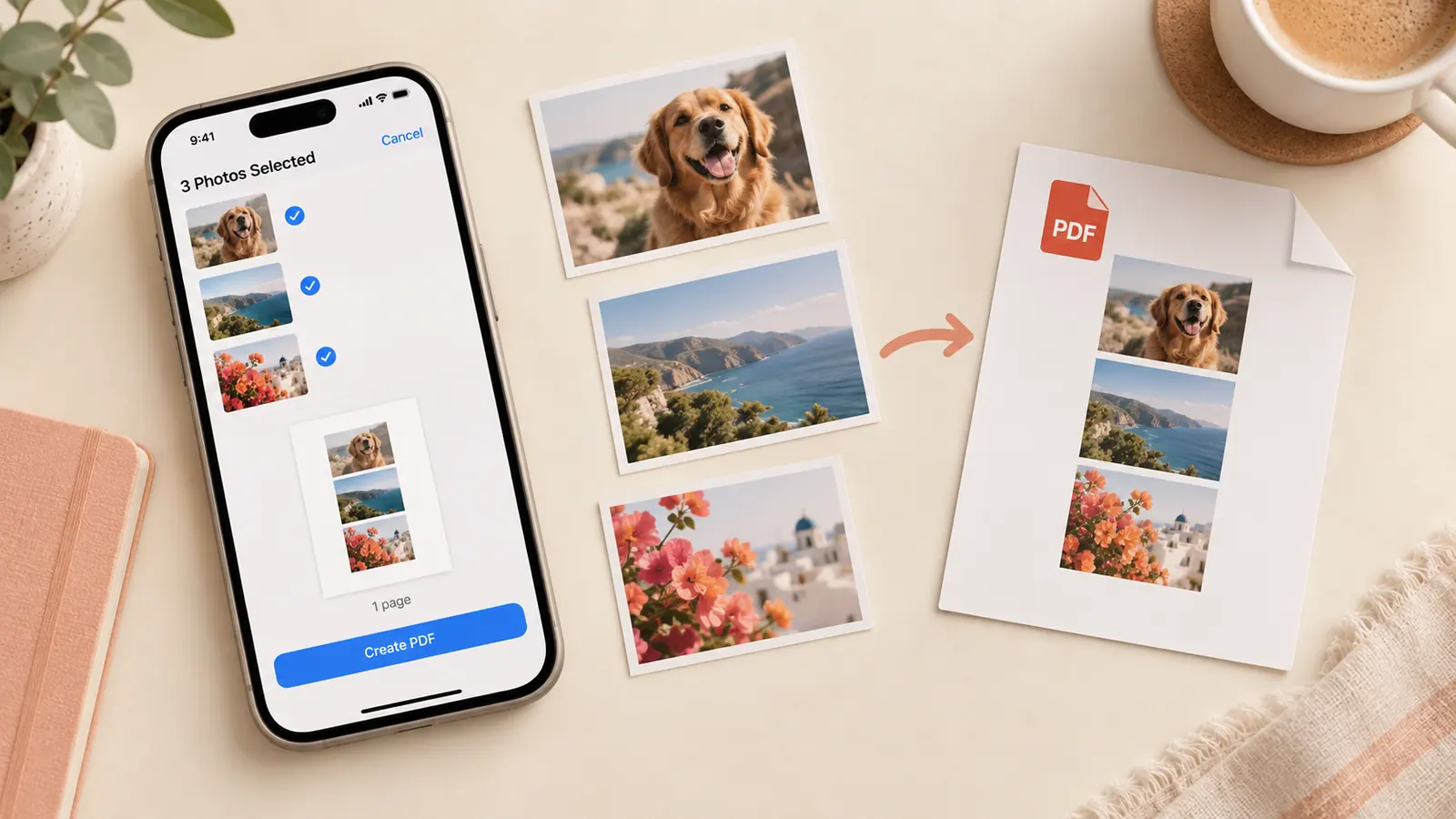
Choose the workflow for your source
| Source and goal | Starting route | What to inspect |
|---|---|---|
| One image, built-in PDF export | Preview where available | Export format and destination |
| Multiple images with deliberate page order | SFByte Image to PDF | Order, orientation and paper size |
| A physical document still in front of you | Notes, Files or Preview scan | Crop boundaries and readable text |
| An existing PDF mixed with new photos | A PDF page-management workflow | Do not treat the image-only converter as a PDF merger |
Convert several photos with Image to PDF
- Open Image to PDF on your iPhone.
- Select JPEG or PNG images. HEIC requires browser decoding support.
- Arrange pages with the move controls and remove accidental selections.
- Choose A4 or Letter for paper pages, or Fit to image for image-shaped pages.
- Choose the orientation and create the document.
- Download it, save it to a known location and reopen the saved PDF.
The converter’s processing code works in the browser; selected image bytes are not uploaded to SFByte. It does not add OCR text or interactive form fields. Conversion and privacy behavior are described from the implementation, not presented as an iPhone timing benchmark.
A realistic plan for twenty photos
The tool accepts up to 20 files and 100 MB compressed input in total, subject to decoded-image limits as well. The current aggregate decoded limit is 100 megapixels. Twenty 12-megapixel pictures total 240 megapixels, so the maximum file count does not guarantee that batch will fit.
These are limit calculations, not measured photos. If the batch is too large, make smaller copies, reduce the selection or divide the work into sensible packets. Preserve the full-resolution originals. When shrinking a document photo, check the smallest print again instead of selecting a target solely to satisfy a file counter.
| Check | Why it matters |
|---|---|
| Compressed MB | Controls input download/file weight |
| Decoded pixels | Controls part of the browser memory demand |
| Reading order | Determines the page sequence the recipient sees |
| A4, Letter or image-shaped pages | Changes scaling and margins |
| Transparent source areas | The converter uses a white background for its image pages |
Export one image with Preview
Apple documents image export in Preview: open the image, use the actions menu beside its filename, choose Export, select PDF, and save to your chosen location. Availability and options depend on the installed software. A one-image export should not be described as a tested twenty-photo batching method.
For a fresh paper source, scanning to PDF may produce a more useful page than converting a badly angled photograph. If you already have a screenshot, see saving a screenshot as PDF.
What about Files and Print-to-PDF?
These are common workflow questions, but this guide does not claim a device-tested comparison of their menu paths, page ordering or output sizes. Check the controls offered by your installed app and iOS version, then inspect the saved file. The documented Preview export and working converter above provide concrete routes without assuming every sharing sheet is identical.
Inspect the exported document
Count pages and compare their order with the source set. Inspect handwriting, stamps, small numbers and page edges at a useful zoom. The browser converter re-encodes images for the PDF, so the output is not a lossless archive of every original image byte.
For a school packet, check whether the destination specifies Letter or A4 and a maximum file size. For a receipt bundle, confirm dates and totals remain readable. These are use-case checks, not claims that an example packet has been physically tested.
Save a clearly named copy in Files and share that PDF rather than an unfinished selection. If it is oversized, follow reducing PDF file size without discarding the only readable copy.
Common questions
Does conversion make the words searchable?
An image PDF does not automatically include recognized text. OCR is a separate operation and its results need checking. See why scanned PDF text cannot be selected.
Can I add pages from an existing PDF?
The image converter takes images. Use a PDF merge workflow when some sources already contain PDF pages.
Why did the result become blurry?
Inspect the original first, then page scaling and any resized input copy. A PDF cannot recover detail absent from the source. Rebuild a small sample using a better source or more suitable page layout before repeating the whole batch.
Which method produces the smallest PDF?
That requires a comparison using the same inputs and a stated readability requirement. No Files/Print/Preview/browser winner or conversion time is claimed here. Keep the source set, settings, outputs and timing method if you run that comparison.
Sources & further reading
- Apple Support · Checked Oct 5, 2026
- Apple Support · Checked Oct 5, 2026