How to Scan Documents to PDF on iPhone: 3 Easy Methods
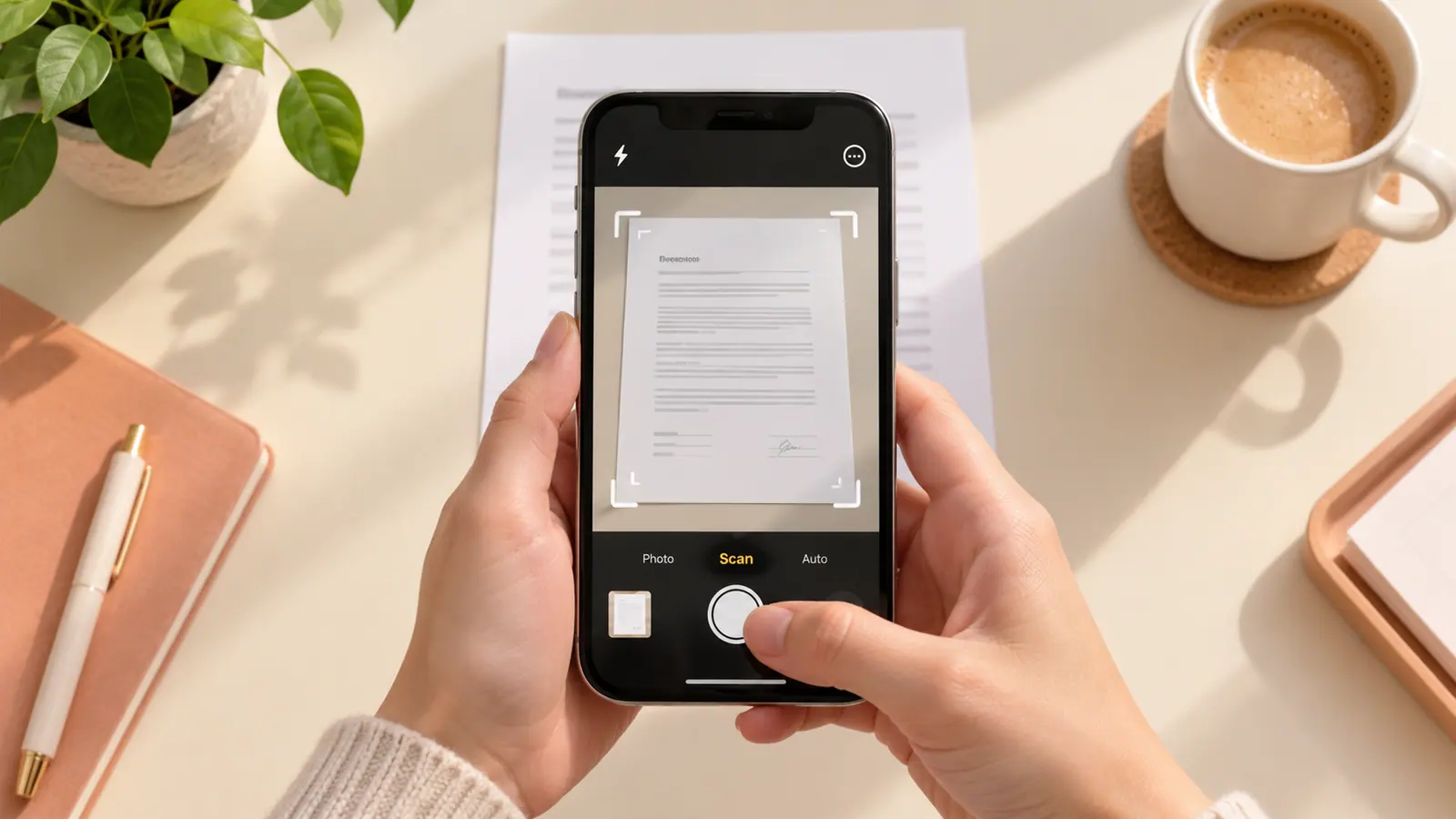
You can scan paper into a PDF on iPhone with Notes, Files or Preview where available. In Notes, open a note and use Attachment → Scan Documents. In Files, open More → Scan Documents and choose a location when saving. In Preview, start with Scan Documents. Capture every page, review its corners and orientation, then open the saved result to check the smallest text. For pictures already in your library, use photo-to-PDF conversion instead of photographing them again.
Pick where the scan should end up
| Method | Useful when | Check before sharing |
|---|---|---|
| Notes | The scan belongs with a note | Share the document you intend, not unrelated note content |
| Files | You want a PDF in a chosen folder | Destination, filename and completed save |
| Preview, where available | You plan to inspect or work with the PDF | Page order and the saved document location |
The steps below are based on current Apple documentation. An older iOS version or a different app view can show different labels. There is no measured quality ranking between these methods here.
Method 1: scan in Notes
- Create or open a note.
- Use the Attachment control and choose Scan Documents.
- Position the paper and capture automatically, or use the shutter/volume control manually.
- Adjust the corners where needed, keep the scan, and capture additional pages.
- Finish the document, reopen it and inspect the saved pages.
Method 2: scan directly from Files
- Open Files and choose More → Scan Documents.
- Frame the paper and capture it, correcting the boundary if needed.
- Add remaining pages before finishing.
- Choose the intended location and save.
Apple covers both workflows in its Notes and Files scanning instructions. Choose a destination you can locate again; a scan visible in a capture preview has not yet answered the recipient’s need for a saved PDF.
Method 3: scan in Preview
- Open Preview and select Scan Documents.
- Frame the page. Automatic capture is available; switch Auto to Manual if you need to choose the shutter moment yourself.
- Capture the remaining pages.
- Use the thumbnails to crop, rotate or adjust color, then finish.
These controls are documented in Apple’s Preview scanning guide. Use Notes or Files if Preview is unavailable on your installed system. Do not interpret the extra editing controls as a guarantee of a smaller file or better recognized text.
Get a readable source before worrying about compression
Place the paper flat on a contrasting surface and keep the camera approximately parallel. Move reflections away from names, small type and stamps. A clean margin helps identify a crop error. If handwriting disappears in a high-contrast treatment, use a less aggressive treatment or capture again while the paper is still available.
For a two-sided form, include the reverse when it carries instructions or reference numbers. Put a multipage stack in order before starting. This avoids solving missing pages with repeated exports later.
Example: a three-page application
Suppose your packet contains a cover form, a signed page and supporting notes. Before sharing, check that the PDF has three pages, that the signed page is second, and that no edge of the signature was cropped. This is an illustrative workflow, not an SFByte test result.
Open the saved file outside the capture view. Enlarge the smallest important writing, inspect its orientation and find the final page. Give the packet a useful filename and confirm the destination accepts both PDF and its actual size. Keep a source copy before making a smaller delivery version.
Fix common scan problems
| Symptom | What to change |
|---|---|
| Text blurred at normal reading size | Recapture with steadier framing and better light |
| A corner or line is missing | Correct the boundary or recapture the page |
| Wrong page orientation | Rotate the saved page before sharing |
| Too large for upload | Check the limit and reduce a copy without losing required detail |
| Text cannot be selected | Check for OCR; an image scan and searchable text are different |
| Already have good photographs | Convert those images instead of taking new photographs of them |
Use PDF size reduction for an oversized delivery copy and searchable scanned PDFs for OCR questions. Neither compression nor OCR reconstructs text that was cropped out of the original capture.
Existing photos follow a different route
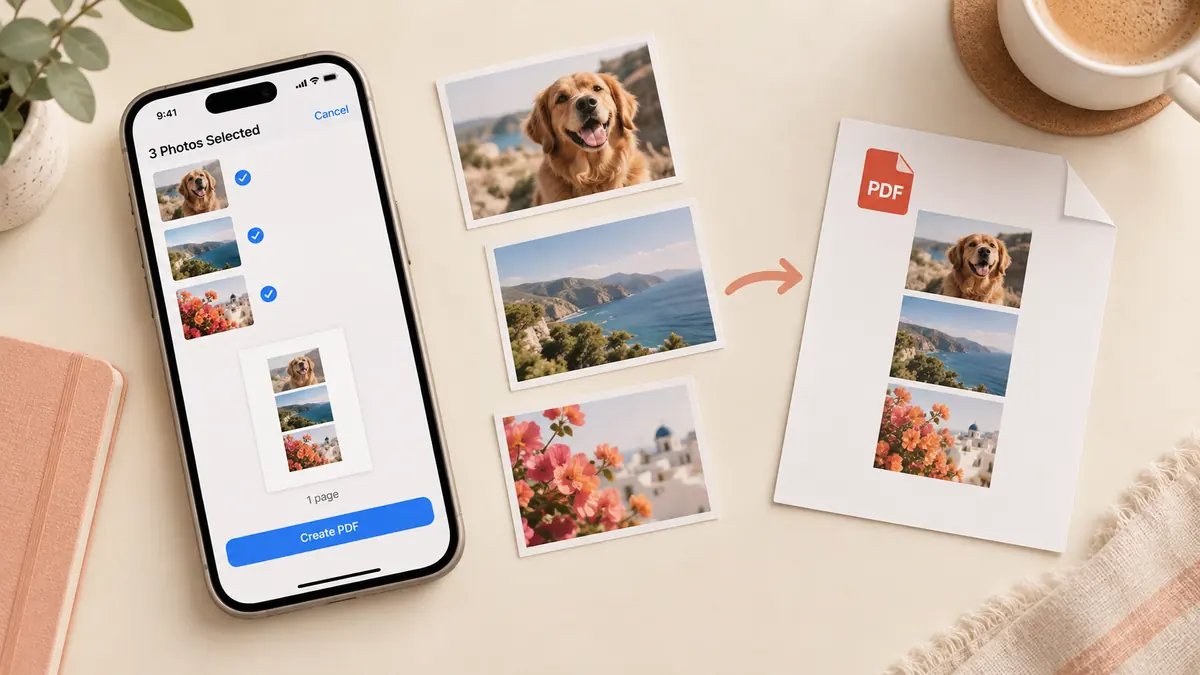
If the source is already a usable image, convert photos to PDF or open the local Image to PDF tool. Review page order and margins just as you would after a scan. Converting a photograph to PDF packages its pixels; it does not perform a new camera capture.
Can I fill in the scanned form afterward?
A scan can be a flat image rather than a form with interactive fields. See filling out a PDF for the distinction and signing a PDF for adding a visible signature.
Should I keep the paper?
Keep any original record required for your purpose. A readable scan alone does not establish that every institution accepts it as a replacement.
Sources & further reading
- Apple Support · Checked Oct 5, 2026
- Apple Support · Checked Oct 5, 2026