How to Prepare an Image PDF for Printing
Choose consistent paper dimensions, allow margins, and check the print preview before using paper.
Decide on the paper before exporting
A collection of photos can contain tall receipts, landscape pictures, and square screenshots. If the destination is paper, choose a consistent page size rather than leaving every page shaped like its image. A4 and US Letter have different dimensions; match the paper actually loaded in the printer.
Build a predictable document
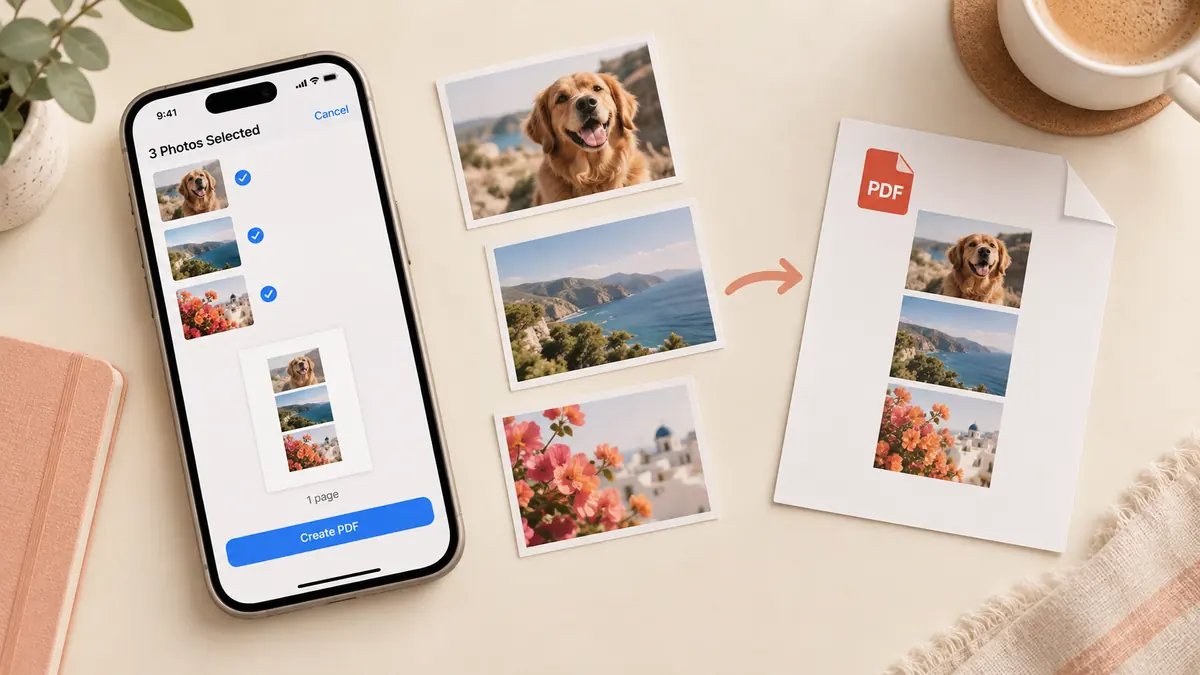
In Image to PDF, select the images, arrange them in reading order, and choose A4 or Letter. The tool keeps each image’s proportions and places it within margins. Landscape orientation can give a wide image more room without stretching it. Fit to image produces variable page dimensions and is usually less convenient for a consistent paper packet.
Check print scaling
Open the PDF’s print preview. Look at the selected paper size and whether the printing system is scaling pages to fit. A second scaling step can make already small text smaller. Test the page with the finest detail before printing an entire set.
For photographs, compare the source dimensions with the intended print area using Photo Size Calculator. A larger page cannot create missing image detail. Keep the source pictures and PDF so you can correct a layout problem without rescanning everything.
Sources & further reading
- Apple · Checked Oct 1, 2026