How it works
Enter a photo’s width and height, then the intended print resolution in pixels per inch (PPI). The printable dimensions are pixels divided by PPI. A 3000 × 2400 photo at 300 PPI works out to 10 × 8 inches and 7.2 megapixels.
Example: a 3000 × 2400 photo
At 300 PPI, the print dimensions are 10 × 8 inches. The image contains 7.2 million pixels. Three 8-bit RGB channels need 21.6 MB of raw pixel data before compression and additional file information.
Why this cannot predict JPEG size
The raw data estimate assumes three 8-bit RGB channels, or three bytes per pixel. It excludes alpha, metadata, and file headers. JPEG and HEIC compression depend on image detail and encoder settings, so the actual file can be far smaller. Use the file’s information panel for its measured size. Changing a PPI label alone neither adds detail nor guarantees print quality.
Formula
Megapixels = width × height ÷ 1,000,000. Print inches = pixel dimension ÷ PPI. Raw RGB bytes = width × height × 3. These formulas describe dimensions and raw data, not a JPEG’s measured file size.
Common questions
Does changing PPI add detail?
No. Without resampling, changing the PPI value changes the implied print size, not the number of pixels.
Why is my JPEG much smaller than the raw estimate?
JPEG stores compressed image data. Its file size depends on scene detail, quality settings, and metadata.
Is 300 PPI required for every print?
The appropriate print resolution depends on the printer, viewing distance, and image. Check the print service’s requirements.
Compare a small and a large print
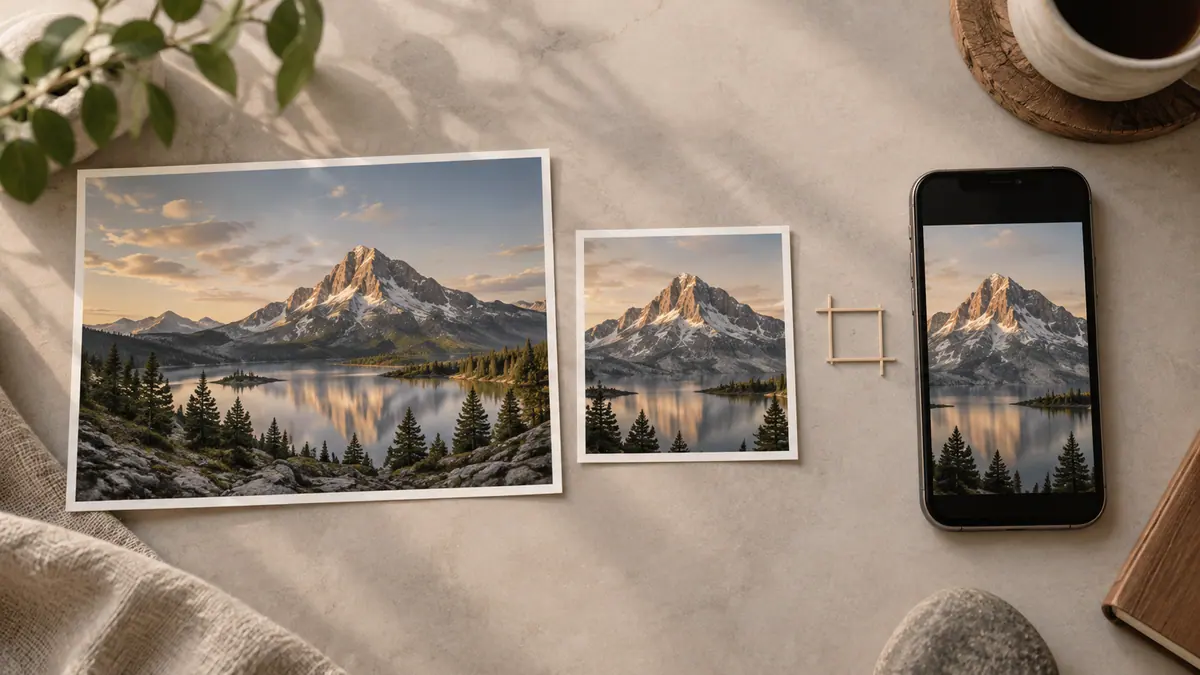
A 3000 × 2400 image produces 10 × 8 inches at 300 PPI. At 150 PPI, the same pixels cover 20 × 16 inches. The second number describes a larger allocation of the existing pixels; it does not mean the image has acquired more detail.
Use the print provider’s recommendation and your intended viewing distance to choose a useful PPI input. Inspect focus, motion blur, and the original crop as well. A high pixel count does not repair a blurred photograph, and increasing a metadata label cannot reconstruct lost detail.
Cropping changes the calculation
If you crop away half a picture, enter the dimensions of the cropped version rather than the untouched original. A print shape that differs from the image’s aspect ratio also needs a decision: crop, add borders, or choose a different print size. The Aspect Ratio Calculator can help compare those shapes before you order.
For example, a square crop may remove the people standing at the sides of a wide photograph. Check the final preview from the print service, especially where it shows trim or border areas. The calculator describes image geometry, not the service’s finishing process.
Understand the raw-data number
Three bytes per pixel assumes red, green, and blue channels with eight bits each. An alpha channel, higher bit depth, or additional working buffers changes memory needs. A browser or editor can hold several copies while processing, so the raw estimate is not a promise of how much memory an operation will require.
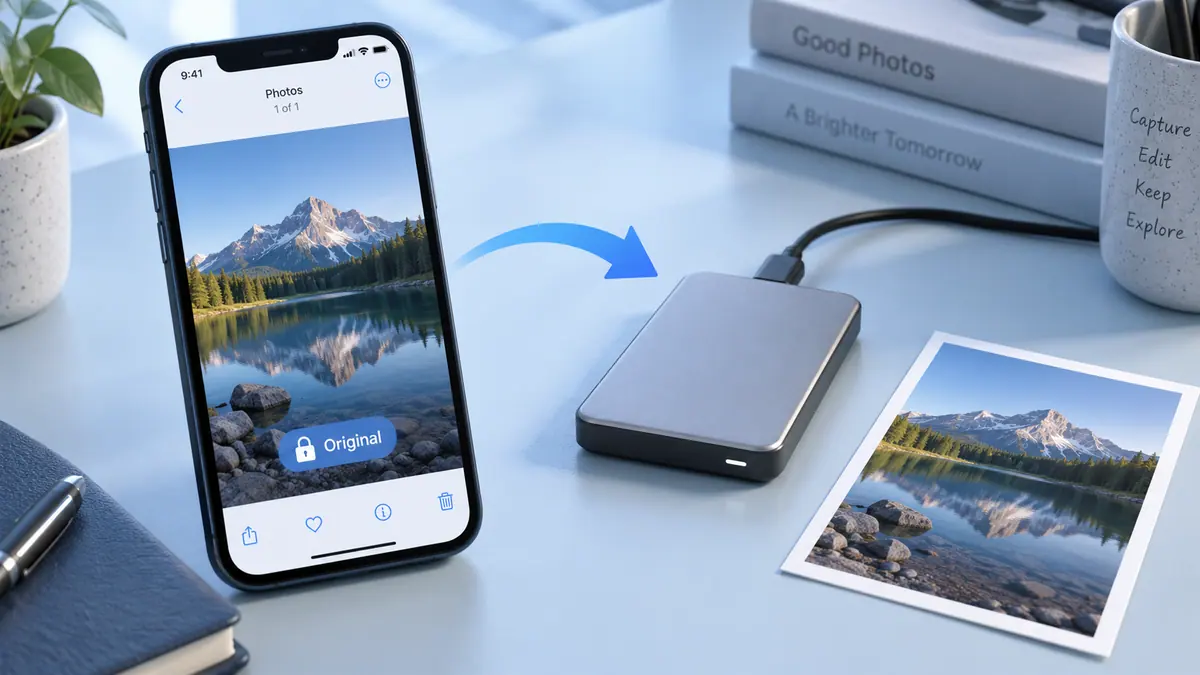
The actual JPEG or HEIC file uses compression and includes its own metadata. Read the saved file’s byte size when an email or upload limit is the issue. The Image Compressor can create a separate JPEG copy, and photo print size explained provides more context for print preparation. Keep a full-quality original for future crops and larger prints.