How to Organize Thousands of Photos on iPhone
To organize thousands of iPhone photos, begin with a small, meaningful group rather than trying to rename or sort the entire library at once. Decide what you want to find—events, people, work records, or favorites—then use albums and consistent review habits around that goal. Keep organization separate from deletion. An album is a way to group library items, not an independent backup, and removing a photo from the library can affect a synchronized collection. Verify important originals and backups before a large cleanup.
Start with a small, named collection
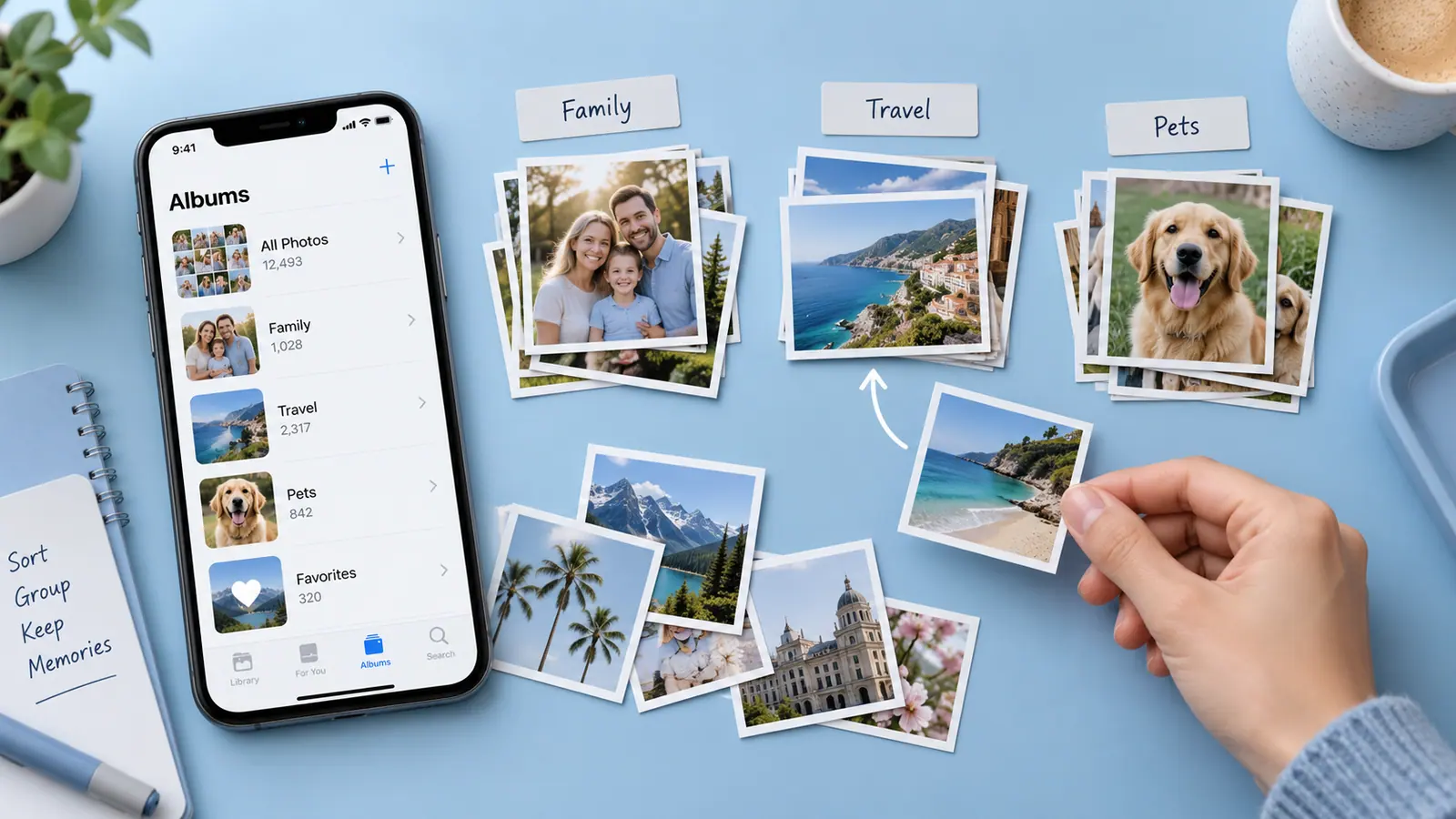
Pick a project, trip, or month you regularly need. Create an album for that purpose and add a manageable set of photos. Albums provide views into the library; they are not independent backup copies. A useful name such as 2026-09 Rome receipts is easier to search than New Album 7.
Use three separate passes
First gather the relevant images. Next choose favorites or the shots you intend to share. Only then consider removing unwanted items, after checking your backup and synchronization setup. Mixing selection and deletion makes it easier to discard the wrong frame.
For a library of ten thousand pictures, sorting one recent event teaches you whether the naming scheme works without committing to hours of reorganization. Keep the system small enough that you will use it again next week.
Make retrieval the test
Try finding a specific picture without scrolling through the whole library. If the album names do not help, revise them before expanding. Photos: Fast Photo Organizer is an SFByte option for exploring focused library views. Review its current listing and permissions; an organizing tool should support your decisions rather than replace a backup.
Choose a structure you will actually use
A practical starting structure might separate work records, family events, travel, and projects. Avoid making an album for every vague idea before you know whether it helps retrieval. Test the structure on one recent event and one older item that was difficult to find.
Use album names that explain the event or purpose. A year can distinguish repeated occasions; a project name can separate work references from personal pictures. You do not need a unique album for every photo, and an item can be useful in more than one grouping without being a new original file.
Work in reviewable batches
Pick one month or event, identify useful pictures, and add them to the appropriate albums. Review screenshots and temporary references separately from irreplaceable memories. Stop after a manageable batch and check that you can find the items again.
A dedicated organizer can make selection and navigation convenient, but the feature set depends on the app. Check the listing and the actual operation before assuming an album action deletes, moves, duplicates, or backs up a library item. Keep access limited to what the task needs.
Separate cleanup decisions from organization
Two similar photos can have different expressions or details. Do not treat visual similarity as proof that one is disposable. If storage is the problem, use finding large photos and videos and careful photo cleanup to make a separate review queue.
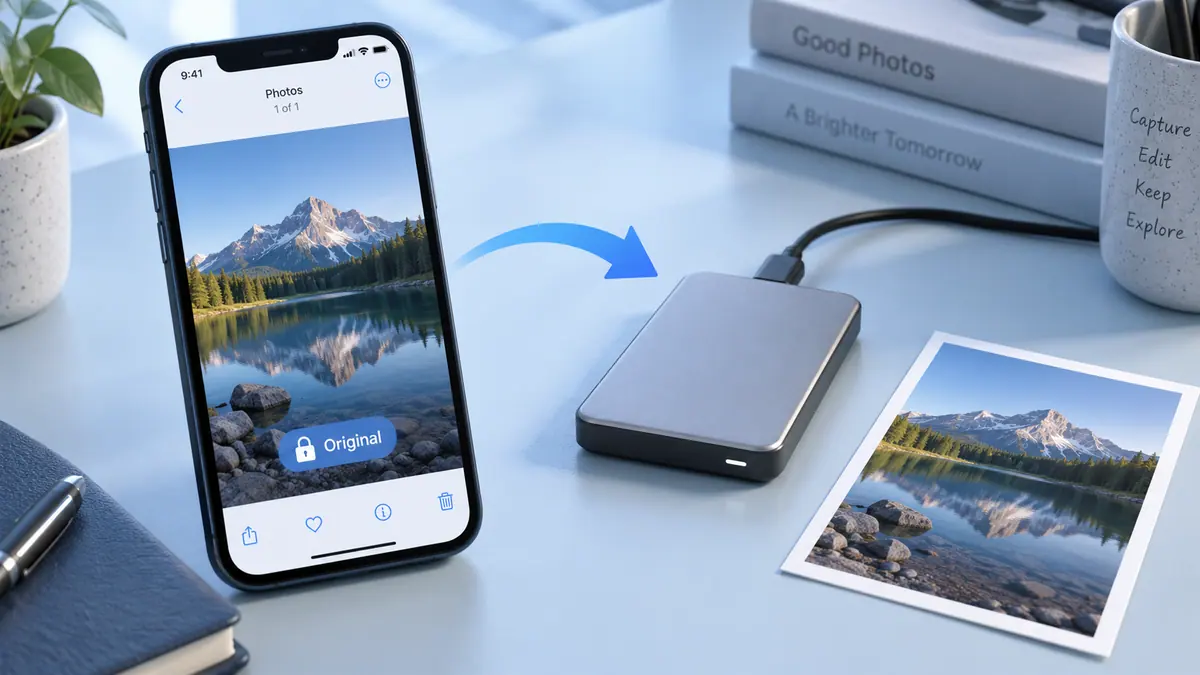
Before deleting many files, confirm whether iCloud Photos is synchronizing the library. See backing up original photos for the difference between a synchronized collection and an independent copy.
Does adding an album create another full-resolution copy?
An album normally organizes references to items in the photo library. Do not use album count as a measurement of storage or as evidence of a backup. Exported copies are a separate consideration.
Should I finish the whole library in one session?
A repeatable small batch is usually easier to verify. Once the system works, apply it to older material and spend a few minutes maintaining new arrivals rather than periodically rebuilding everything.
Sources & further reading
- Apple · Checked Oct 1, 2026