How to Clean Up iPhone Photos Without Losing Important Pictures
Clean up an iPhone photo library in small, reviewable groups: check your backup and iCloud Photos setup, remove obvious unwanted items, inspect duplicates and similar shots, and then organize the pictures you keep. Avoid accepting an entire cleaner app’s selection without looking through it. Deleting from a synchronized library can affect other devices, and Recently Deleted is a temporary recovery area rather than a backup. If the immediate problem is storage, identify the largest useful category first; deleting hundreds of tiny screenshots may save less than reviewing a few long recordings.
Set a goal that does not require deleting everything
Choose one outcome for the session: clear obsolete screenshots, reduce a burst to the frames you want, or free enough room for tomorrow’s recording. A vague plan to clean the whole library encourages rushed decisions. Start with a month or event you understand, rather than a folder of old family pictures whose context you have forgotten.
Record the current device storage if freeing space is the goal. Your iCloud allowance is a separate figure. The device versus iCloud storage guide explains why a change to one number may not change the other.
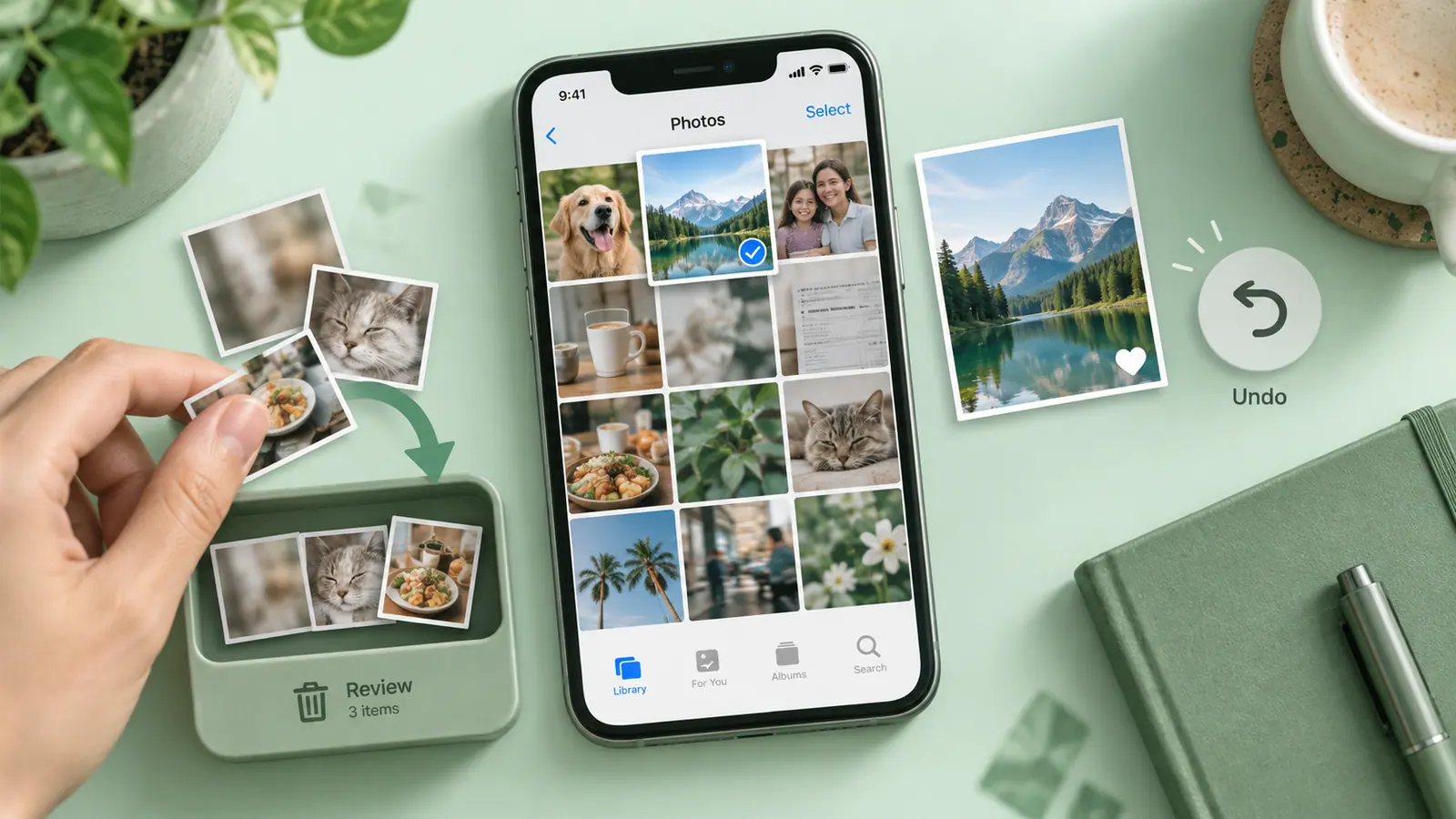
Use a reversible review sequence
- Confirm that valuable originals exist in an independent backup you can open.
- Review obvious unwanted captures such as failed shots and expired reference images.
- Inspect detected duplicates separately from merely similar pictures.
- Delete a small confirmed selection, then check the remaining library and albums.
- Organize the keepers into a few useful albums.
- Revisit available storage after changes finish processing.
Apple documents a 30-day recovery window for deleted photos under normal Recently Deleted behavior. Do not use that window as your only safety plan. Permanently removing items is a separate decision, and synchronized deletions can propagate elsewhere.
Duplicates and similar photos need different judgment
Two files that look alike in a grid may preserve different expressions, edits, crops, or moments. Open them at a useful size. Keep the sharper face or more complete document, but consider why you saved each version. An edited delivery copy and its original can both have a purpose.
Photo Cleaner — Storage Cleaner is an SFByte option for reviewing duplicate, similar, and unwanted images. Its suggestions are candidates for your decision. Current features and permissions should be checked in the installed version. Follow the duplicate photo review guide for a more focused comparison process.
Separate organizing from removing
Albums are views into the library, not independent backups. Removing a photo from an album and deleting it from the library are different actions. Read the confirmation carefully when your aim is simply to tidy an album. Use organizing thousands of photos when finding things is the problem but you do not need to remove them.
A short naming scheme can help without creating dozens of folders. For example, one album for a current work project and another for this year’s receipts may solve a recurring retrieval problem. Add more structure only when you can explain what it helps you find.
Work around common cleanup surprises
If storage does not fall immediately, check whether deleted items are still recoverable and whether you are watching device or cloud storage. Do not respond by deleting another large batch without understanding the first result. The storage-after-deletion guide describes the distinction.
If a cleaner cannot see a picture, check its photo access before concluding that the image is damaged. Limited photo permissions can be appropriate for a small task but insufficient for a library-wide review. Broaden access only when you understand why it is needed.
Questions before the final delete
Should I keep only favorites?
Favorites are useful labels, but they may not include documents, reference photos, or important images you never marked. Review by purpose, not by one flag alone.
Can I delete photos from the phone but keep them in iCloud?
Do not assume that deleting a synchronized original creates that arrangement. Apple’s storage optimization is a different mechanism. Understand your synchronization settings and keep an independent copy before removal.
How much space will this save?
There is no honest fixed percentage for every library. Measure the files and the storage category you are changing. Use the Storage Calculator for a planning scenario, not as a scan of your device.