Why Is Storage Still Full After Deleting Photos?
If iPhone storage is still full after deleting photos, first check the same storage screen that showed the warning. Deleted items may still be recoverable in Recently Deleted, while an iCloud warning refers to a different capacity from local device space. The Photos category may also be only part of the problem. Confirm what was removed, protect the originals you still need, and identify the category that remains large before making another deletion.
Identify which storage is actually full
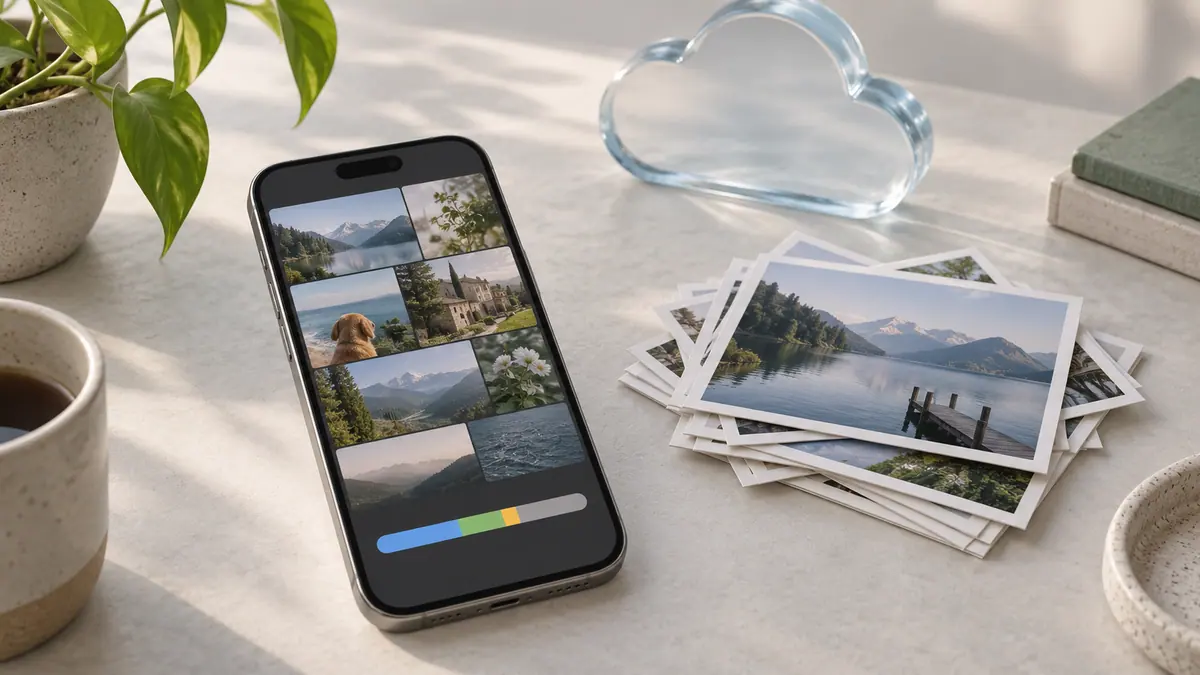
Open Settings → General → iPhone Storage and note available space and the largest categories. Compare this with the location of the original warning. A cloud quota is not the same as the storage inside your phone; see iPhone storage versus iCloud storage.
Our suggested first step is a small record: the screen you checked, its available space, the time, and the action you just took. Revisit that same screen when comparing the result. Do not treat two different counters as a before-and-after test.
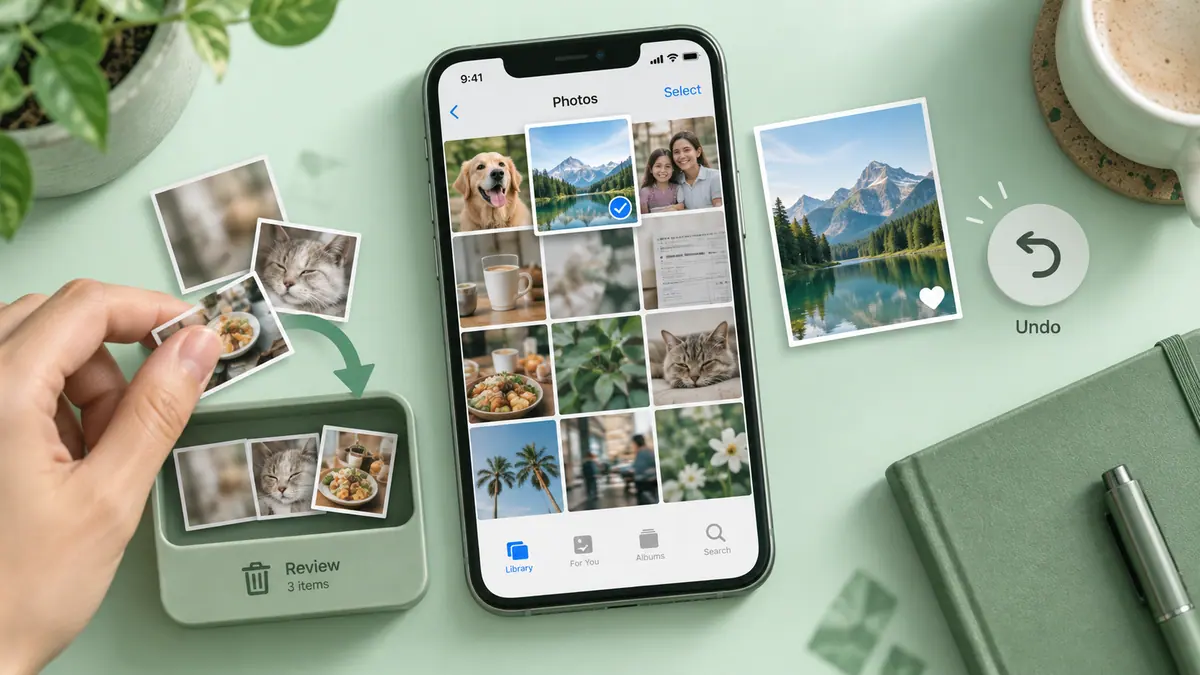
Check the recovery area before removing anything else
Apple describes a normal 30-day recovery period in Recently Deleted. In its current instructions, open Photos → Collections and find Recently Deleted under Utilities. Unlock the collection if prompted and inspect its contents. Apple explains recovery and permanent deletion here.
Recover an accidental selection first. If you deliberately choose permanent deletion, verify any independent copies you intend to keep before confirming it. Deleting from this recovery area is not a reversible cleanup step. With iCloud Photos, deletion can affect the other devices in the same synchronized library.
The recovery window also has an important limit: Apple’s iCloud storage guidance says that when the iCloud limit has been exceeded, deleted items may be removed immediately and unavailable in Recently Deleted. Do not depend on recovery as your backup strategy.
Follow the category that remains large
| What you see | What to investigate next |
|---|---|
| Photos is still the largest category | Recovery items, remaining videos and how your photo library is stored |
| An app’s documents or downloads are large | That app’s own storage and download controls |
| iCloud capacity is full but local space is available | Cloud usage, rather than another broad phone cleanup |
| Computer and phone totals disagree | Compare the same device view; categories can be reported differently |
Apple’s device-storage guide distinguishes app data, Photos, downloaded media and other categories. It also distinguishes offloading an app, which keeps documents and data, from deleting an app and its related data. Neither action should be treated as a substitute for deciding which personal files matter.
A repeatable check without deleting everything
Choose one known, unwanted item or download whose location you understand. Record the relevant category, perform that one action, and check the outcome before moving to another category. If the number does not behave as expected, stop and clarify which copy was affected.
This procedure is a diagnostic suggestion, not a promise that a specific number of megabytes will appear instantly. We have no measured recalculation time for your device, so a fixed “wait five minutes” claim would be misleading. Avoid cycling through unrelated cleaner suggestions just to make the number move.
When another app is relevant
A photo-management app can help you review which images you want to retain. It cannot increase your phone’s physical capacity or replace iCloud account controls. Use why Photos occupies storage to identify the task before choosing a cleaner.
Before a broad cleanup, follow the original-photo backup checklist. If you need space for an update or a new recording, freeing storage without deleting everything offers a wider decision path. The Storage Calculator helps budget capacity from numbers you supply; it does not scan the phone or predict cleanup savings.
When to ask for help
If a category remains unexpectedly large, retain the storage-screen details, device and iOS version, what you removed, and where you removed it. That gives support a specific problem to assess. Do not erase the device solely because one counter has not changed, and do not share screenshots containing account details publicly.
Sources & further reading
- Apple Support · Checked Oct 3, 2026
- Apple Support · Checked Oct 3, 2026
- Apple Support · Checked Oct 3, 2026