How it works
Enter total capacity, space already used, and the amount you want to keep free. Then enter an average file size. Available GB = capacity − used − reserve. Estimated file count = available GB × 1,000 ÷ average MB, rounded down.
Example: leave room for new photos
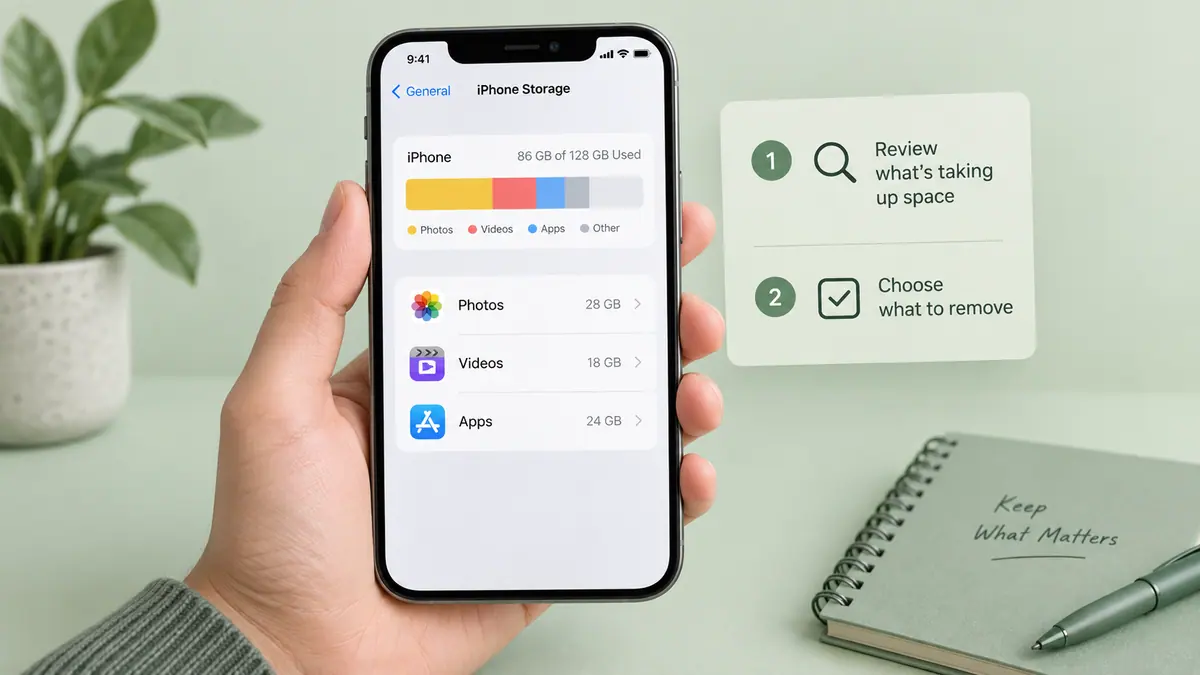
With 128 GB capacity, 90 GB used, and a 10 GB reserve, you have 28 GB for the planned files. At an assumed average of 5 MB per photo, the arithmetic estimate is 5,600 photos. Use representative measured sizes to choose the average.
Use a representative average
A photo library contains different formats and sizes. Check several real files rather than choosing the smallest one. Video sizes can vary dramatically with duration and bitrate. The calculator uses decimal GB and MB; 1 GB is 1,000 MB. It does not read your device’s capacity, cloud quota, or filesystem overhead. Leave room for temporary exports as well as the finished files.
Common questions
Does the calculator read my phone storage?
No. You enter all figures. Device storage and cloud storage are separate capacities; calculate them separately.
Are GB and GiB the same?
No. This calculator uses decimal units: 1 GB = 1,000 MB. Binary units such as GiB use powers of 1024.
Why keep a reserve?
Downloads, temporary exports, and system activity also use storage. Choose a reserve for your workflow; the calculator cannot predict future system usage.
Plan for the operation as well as the result
A phone can need space for both the original and an exported copy during an edit. Temporary processing data and downloads may require additional room. Choose a reserve that reflects what you plan to do rather than filling every calculated byte with new files.
For example, if you will bring home several long recordings, estimate those recordings separately from still photos. A library average dominated by small screenshots will underestimate the room needed for video. The Video Size Calculator gives a duration-and-bitrate estimate you can use as one planning input.
Build a useful average
Inspect a representative set of actual files: ordinary photos, detailed photos, screenshots, and the video lengths you normally record. Add their sizes and divide by their count if you need a combined average. If one category behaves very differently, calculate it separately instead of hiding it in a single number.
The tool rounds the estimated count down because a partial file does not satisfy the plan. That does not guarantee the final whole file will fit; real sizes vary and your device may use space during the operation. Recheck available capacity before starting a large transfer.
Separate cloud capacity from device capacity
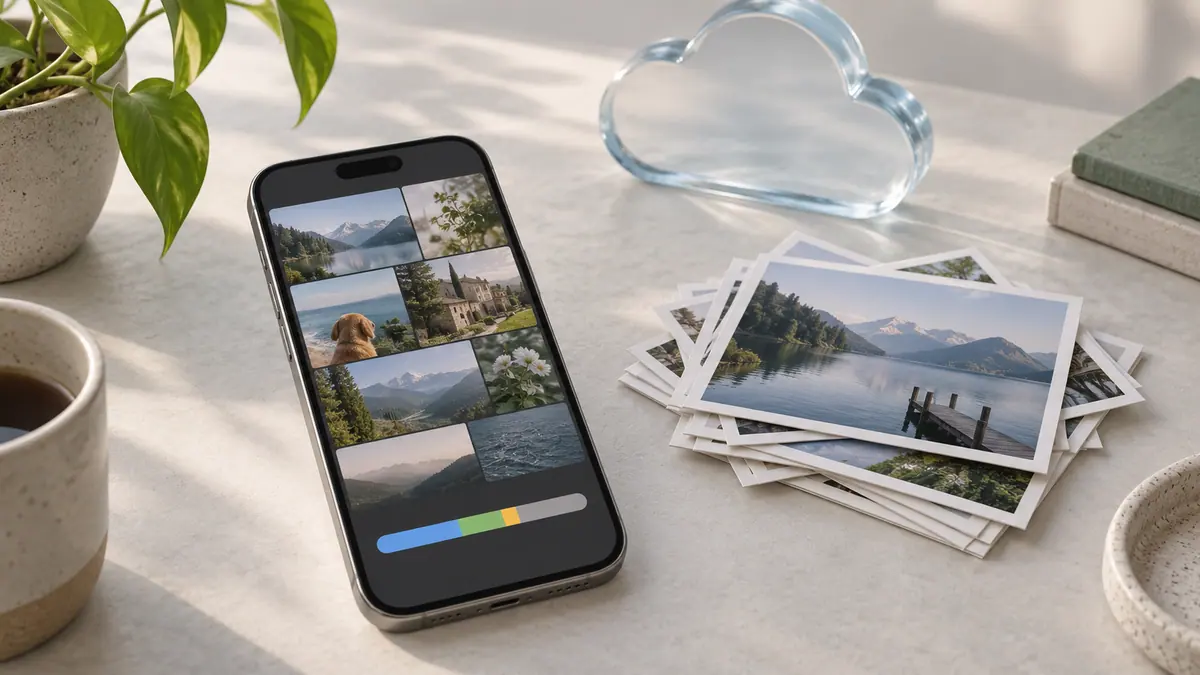
An iCloud storage allowance is not additional physical room inside an iPhone. Synchronization and optimization can change which copies are local, but they do not turn two capacity figures into one interchangeable pool. Our iPhone versus iCloud storage guide explains the distinction.
For a trip, prepare essential downloads and verify that important files open offline before leaving. See planning phone storage for travel. If you need room now, start with freeing space without deleting everything and confirm backups before removing personal files. This calculator does not scan a library, identify safe deletions, or guarantee that an app cleanup will recover a particular amount of space.