iOS 27 Photo Storage Settings: Where to Find Optimize Storage
Apple’s updated iPhone storage guidance describes how local device space and iCloud Photos optimization fit together. Before changing a setting after an iOS update, identify which capacity is full and check where your originals are stored. An updated settings path does not prove that an update permanently increased your library size. Keep a record of the device’s available space and the category using it, then change one relevant setting at a time. This article explains published support guidance, not a tested fix for an unverified storage bug.
Source announcement:
What the updated guidance says
Apple’s storage guide, updated October 1, includes an iOS 27-specific step: within iCloud Photos settings, open iPhone Storage to find the optimization controls. It also describes full-resolution cloud originals and smaller device copies when optimization is enabled.
Why it matters for a cleanup
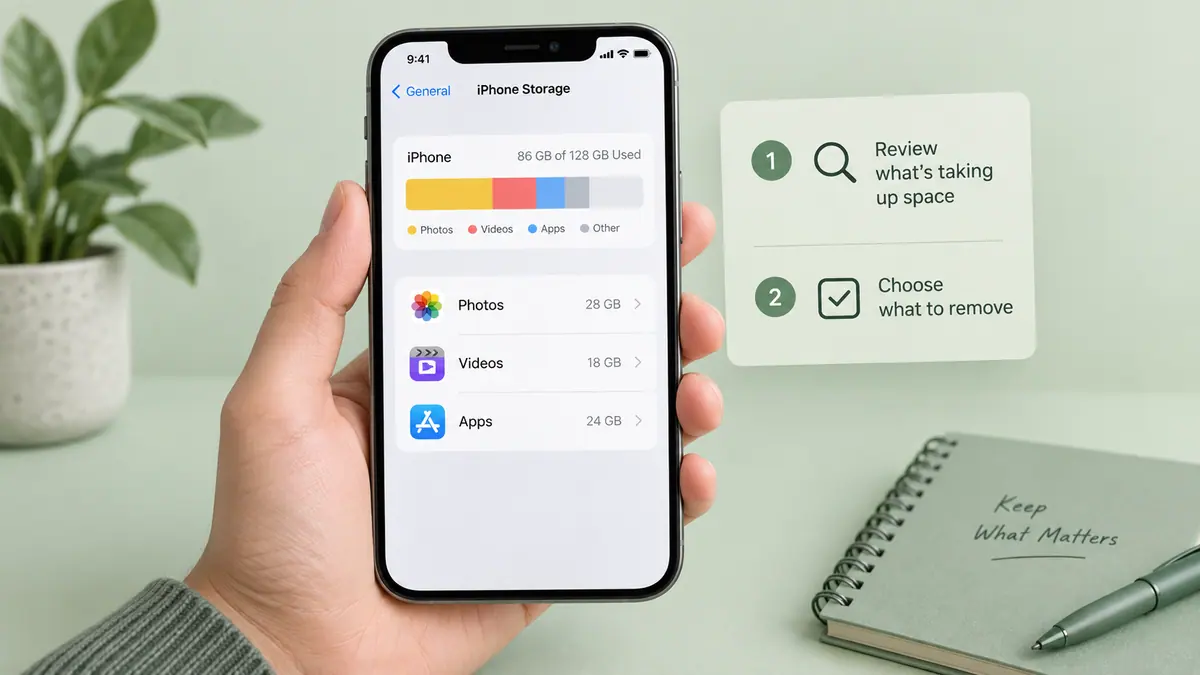
A different settings path is not evidence that an update has permanently consumed your storage. First identify whether the warning concerns the device or the cloud account. Record the available space and the largest category before changing settings. That gives you something concrete to compare afterward.
A practical check
Open a recent photo, confirm synchronization has completed, and understand which copies are local. Before deleting anything, make sure the material you want to keep exists in an independent, verified backup. Removing an item from a synchronized library can affect other devices.
See iPhone storage vs iCloud storage for the distinction, then use the Storage Calculator to plan headroom for new photos and exports. This article explains Apple’s published guidance; it does not claim a measured storage increase or a tested fix for an iOS bug.
Avoid comparing different storage counters
Record the same device-storage screen before and after a change. A cloud quota, a local Photos category, and an individual exported file answer different questions. Comparing them as if they were one measurement can make an ordinary synchronization state look like a new fault.
Use why Photos uses storage to identify likely categories of material. When space is urgently needed, start with freeing storage without deleting everything and check what can be downloaded again.
Treat deletion as a separate decision
Before removing personal photos, verify the originals you intend to retain. A second device showing the same synchronized library is not automatically an independent backup. See backing up original photos for the verification step.
This support-page update is dated October 1. It should remain tied to that documented change, rather than being repeatedly republished as a new storage incident. A new bug report would need its own evidence and a clear description of the affected setup.
Sources & further reading
- Apple · Checked Oct 1, 2026