How to Review Duplicate Photos on iPhone
Distinguish duplicates from similar shots before merging or deleting.
Start with detected duplicates
Photos provides a Duplicates collection when it identifies matching items. Review a small group first. Similar-looking burst shots are not always interchangeable: one may show a better expression, a sharper subject, or a detail that is absent in the other.
Decide what you want to preserve
Look at image quality, edits, dates, and the context in which you use each copy. If you use a third-party cleaner, review its proposed selection instead of assuming every preselected picture should go. An app’s similarity grouping is a starting point for a decision.
Keep cleanup recoverable
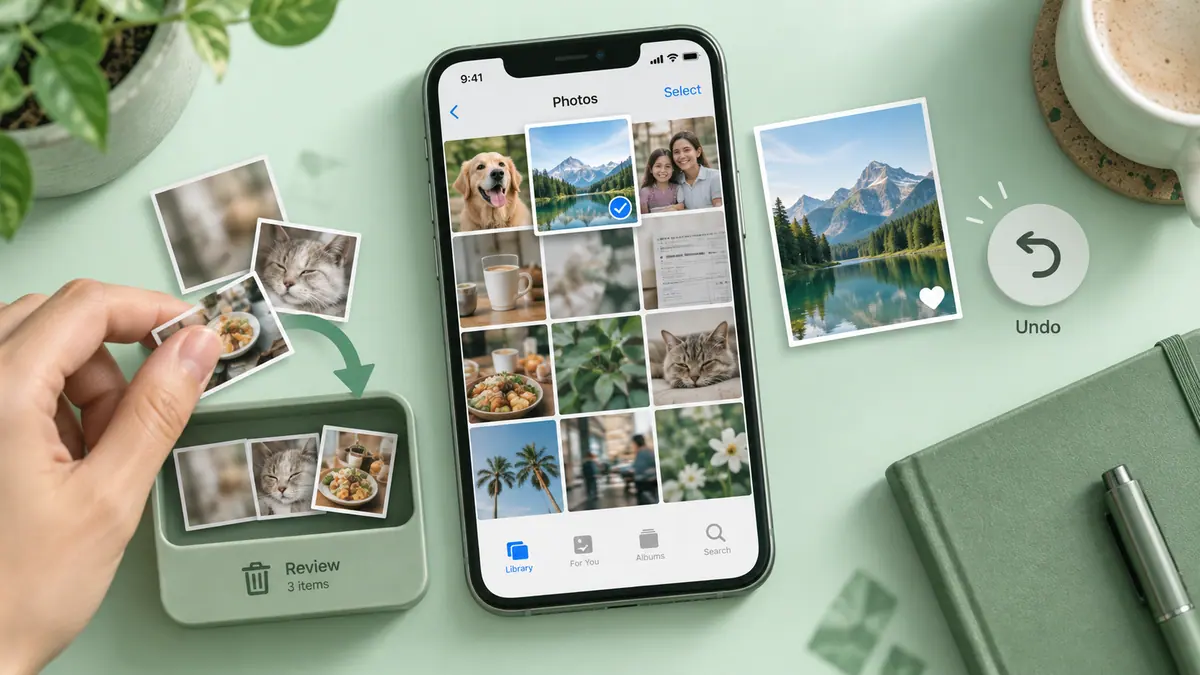
Confirm your backup and synchronization setup before a large operation. Merge or delete a small set, then check the result in the library and in any albums you rely on. Do not empty recovery areas simply to make the storage number change faster.
Photo Cleaner — Storage Cleaner is an SFByte option for reviewing a library. Check current features and permissions in its listing. If the Duplicates collection is empty, that does not establish that every picture is unique; it only tells you what the current detection process has surfaced.
Sources & further reading
- Apple · Checked Oct 1, 2026