Guide · Photos & Camera
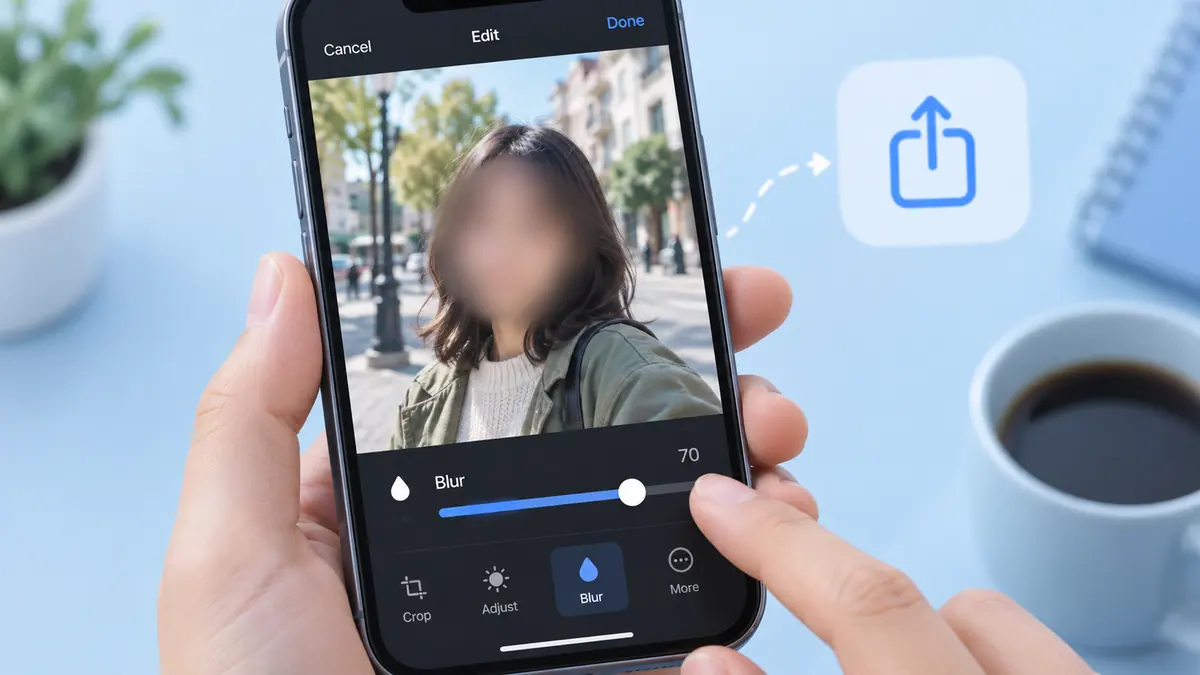
How to Blur a Face in a Photo Before Sharing
Create a separate copy and inspect the rest of the scene for identifying details.
3 min readClear answers to everyday iPhone and mobile problems.
Create a separate copy and inspect the rest of the scene for identifying details.
3 min read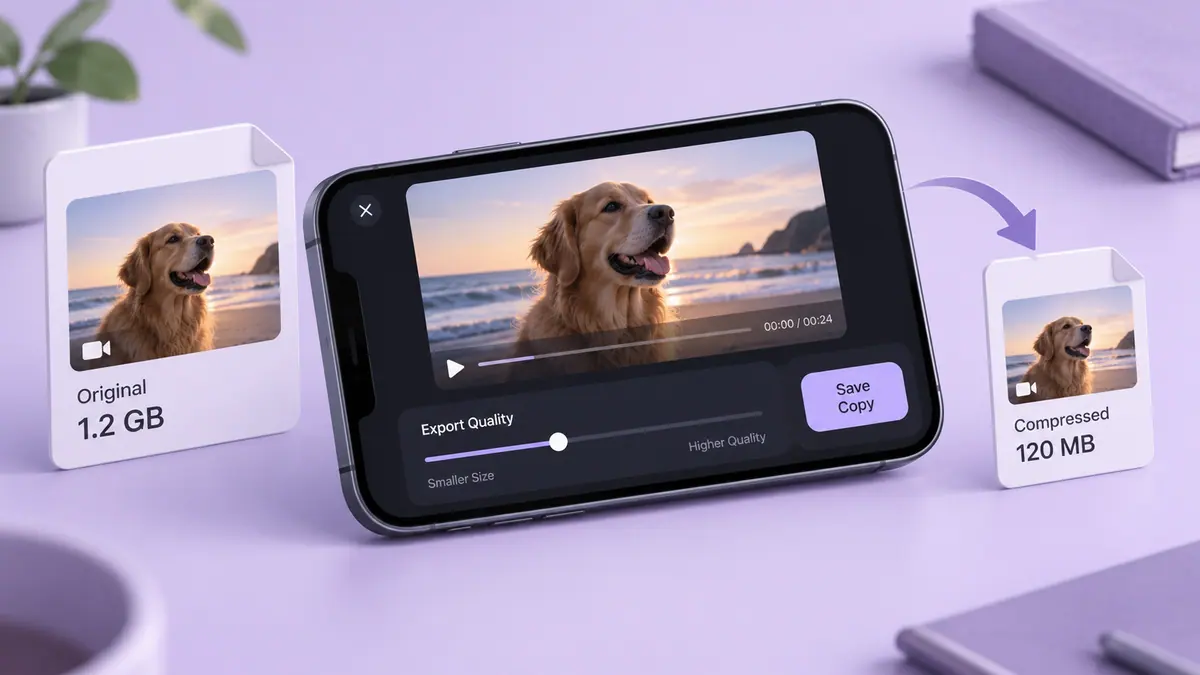
Choose Photos trimming, an iMovie export or a compression app. Work backward from a 25 MB limit and check size, sound and visible detail.
5 min read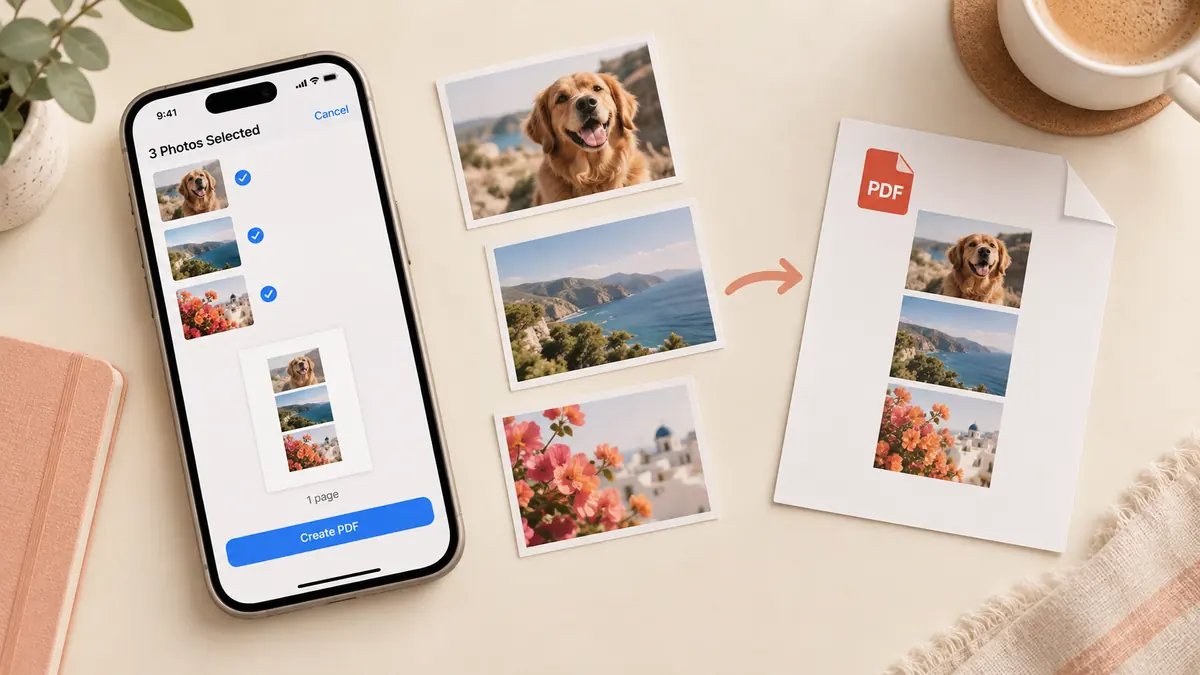
Turn one or multiple iPhone photos into a PDF. Compare Preview export with a local browser converter, arrange pages and check quality and file limits.
5 min read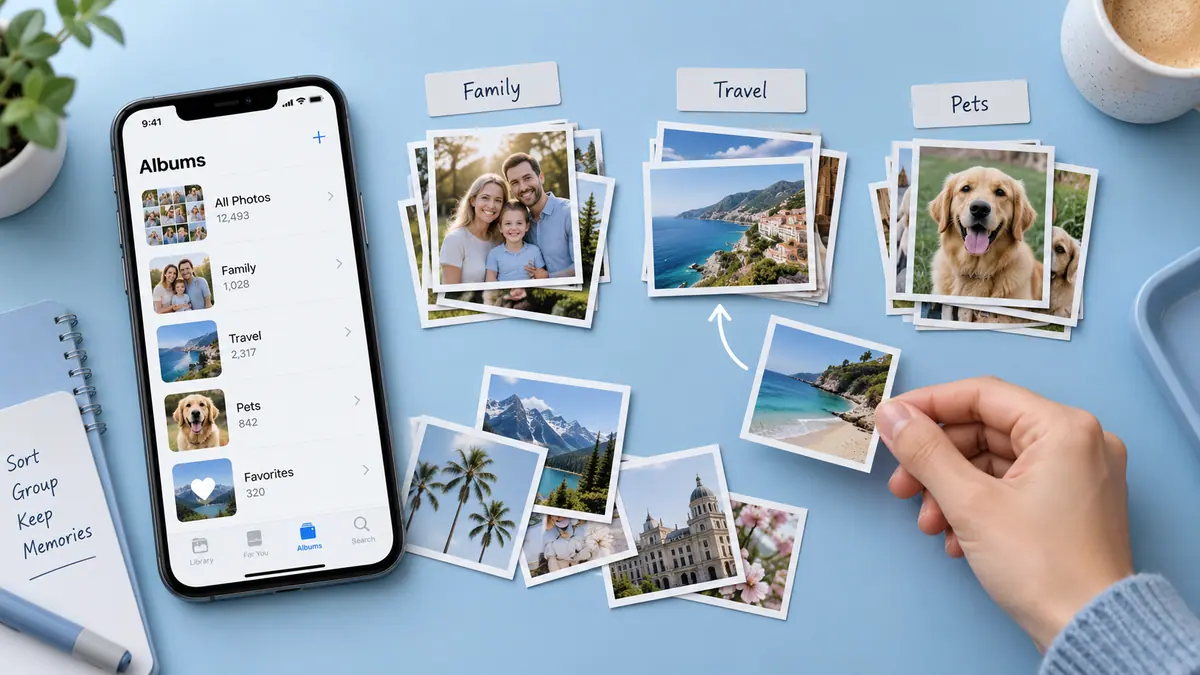
Build a useful library in small passes without confusing albums with backups.
3 min read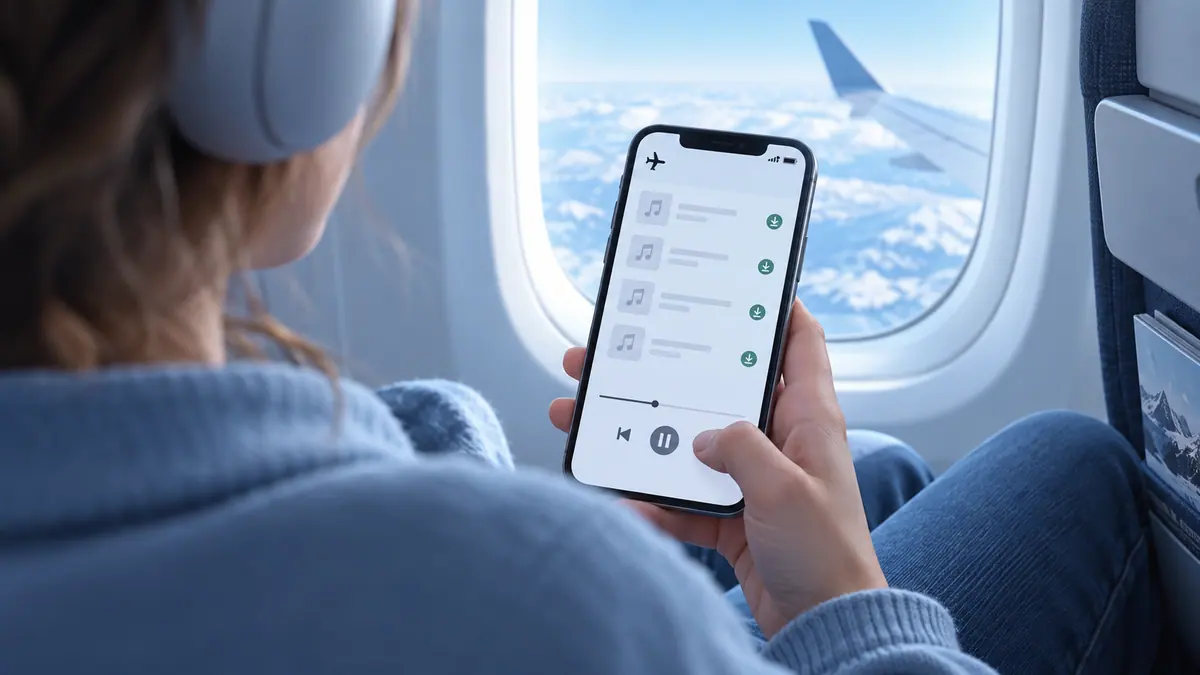
Prepare real local MP3 files, import a small playlist, and check playback without Wi-Fi or cellular access before relying on offline listening.
4 min read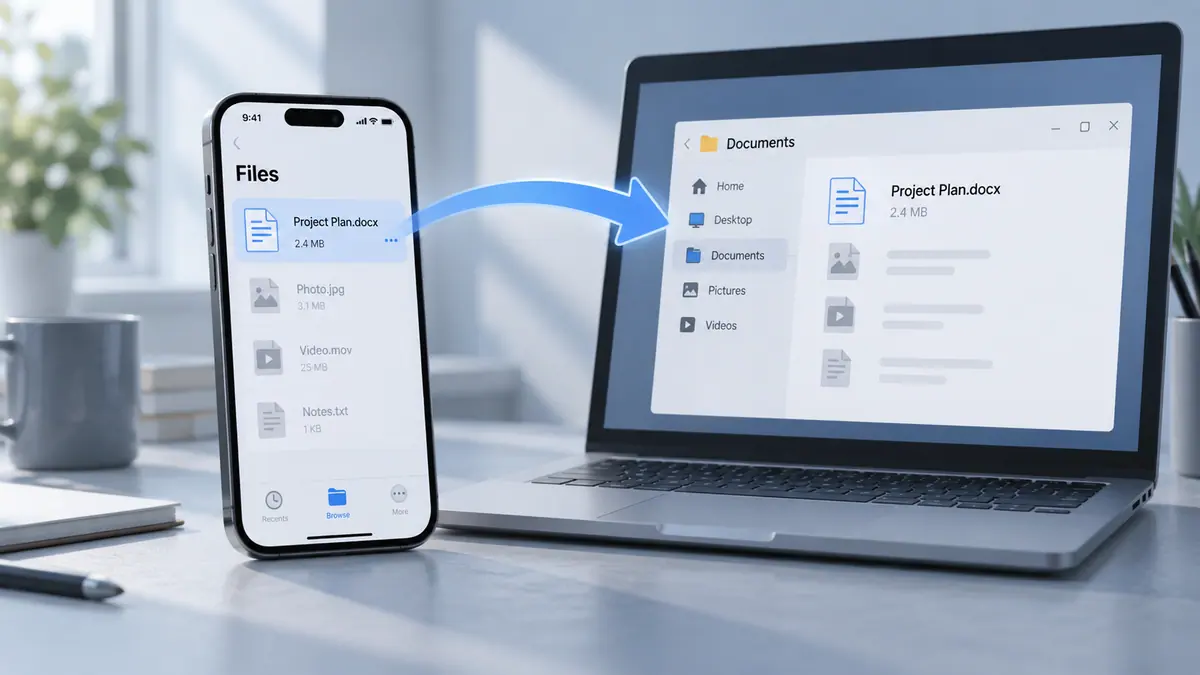
Copy iPhone documents with Apple Devices File Sharing, import photos and videos, or download cloud files to Windows. Fix missing files and verify the result.
6 min read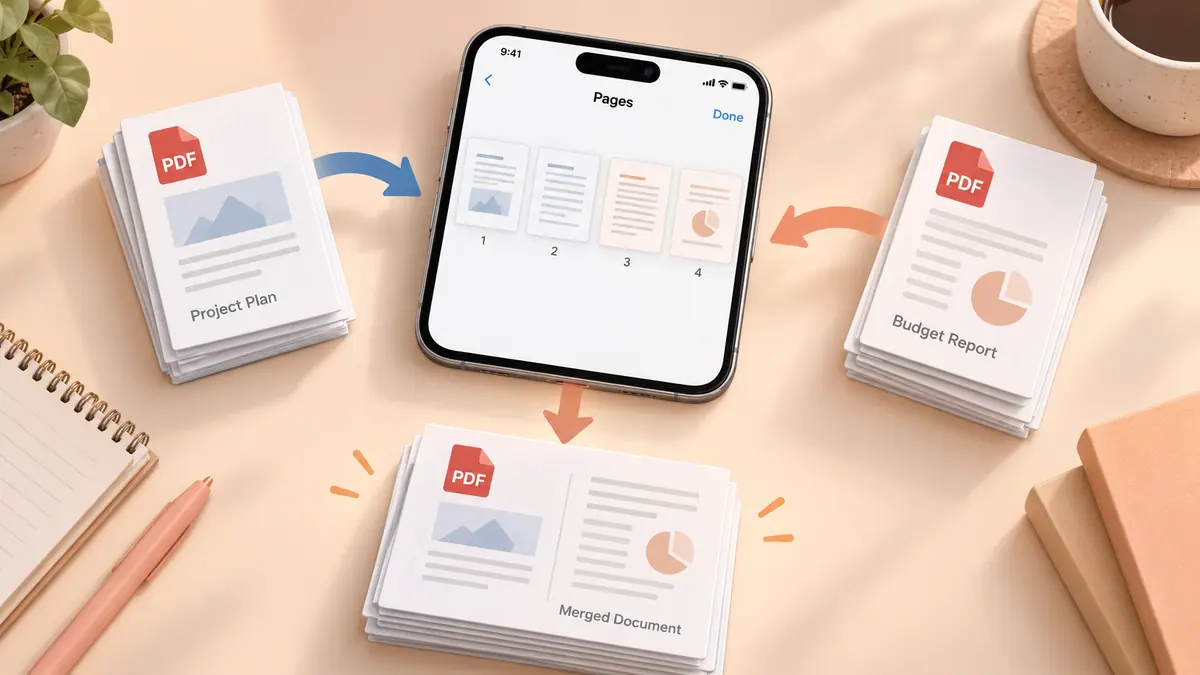
To combine existing PDF documents on iPhone, work on a copy of the first file and insert the other documents using Preview’s page controls where supported.
4 min readReduce a PDF on iPhone by exporting a smaller copy in Preview where that option is available, or by reducing oversized source images before rebuilding an image-based document.
4 min readRotate a sideways PDF page by changing the page orientation in a PDF editor, then saving and reopening the document.
4 min readTo save an existing iPhone screenshot as a PDF, export the image as PDF in Preview on supported iOS versions, or add it to Image to PDF in your browser.
4 min readSave selected PDF pages on iPhone by duplicating the document and removing unwanted pages from the copy in a supported PDF editor, such as Preview on compatible iOS versions.
4 min readCreate a useful PDF summary by first defining the questions you need answered, then checking the generated points against the original document.
4 min read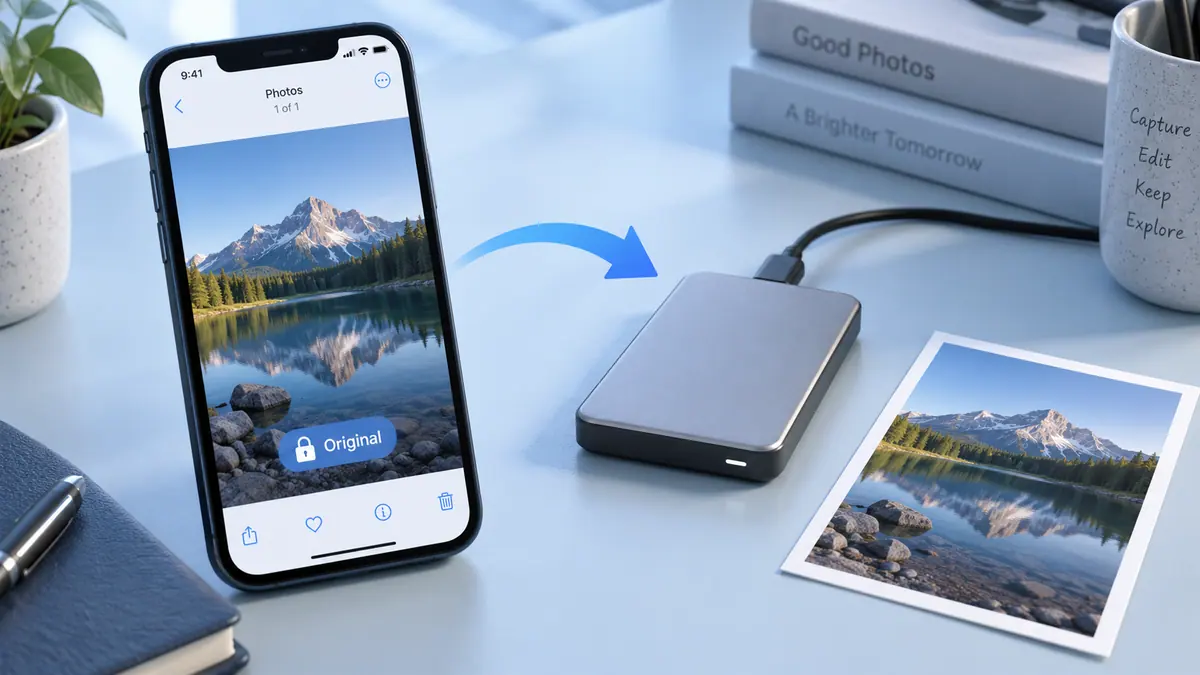
Before editing valuable iPhone photos, keep a separate copy of the originals in a destination you control and verify that those files open correctly.
4 min read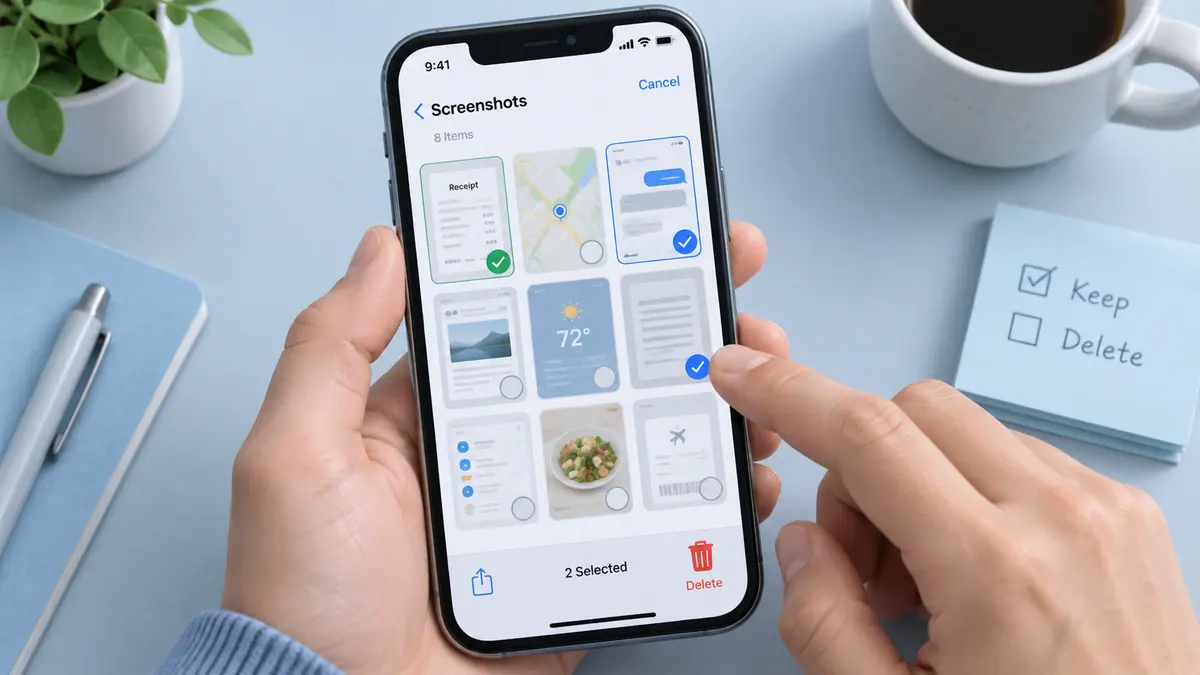
Delete unwanted iPhone screenshots by reviewing the Screenshots collection in Photos, keeping useful records elsewhere, and removing a small confirmed selection at a time.
4 min readCheck Recently Deleted in Photos first when an iPhone picture was removed by mistake.
4 min readTo share an iPhone photo without its stored location, review the sharing options in Photos and turn Location off before sending where that control is available.
4 min readChoose the right images, put them in order, and review what you are about to send.
1 min readConvert pixels to inches and separate a useful estimate from a quality promise.
1 min read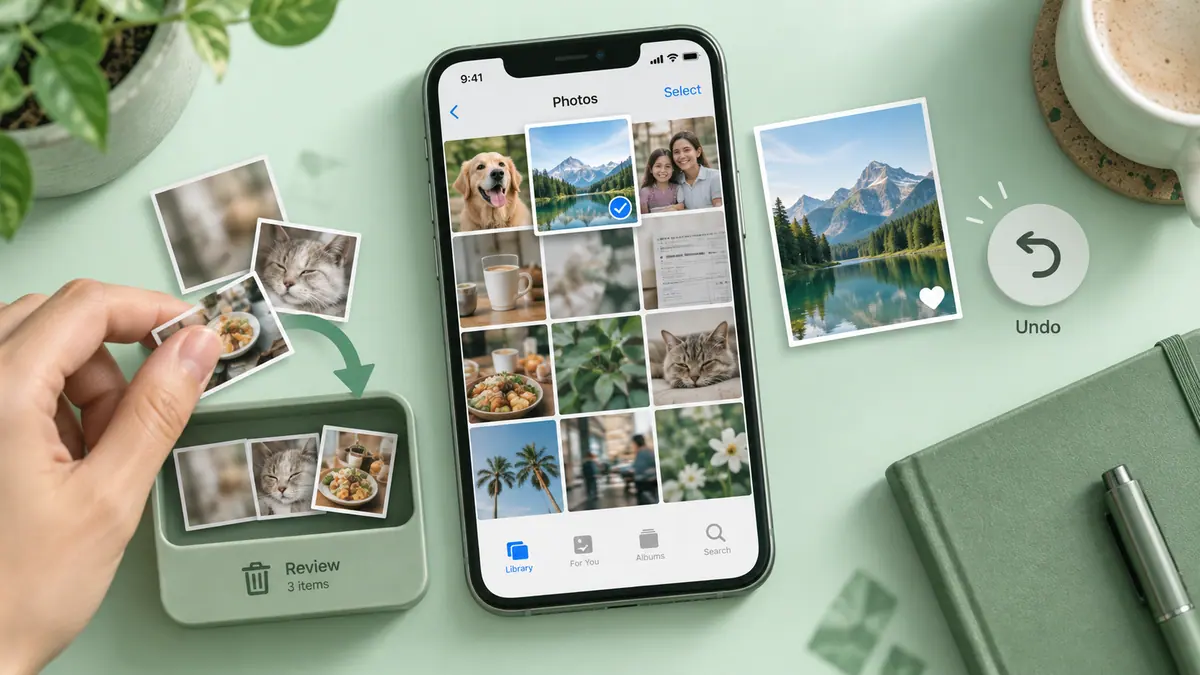
Clean up an iPhone photo library in small, reviewable groups: check your backup and iCloud Photos setup, remove obvious unwanted items, inspect duplicates and similar shots, and then organize the pictures you keep.
4 min read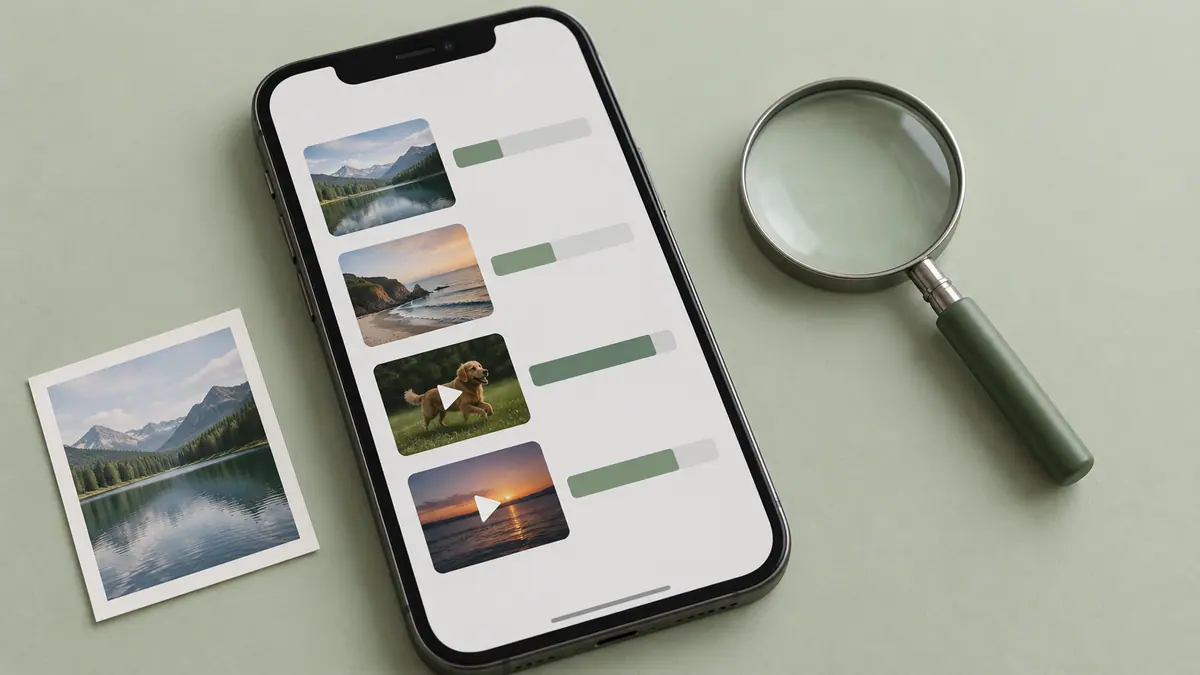
Find large photos and videos by starting with the iPhone Storage breakdown, then narrowing the Photos library to likely candidates such as long videos and high-resolution captures.
4 min read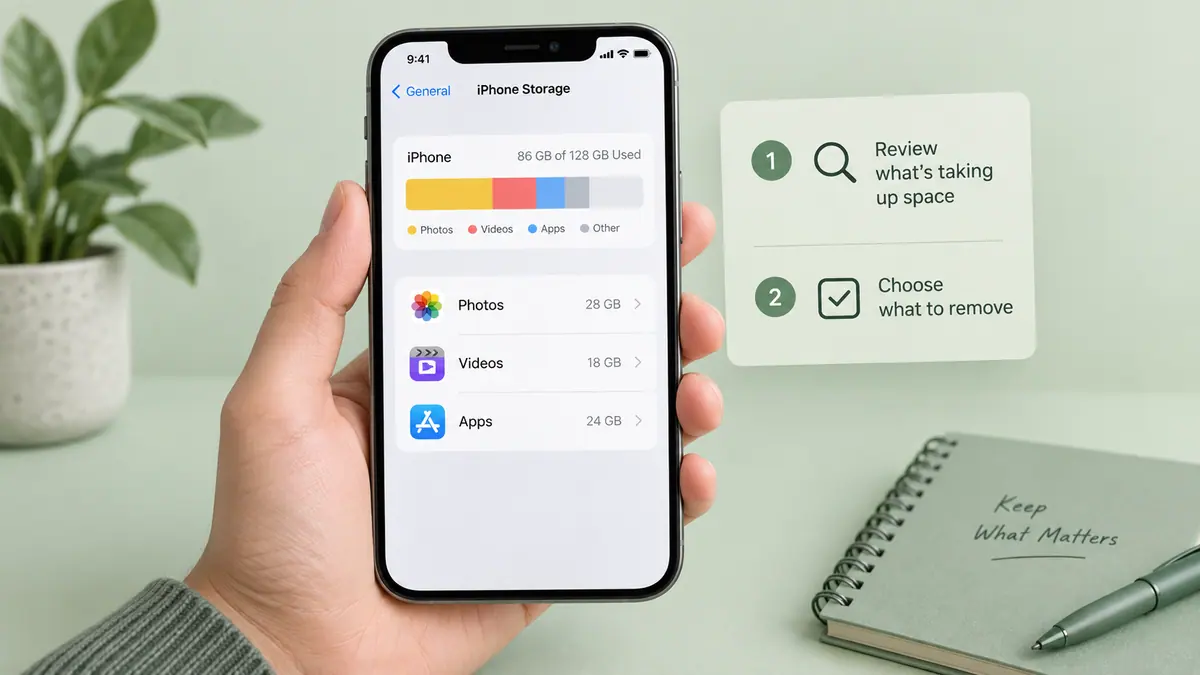
Free iPhone storage by targeting replaceable downloads and checked duplicate exports before removing valuable originals.
4 min readPhotos can use substantial iPhone storage because your library contains original images, long or high-bitrate videos, and copies needed for your current viewing and editing workflow.
4 min readBudget for new recordings, offline files, and the space needed to export.
1 min readDistinguish duplicates from similar shots before merging or deleting.
1 min read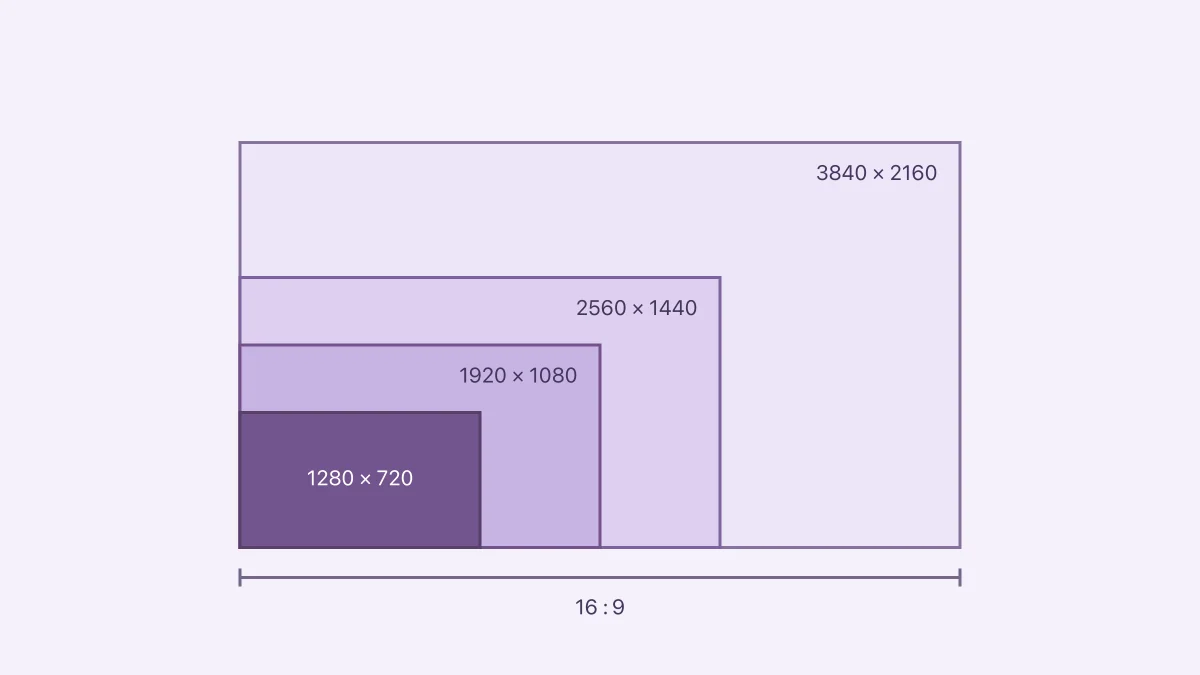
1280×720 is 16:9, commonly called 720p HD. Use the calculator, compare 1080p, 1440p and 4K, and resize without stretching or confusing ratio with resolution.
4 min read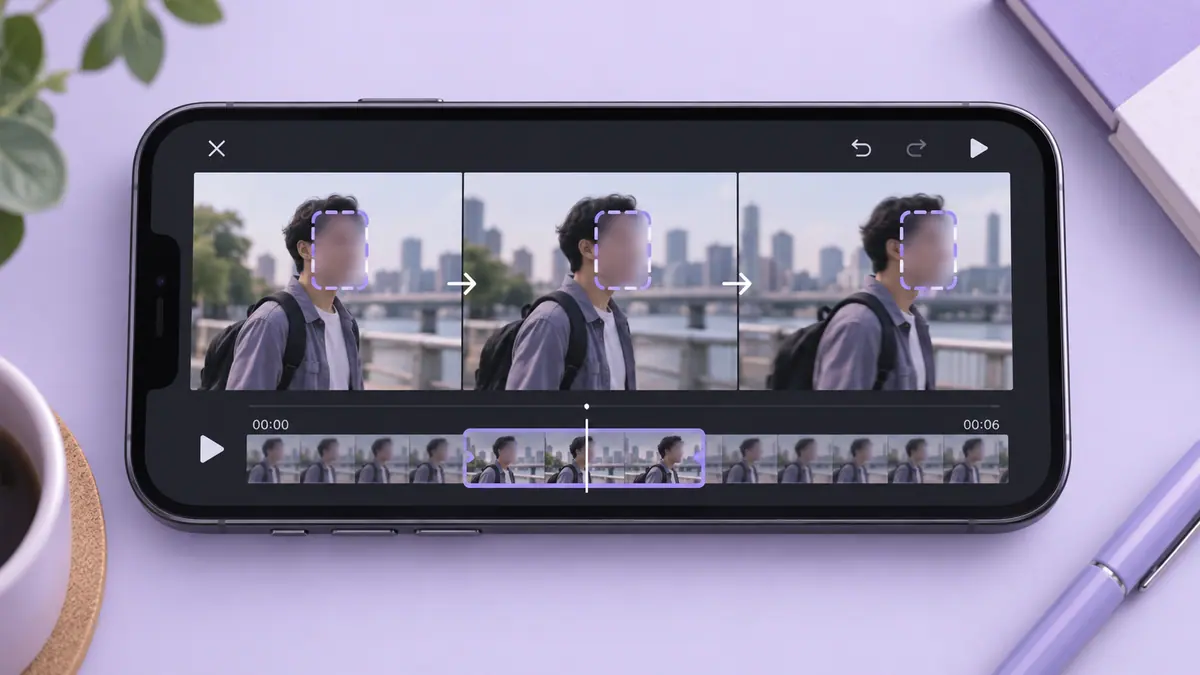
To blur a face throughout a video, cover the face for every part of the clip in which it appears, adjust the mask as the subject moves, and inspect the exported result rather than only the editor preview.
4 min read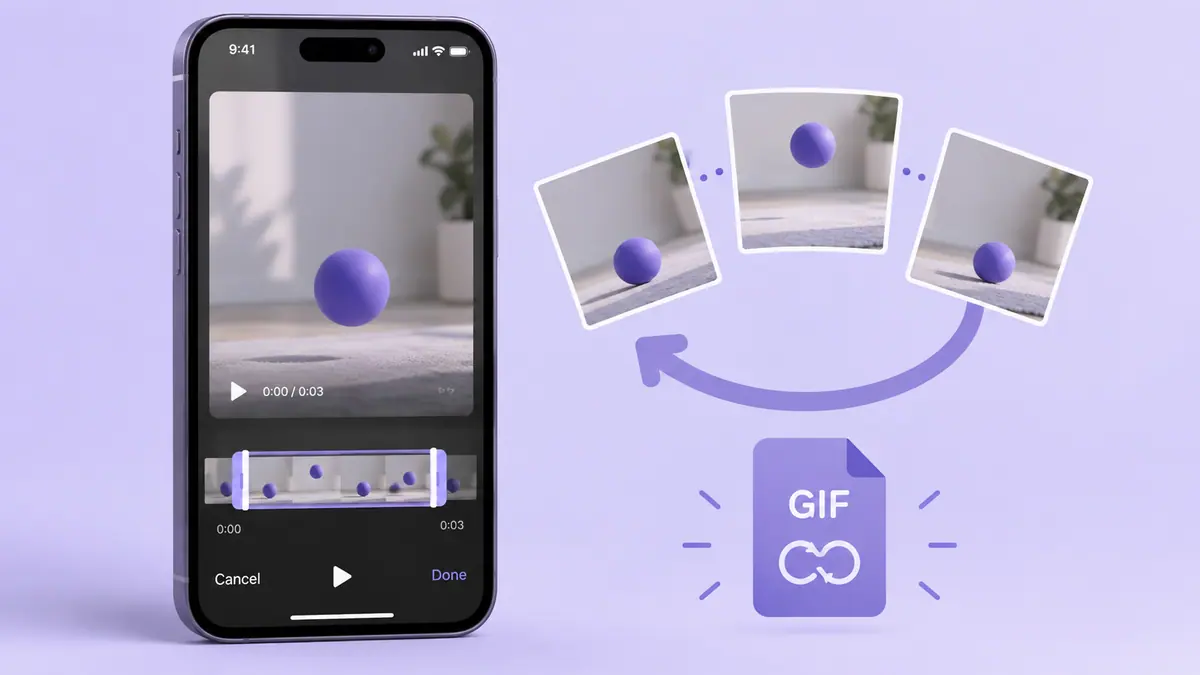
Create a GIF from an iPhone video by choosing a short section, setting the start and end points in a converter, previewing the loop, and saving a new GIF.
4 min read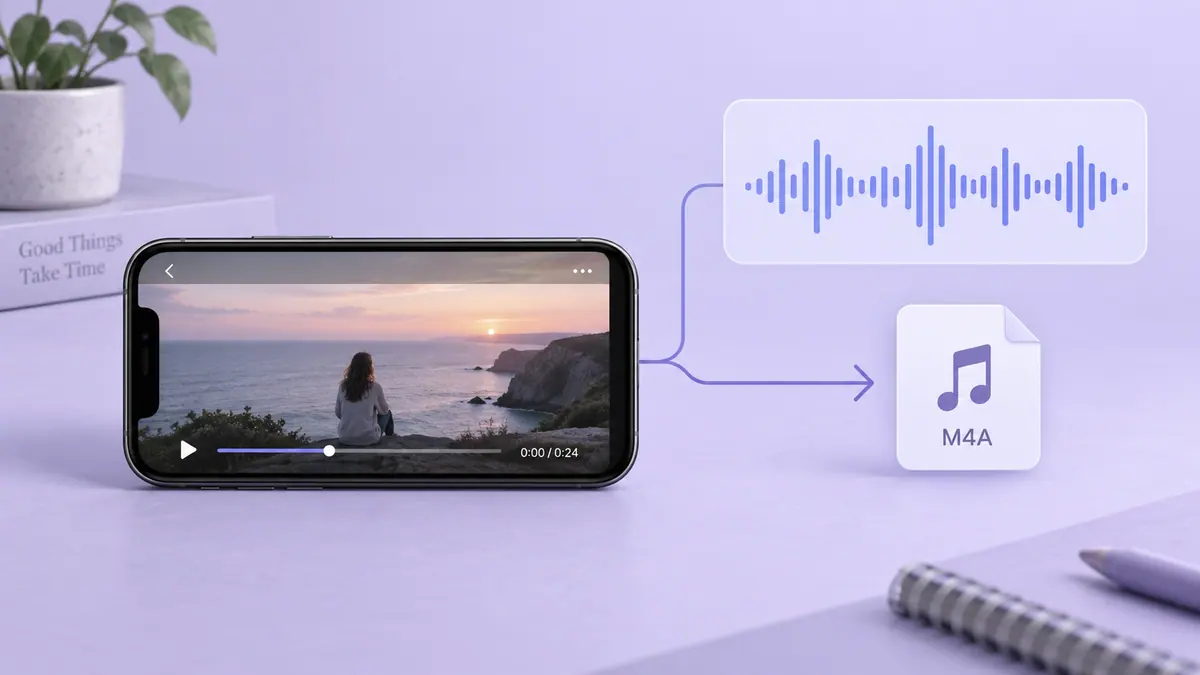
To extract audio from an iPhone video, open a local video file in an audio converter, select the part you need, choose an available output format, and save the audio to Files.
4 min readTo keep future iPhone recordings smaller, choose a resolution and frame rate appropriate for the destination, consider High Efficiency capture where supported, and record only the duration you need.
4 min read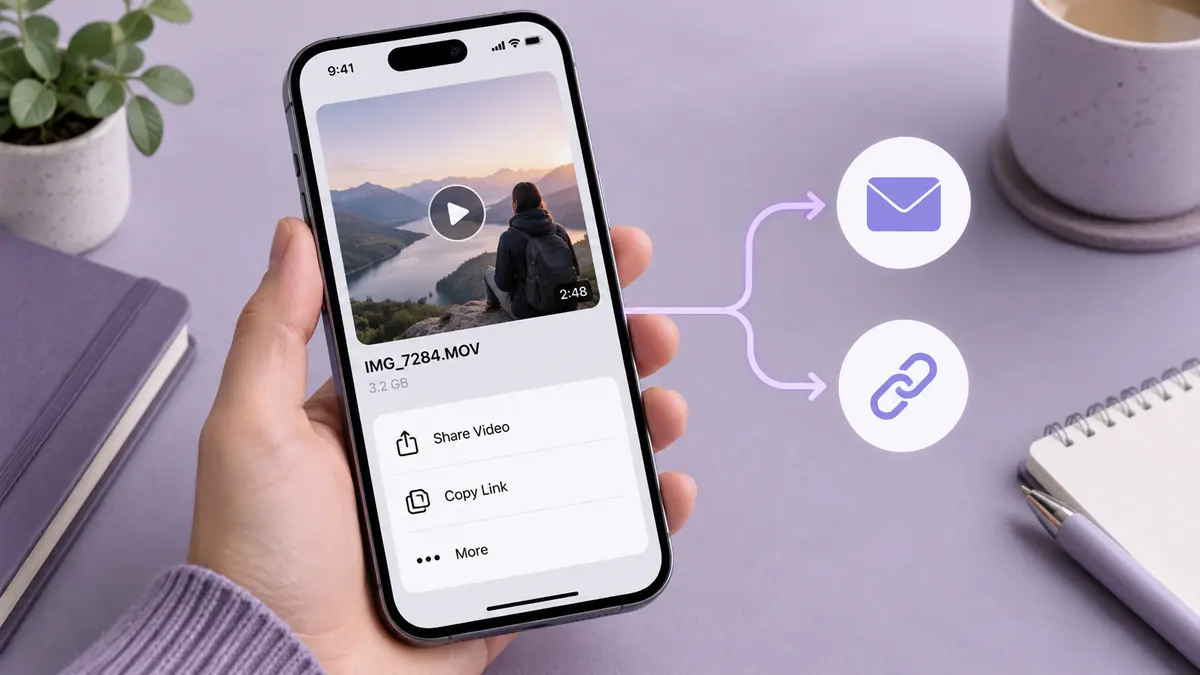
Send a large iPhone video by choosing the delivery route before changing the file: a supported nearby transfer, a controlled sharing link, or a smaller exported attachment.
4 min read
Prepare real local MP3 files, import a small playlist, and check playback without Wi-Fi or cellular access before relying on offline listening.
4 min readCompare 128, 192, 256 and 320 kbps MP3 sizes per minute and per hour. Understand CBR, VBR, quality tradeoffs and why up-converting cannot restore detail.
5 min read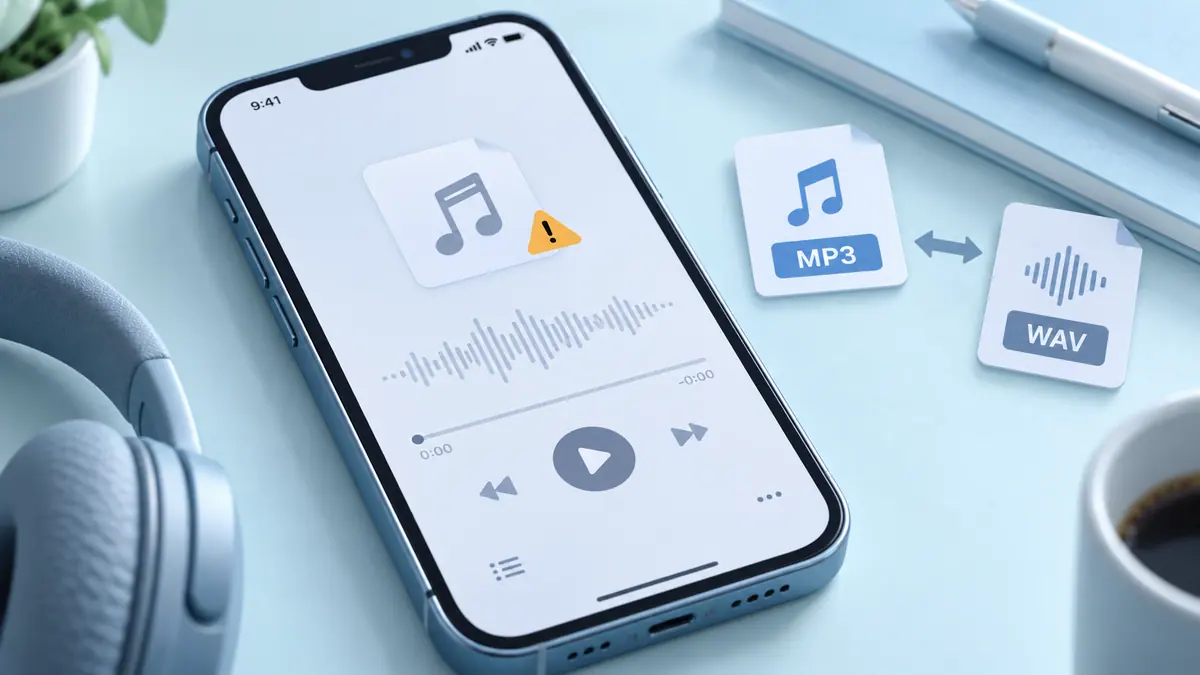
Check download completion, the actual format, and the receiving app before converting.
1 min readUse counts, sizes, and opening checks before treating a copy as a backup.
1 min readPackage several files together while keeping realistic expectations about compression.
1 min readUse dates, a short subject, and explicit versions instead of a pile of final-final copies.
1 min read
Copy iPhone documents with Apple Devices File Sharing, import photos and videos, or download cloud files to Windows. Fix missing files and verify the result.
6 min readRemove account details and verify the exported image before sending it.
1 min readSee which apps requested access and revoke permissions you no longer need.
1 min read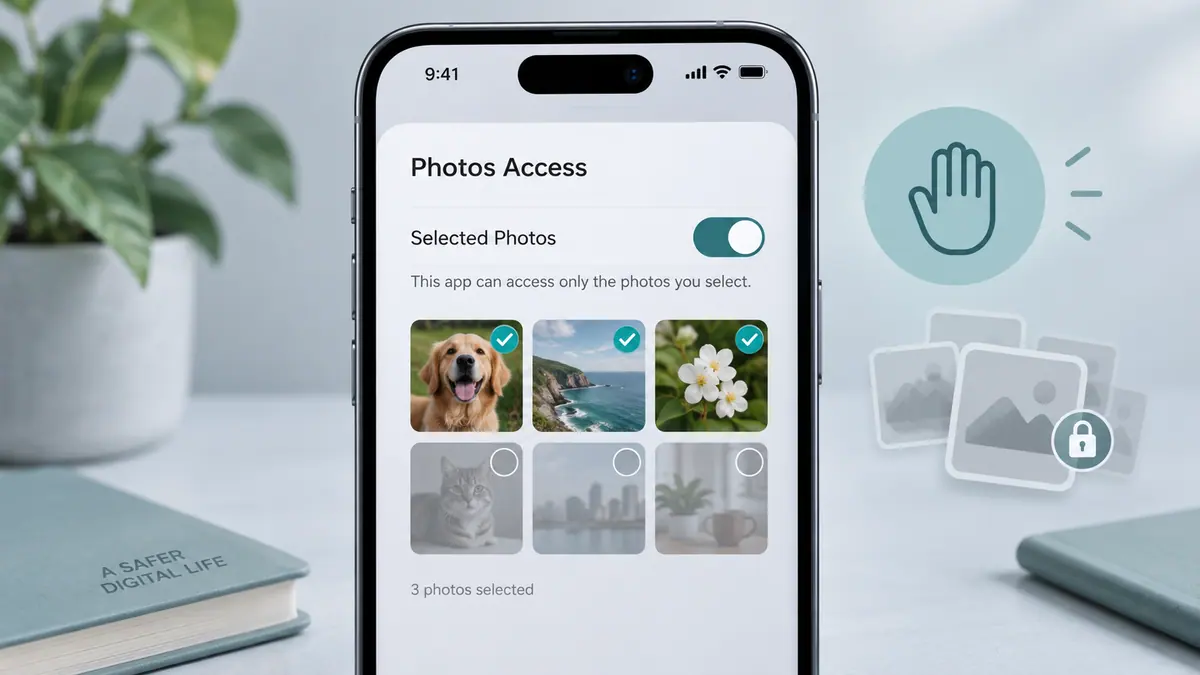
Check selected-photo access before assuming an image has disappeared.
1 min readChoose a crop or borders instead of stretching people and text.
1 min readCheck the recording source and make a short sample before a tutorial.
1 min readSlow down a video by reducing its playback speed in a video editor and exporting a new copy.
4 min readSpeed up a regular iPhone video in iMovie or return a Slo-mo section toward normal playback in Photos. Check duration, audio and the saved export.
5 min readWhen PDF notes or filled answers disappear after sharing, first confirm that you sent the saved edited file rather than the original.
4 min readIf text in a scanned PDF cannot be selected, the pages may contain pictures of text without a searchable text layer.
4 min readWhen an exported video has no sound, compare the original, the editor preview, and the saved export before changing anything.
4 min readMatch the recording dimensions to your edit, destination, and available storage.
1 min readCompare 30 and 60 frames per second on iPhone: motion, slow motion, lighting, file size and recording tradeoffs, with clearly labelled calculations.
5 min readCalculate 1, 5, 10, 30 and 60 minutes of 4K video storage in GB. Compare 24/30/60 fps examples without mistaking export estimates for iPhone recordings.
5 min readUse duration and a target size to set a starting point, then judge the actual result.
1 min readTell a fillable form from a scanned page and avoid losing typed answers when you export.
3 min readSeparate a poor source image from an overly compressed export before trying again.
1 min readControl the sequence before conversion and verify it in the exported file.
1 min read