Guide · PDF & Documents
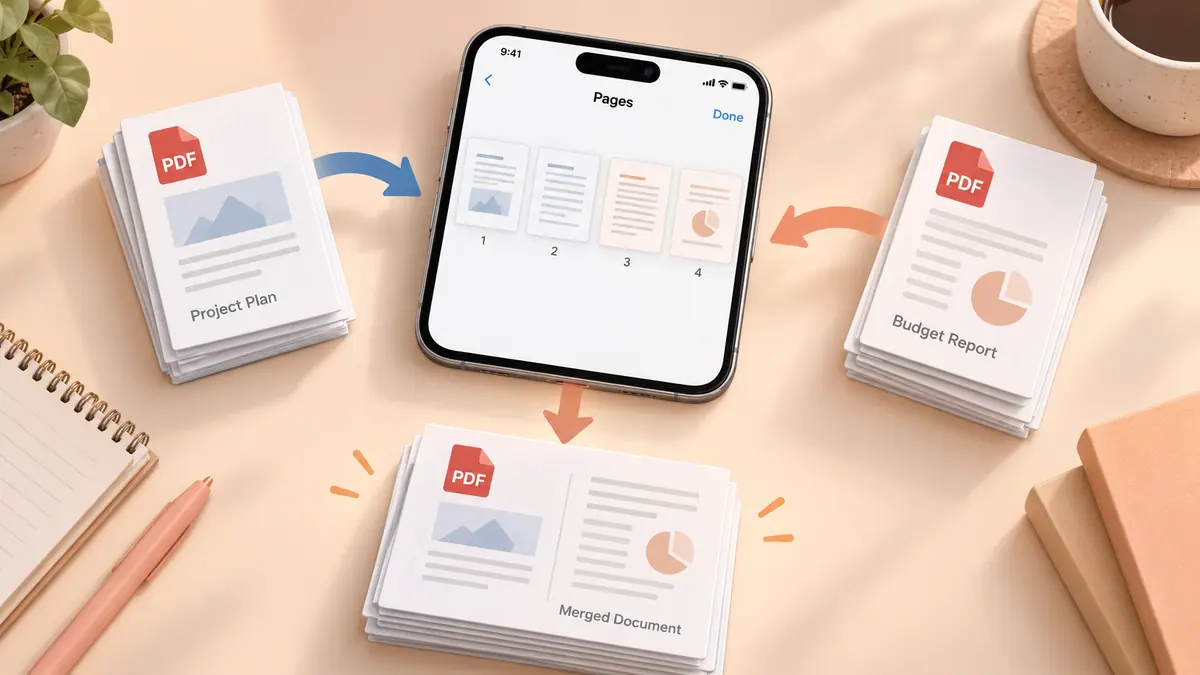
How to Merge Existing PDF Files on iPhone
To combine existing PDF documents on iPhone, work on a copy of the first file and insert the other documents using Preview’s page controls where supported.
4 min readTurn photos and paperwork into readable, shareable documents.
To combine existing PDF documents on iPhone, work on a copy of the first file and insert the other documents using Preview’s page controls where supported.
4 min readReduce a PDF on iPhone by exporting a smaller copy in Preview where that option is available, or by reducing oversized source images before rebuilding an image-based document.
4 min readRotate a sideways PDF page by changing the page orientation in a PDF editor, then saving and reopening the document.
4 min readTo save an existing iPhone screenshot as a PDF, export the image as PDF in Preview on supported iOS versions, or add it to Image to PDF in your browser.
4 min readSave selected PDF pages on iPhone by duplicating the document and removing unwanted pages from the copy in a supported PDF editor, such as Preview on compatible iOS versions.
4 min readCreate a useful PDF summary by first defining the questions you need answered, then checking the generated points against the original document.
4 min readWhen PDF notes or filled answers disappear after sharing, first confirm that you sent the saved edited file rather than the original.
4 min readIf text in a scanned PDF cannot be selected, the pages may contain pictures of text without a searchable text layer.
4 min read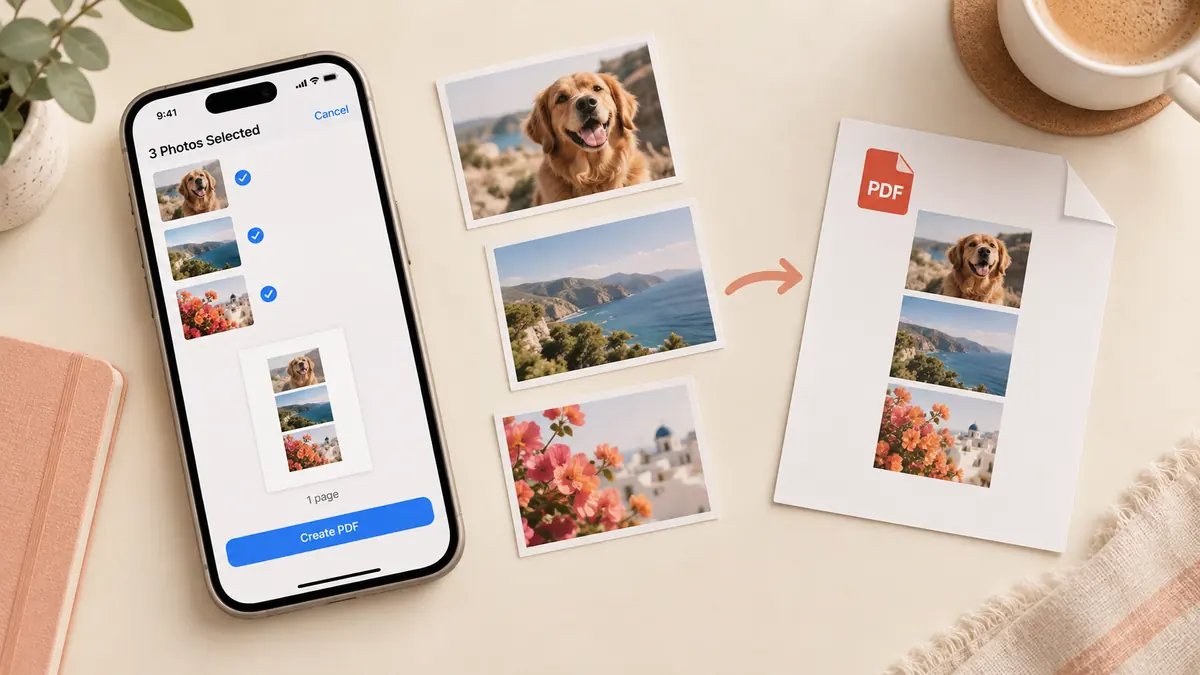
Turn one or multiple iPhone photos into a PDF. Compare Preview export with a local browser converter, arrange pages and check quality and file limits.
5 min readTell a fillable form from a scanned page and avoid losing typed answers when you export.
3 min readSeparate a poor source image from an overly compressed export before trying again.
1 min readControl the sequence before conversion and verify it in the exported file.
1 min readChoose consistent paper dimensions, allow margins, and check the print preview before using paper.
1 min read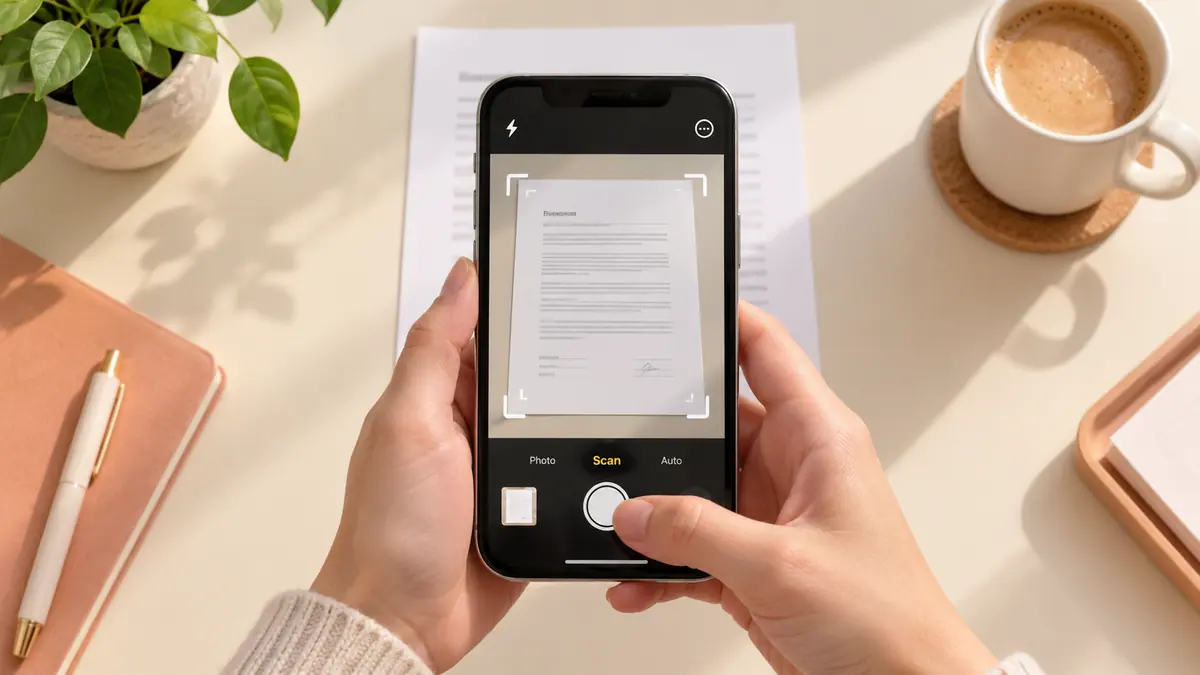
Scan paper into PDF using Notes, Files or Preview on iPhone. Follow the capture steps, choose a save location and check page order, text and file size.
5 min read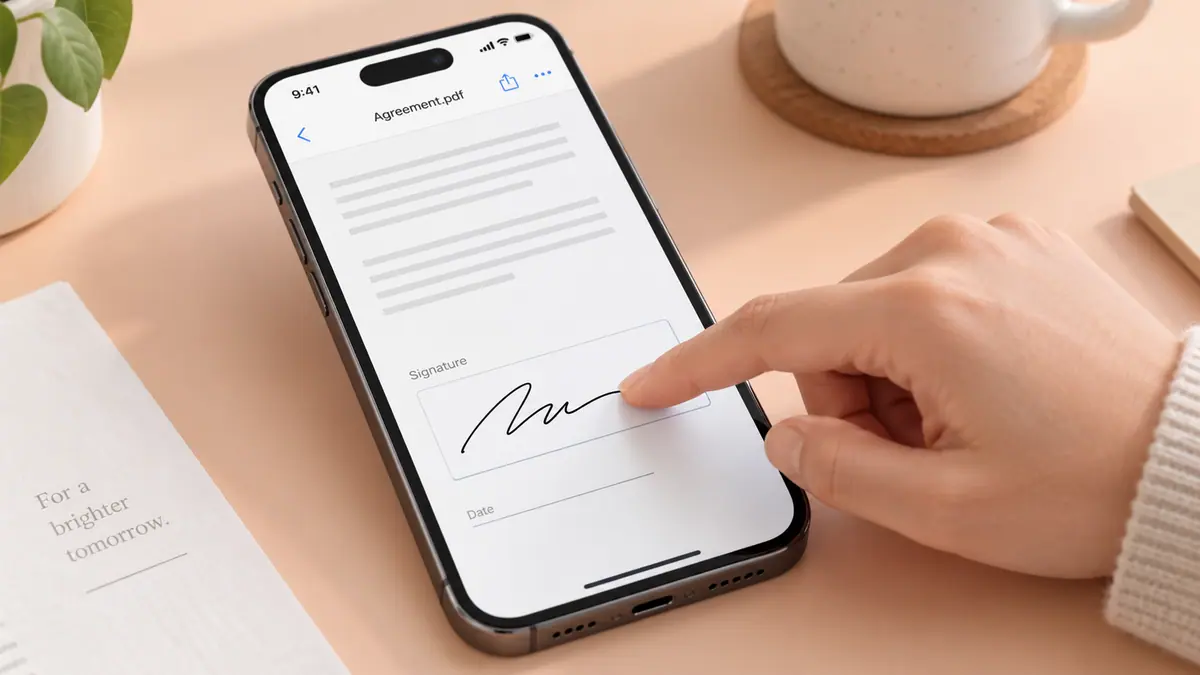
Place a visible signature, save a separate copy, and check what kind of signature the recipient requires.
3 min readChoose between one image and a document with an intentional page order.
1 min readFind the source of a large attachment and make a useful smaller copy.
1 min read