How to Merge Existing PDF Files on iPhone
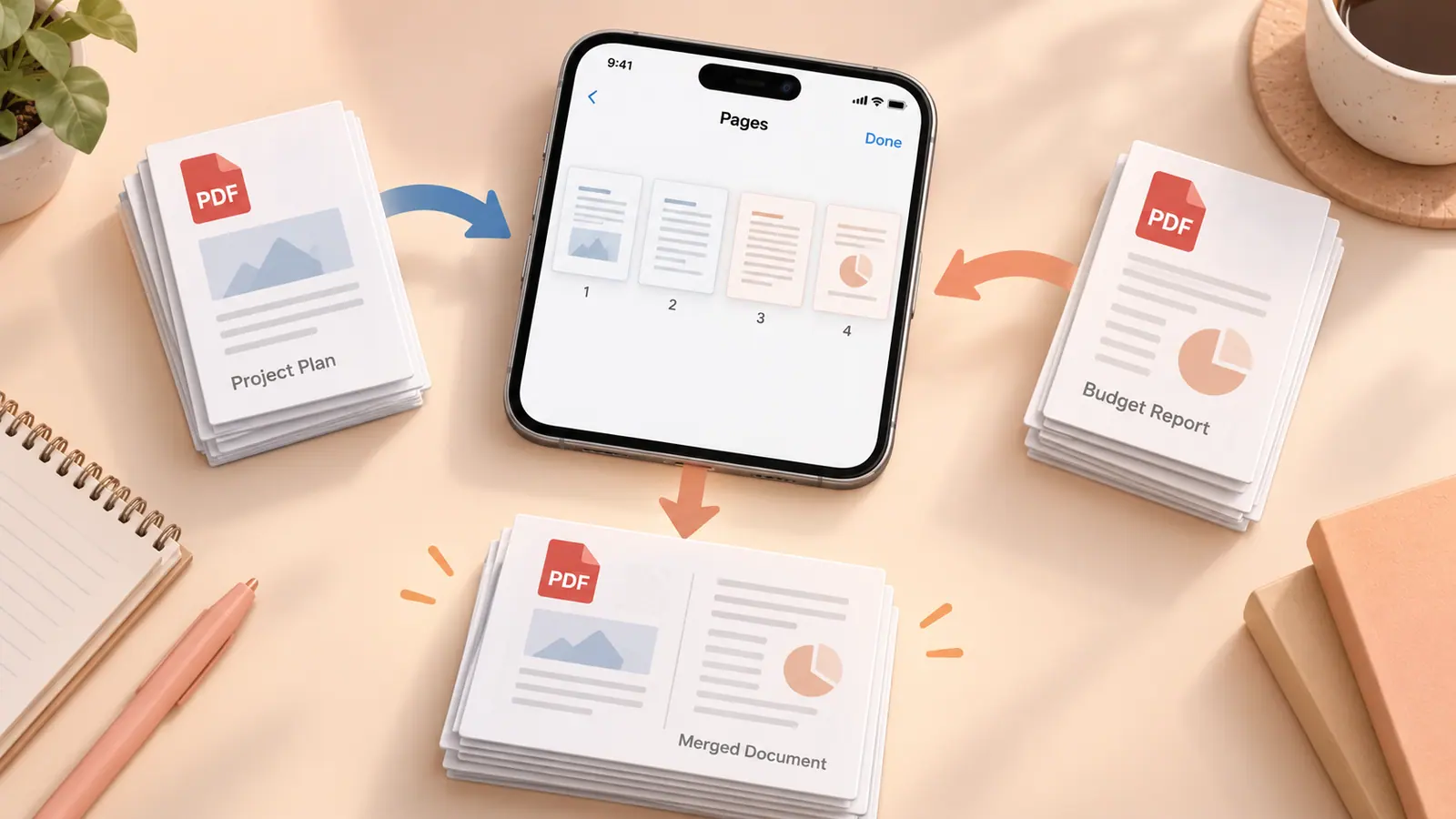
To combine existing PDF documents on iPhone, work on a copy of the first file and insert the other documents using Preview’s page controls where supported. Check the resulting page sequence and save a separately named combined PDF. This is different from converting photos into a PDF: preserve the original documents rather than taking screenshots of their pages. Before merging forms, signed documents, or protected files, confirm that editing is permitted and that the recipient accepts one combined submission. A merged file should retain every required page and remain readable in another viewer.
Build the packet before touching the files
Write the desired order first: cover letter, completed form, then evidence. Note the page count of each source. If those files contain two, four, and three pages, the expected packet contains nine pages unless you deliberately remove something. This simple count is a useful check against adding the wrong version twice.
Rename ambiguous source files before starting. A working form and a final signed form may look identical in a file picker. Our file naming guide gives a practical version pattern. Keep the sources in a separate folder so the combined document does not become confused with another input during a second attempt.
Combine documents with the available page controls
- Duplicate the first PDF and name the copy for the complete packet.
- Open that copy in Preview on a supported iPhone version.
- Display page thumbnails and choose the position where the next document belongs.
- Use the page insertion controls to insert from a file, choosing the intended PDF.
- Repeat for the remaining documents, then inspect the thumbnails from beginning to end.
- Close and reopen the saved result to check the actual file.
Apple documents page insertion, deletion, and reordering in Preview. Exact controls depend on the installed version. If your iPhone does not offer this workflow, use a PDF editor whose current documentation explicitly supports merging. The SFByte image-to-PDF tool accepts images, so it is not a merger for existing PDF files.
Preserve the useful parts of each source
A screenshot of a PDF page may look similar but can discard selectable text, links, form fields, and accessibility information. Avoid using screenshots as a universal workaround. If the originals already contain text, keep a PDF-to-PDF route and check that text selection still works afterward.
Treat a certificate-signed or protected document separately. Editing can affect signature validity or be restricted. Follow the sender’s and recipient’s requirements rather than bypassing restrictions. For ordinary visible signatures, reopen the combined output and confirm that the signature and date remain on the correct pages.
Different paper sizes are not automatically errors. A receipt can be narrower than a form. If the packet will be printed, inspect print preview for scaling and clipped edges. The PDF print preparation guide explains why matching the paper matters.
Troubleshoot the combined copy
If a section is missing, compare the expected count with the result before adding files again. If an insert appears in the wrong position, move that section or rebuild the packet from the original sequence. Repeated blind insertions can create duplicate pages that are difficult to notice in a long thumbnail list.
If the file cannot be saved, check available space and whether you are editing a local writable copy. A document opened from a message or a shared location may have a different save destination than you expect. Give the completed packet a distinct name and verify its location in Files.
Questions about sending the result
Is merging the same as compressing?
No. A combined PDF packages pages together and may be as large as the original material. If size becomes a problem, first inspect which section contributes the most image data rather than degrading every page.
Can I merge photographs this way?
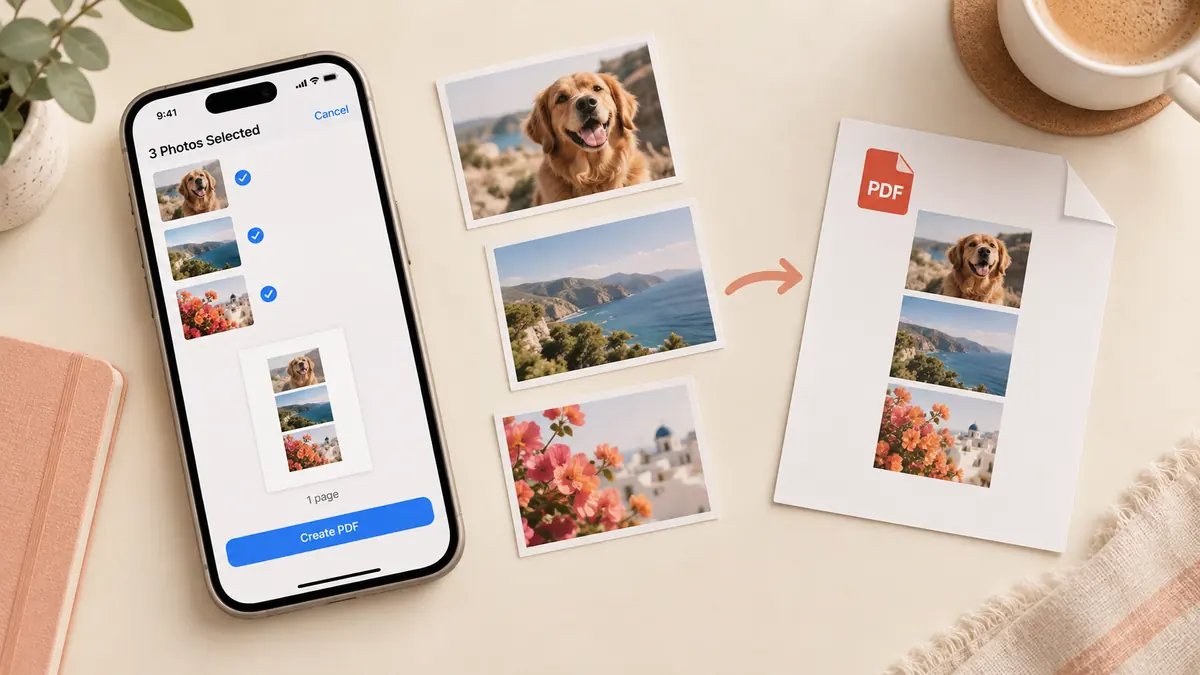
Some document tools can insert images, but a picture collection is better handled with an explicit page-layout workflow. Follow converting photos to PDF when your sources are pictures rather than existing documents.
What should the recipient receive?
Send the single checked packet if that is what the instructions request. Include the separate originals only when needed; otherwise several near-identical attachments can leave the recipient unsure which is final.