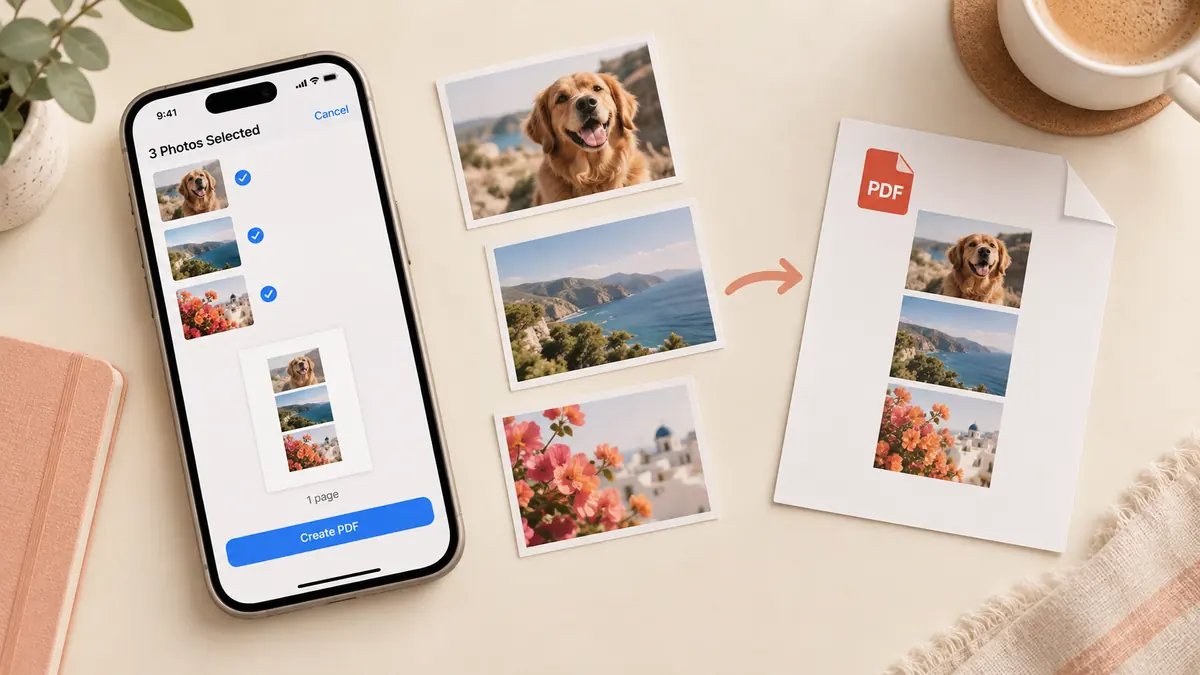
How it works
- Choose JPEG or PNG images from your device. HEIC support depends on your browser.
- Move images up or down to choose the page order.
- Choose A4, US Letter, or pages fitted to each image.
- Select Create PDF, then download the finished document.
Example: a three-page receipt packet
Choose three receipt photos, put the oldest receipt first, select A4 portrait, then create the PDF. Each image becomes a page. Open the downloaded PDF and check the page order and the small printed amounts before sending it.
Private by design
Conversion happens locally. Your images and the finished PDF are not uploaded to SFByte. You can cancel a conversion and keep your selected images for another attempt.
Image quality and limits
The tool allows up to 20 images and 100 MB of input, subject to additional pixel and memory limits. Images are converted to JPEG at a quality setting of 92%; transparent areas become white. Keep originals if you need their full original format or transparency.
If an image will not open
A browser may not be able to decode HEIC files, even when the device can display them elsewhere. Export an image as JPEG or PNG and try again. Very large images may need to be resized first.
File order matters
Each image becomes one PDF page. Check the order before conversion and review the PDF after downloading.
How page sizing works
For A4 and Letter pages, each image is scaled proportionally to fit within the page margins. It is not stretched to fill the sheet. Fit-to-image pages follow each image’s proportions. PDF size depends on image dimensions, JPEG encoding, and document overhead; adding the input file sizes does not predict the output exactly.
Common questions
Can I combine screenshots and camera photos?
Yes, if your browser can decode the selected files. Use the reorder controls before converting.
Can I edit the text in this PDF?
This tool places images on PDF pages. It does not perform OCR or turn photographed text into editable form fields.
Does it keep transparency?
No. Images are converted to JPEG and transparent areas become white. Keep the original images if transparency matters.
Prepare a packet that is easy to read
Before selecting images, remove accidental duplicates and crop distracting borders in your image editor. Put a cover or summary first only when the recipient needs it. Give receipts, forms, or class notes a sequence that makes sense without an explanation in a separate message.
The tool’s move controls determine page order. Filenames and the order shown in a device picker are not a substitute for reviewing the list. After downloading, count the PDF pages and inspect small print at a comfortable zoom. A successful conversion only proves that a file was produced; it does not prove that every photographed detail is legible.
Choose a page size for the destination
A4 and US Letter suit documents intended for a familiar paper format. Fit-to-image follows the proportions of each picture and may be useful for screen viewing. Mixed source shapes can produce different amounts of blank space on a fixed sheet. The tool fits images proportionally instead of stretching them.
For school or workplace uploads, read the portal’s accepted format, page-size, and byte limits first. A PDF extension alone does not satisfy every submission requirement. Our image PDF printing guide explains the paper decision, while blurry PDF images helps diagnose poor source quality.
Browser conversion versus the iPhone print workflow
Both approaches can produce an image-based PDF. This tool makes ordering and page-size choices explicit in the browser. An iPhone print or export workflow may be convenient when the images are already open in a native app. Choose the route you can verify and repeat, rather than assuming one always creates a smaller file.
If the PDF is too large, prepare appropriately sized source images before conversion and compare the result. The browser tool does not offer a PDF recompression control or editable text recognition. See reducing PDF size for those distinctions. Keep your source photos until the final document has been opened and checked.