How to Save a Screenshot as a PDF on iPhone
To save an existing iPhone screenshot as a PDF, export the image as PDF in Preview on supported iOS versions, or add it to Image to PDF in your browser. Crop unwanted screen edges first, choose a readable page size, and save the result to Files. A PDF made from a screenshot contains the pixels you captured; it does not recover text outside the frame or automatically become a searchable document. For several screenshots, arrange the sequence before creating one file, then reopen the saved PDF to check its pages and private details.
A screenshot and a document capture solve different jobs
A screenshot records what was visible on the screen. It is useful for a confirmation, a short conversation, or an error message. If you need a whole document or web page, first look for that app’s own export or print option. Capturing one screen at a time can omit footnotes, break a table across pages, and repeat fixed navigation bars. Use screenshots when the visible interface is the evidence you need, rather than when an original PDF is already available.
Turn the saved image into a PDF
- Open the screenshot and check whether every necessary line is visible.
- Crop unused edges and remove details the recipient does not need. Work on a copy if the original is evidence you must retain.
- In Preview, where available, open the image and use its export controls to choose PDF. Apple’s linked instructions explain the current export interface.
- Alternatively, open Image to PDF, select the screenshot, and choose A4, Letter, or Fit to image.
- Create the document, download it, and save it under a meaningful name in Files.
- Reopen that saved file rather than checking only the preview you saw during conversion.
For an existing screenshot, the browser route avoids taking another photograph of your phone’s screen. Taking a photograph introduces glare, perspective distortion, and another opportunity to lose small text. If a file picker cannot see the image, first check where it was saved and whether it is a supported image type.
Make a sequence readable
For a support conversation, choose enough context to show the problem but avoid including an entire unrelated thread. Put the first relevant screen first. If adjacent screenshots overlap, retain enough overlap to establish continuity without repeating a whole paragraph. Number the files before import if your picker orders them unpredictably; inspect the converter’s actual page list afterward.
Portrait screenshots can become tiny when fitted on a landscape sheet. Match page orientation to the image and inspect the small text at normal reading size. Do not stretch a screenshot to fill the page. White margins are usually preferable to distorted letters. For a very long capture, a full-height page may be awkward to print even when it looks fine on a phone.
Check privacy before the final export
Account names, notification previews, order numbers, and browser tabs may be visible away from the main subject. Follow the screenshot privacy checklist before converting. A PDF wrapper does not remove information already present in the image. Reopen the exact attachment and inspect every page; editing the source after exporting does not retroactively edit an earlier PDF.
If the file is too large, reduce a copy of the image and rebuild the PDF. Preserve enough detail to read the smallest meaningful text. Repeatedly compressing an already reduced screenshot can damage sharp interface lettering.
Questions that matter before sending
Will the text be selectable?
Not necessarily. An image-only PDF is still an image inside a document. Optical character recognition is a separate operation, and recognized text needs checking, especially reference numbers and punctuation.
Can I put several screenshots in one file?
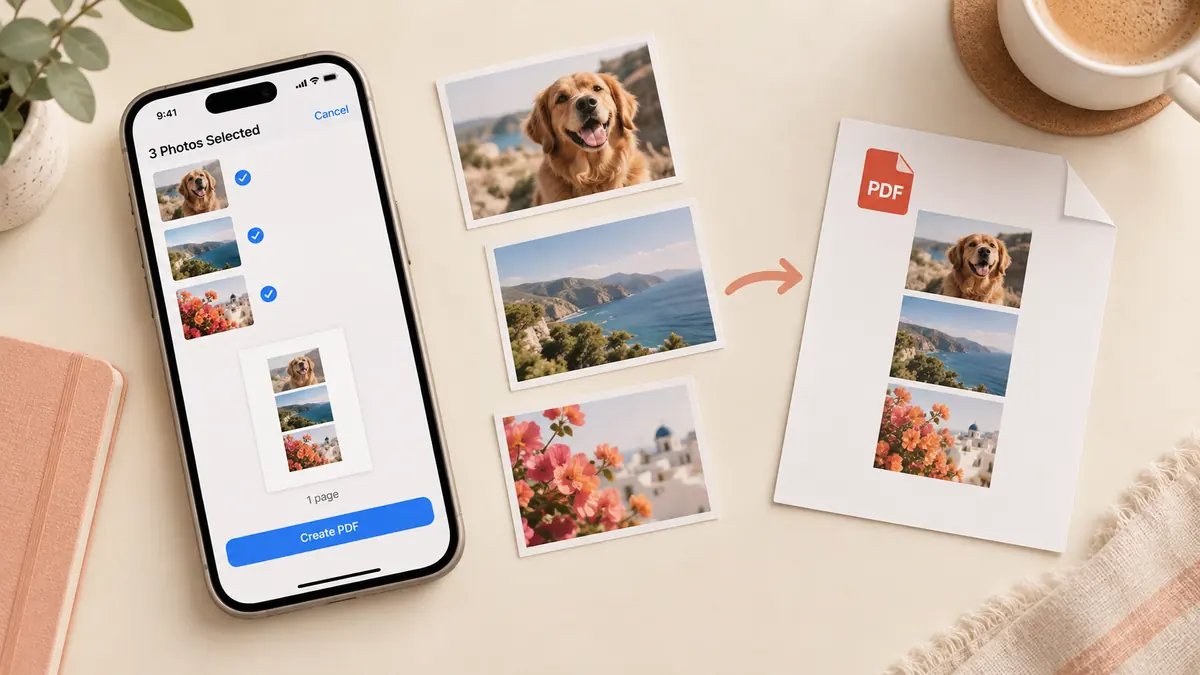
Yes. The browser tool accepts a supported set of images and lets you reorder them before export. Its current limit is 20 images and 100 MB of input. Smaller batches can be easier on a phone with limited memory.
Should I send the screenshot or the PDF?
Use the recipient’s requested format. An image may be easier for a support form that accepts only pictures; a PDF is helpful when order and page boundaries matter. Our photo-to-PDF guide covers a larger image collection.