How to Prepare a Screenshot for Private Sharing
Remove account details and verify the exported image before sending it.
Inspect the whole screen
Look beyond the information you intended to share. A status bar, open tab, notification, account avatar, address, or background conversation may reveal extra context. Crop the screenshot to the smallest area that still answers the recipient’s question.
Cover sensitive details deliberately
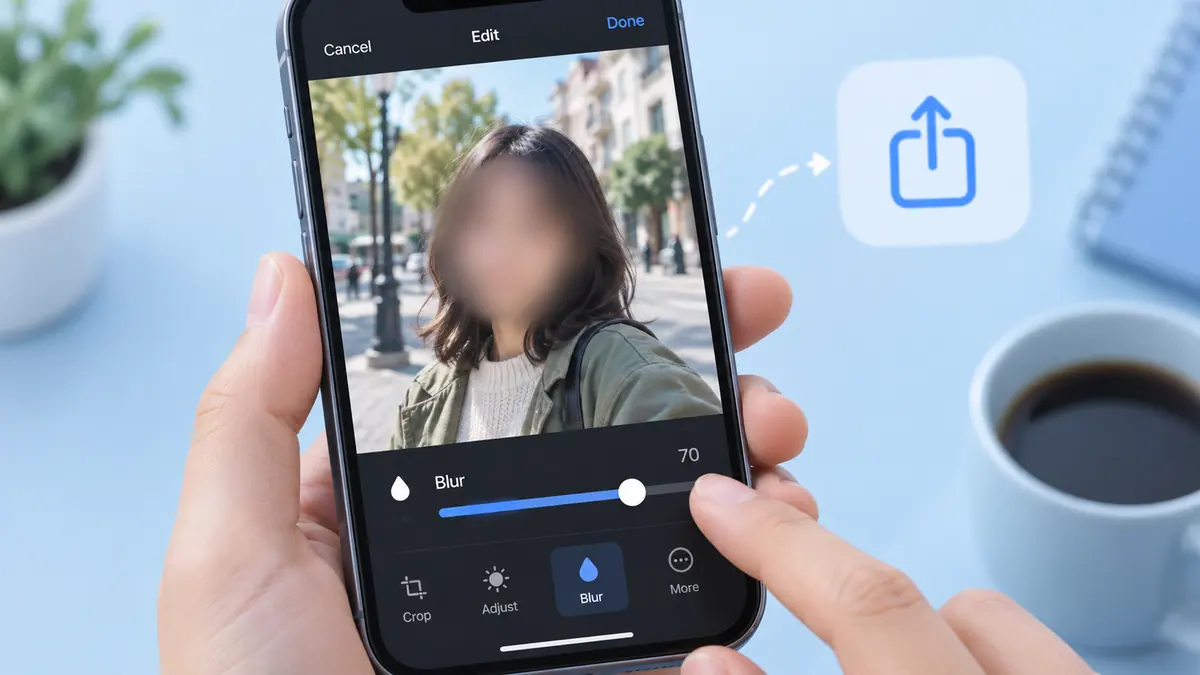
Use an opaque shape or an appropriate redaction workflow when text must be hidden. A translucent highlighter or a weak blur may leave characters readable. In a supported Markup workflow, check the shape’s fill and opacity rather than judging only from its color.
Export and reopen
Save a separate image and reopen the exact file you will attach. Enlarge the hidden region and verify it is fully covered, including the ends of long text. Do not send an editable project or the original screenshot alongside the corrected copy.
For highly sensitive information, recreate only the necessary facts in a new document instead of trying to obscure a crowded screen. Face Blur & Censor Photo is an SFByte editing option, but no single effect guarantees anonymity. Consider the surrounding context, the recipient, and where a shared file may be forwarded.
Sources & further reading
- Apple · Checked Oct 1, 2026