Apple Updates Screen Time: Review the Whole Family Setup
Apple’s September child-safety announcement describes changes to Screen Time and family access controls, with supported software and availability requirements. Read those conditions first, then check whether the setup works for ordinary tasks on the participating devices. A completed settings screen does not show how a school link, request for access, or necessary contact will behave in practice. This article provides a review checklist prompted by the announcement; it does not guarantee a safety outcome or claim that SFByte tested the controls on a family’s devices.

Source announcement:
What changed in Apple’s announcement
Apple describes an updated Screen Time experience, category-based Time Allowances, and Ask to Browse for Safari in its September 14 release. The announcement says the updated family experience requires the participating devices to run the supported platform versions, and notes availability limits.
Check a normal day, not only a settings screen
After reviewing Apple’s setup instructions, walk through a few ordinary tasks with the person using the device: opening a school resource, requesting access to a new site, and contacting an approved person. A configuration that looks complete in Settings may still need adjustment for the family’s actual routine.
Write down who manages requests and how a legitimate exception should be handled. Avoid changing several unrelated restrictions at once if you need to diagnose a blocked task.
Keep expectations clear
These controls are tools for managing access, not a guarantee that every harmful interaction will be prevented. Review permissions and sharing choices as part of the broader setup. Preparing screenshots for private sharing is one practical habit that remains useful regardless of a device’s parental-control version.
Record the intended rules
Write down which tasks should work without intervention, which need a request, and who responds to those requests. Use a small set of real examples rather than changing every restriction at once. That makes an unexpected block easier to trace to a particular choice.
Keep necessary contact and school workflows in the review. If a legitimate task fails, compare the configured setting with Apple’s current instructions before creating a broad exception that changes other behavior. A family’s needs may change, so keep the review understandable enough to repeat.
Share support information carefully
If you ask for help, describe the device and software versions, the attempted task, and the observed result. Remove account details or unrelated personal information from screenshots. The screenshot redaction guide is useful for that separate sharing step.
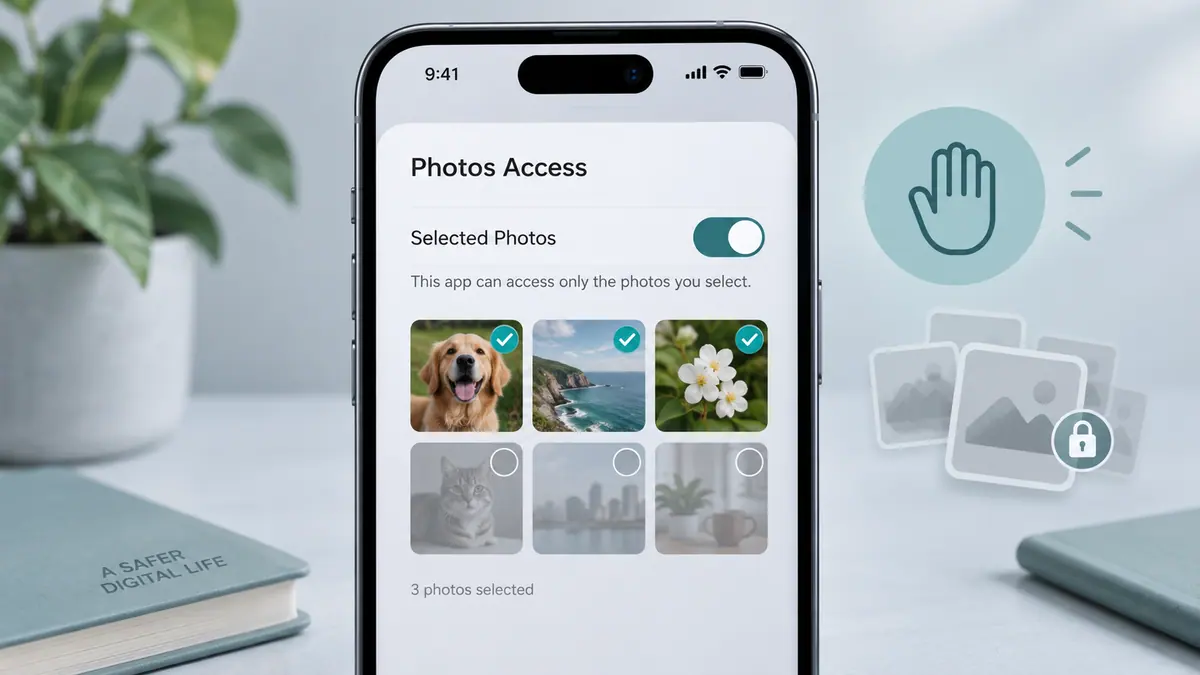
Permissions for an individual app are another part of the setup. Our selected Photos access guide explains how to review a specific media permission without assuming that all privacy questions are controlled by a single family setting.
The announcement is the source for the new features. The checklist is an editorial workflow suggestion, not a substitute for the platform’s setup instructions or evidence of guaranteed protection.
Sources & further reading
- Apple · Checked Oct 1, 2026