How to Review Microphone Access on iPhone
See which apps requested access and revoke permissions you no longer need.
Review the permission list
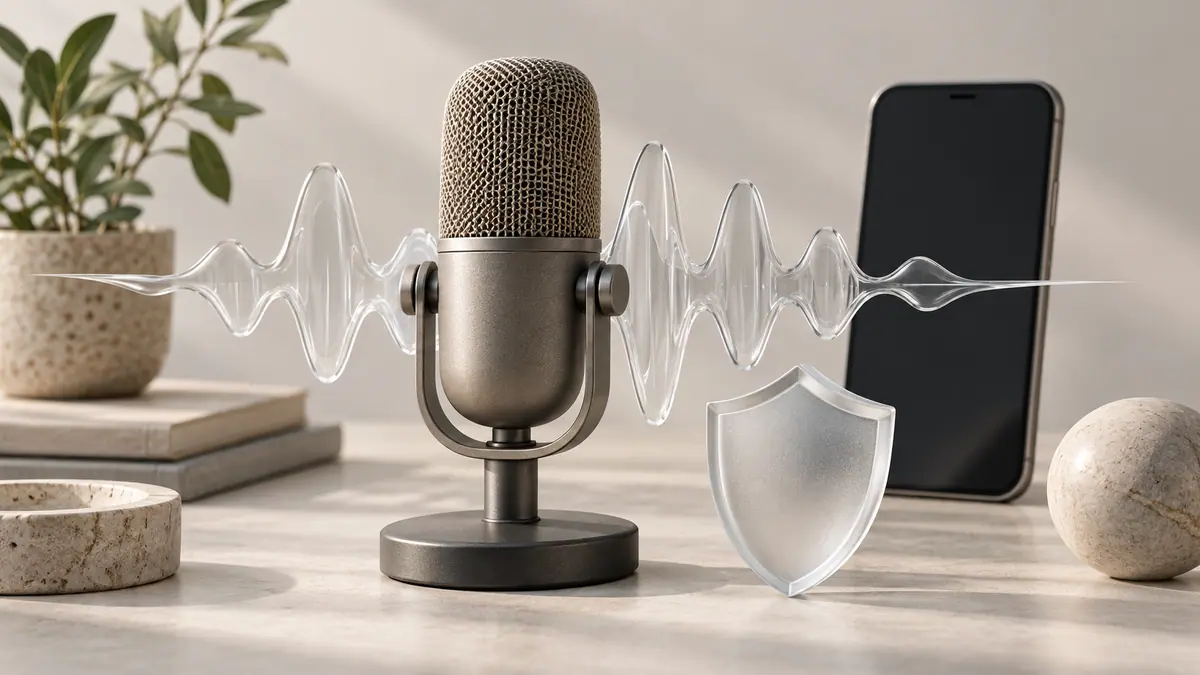
Open Settings → Privacy & Security → Microphone. Apple lists apps that have requested microphone access, and you can change that permission. If an app has never requested access, it may not appear there yet.
Connect permission to a task
A recorder needs the microphone while recording. A document organizer may not need it for the task you use. Remove access where it is unnecessary, then check whether the feature you still need works. Revoking a permission prevents that access going forward; it does not by itself delete recordings an app already made or uploaded.
Interpret the indicator carefully
The orange microphone indicator shows when the microphone is being used without the camera. Control Center can provide recent-use context. Seeing a familiar recording feature use the microphone is different from confirming how that app retains the resulting audio.
For a privacy review, combine permission checks with the app’s storage, sharing, and deletion controls. Consider other people whose voices may be captured. If you are troubleshooting an app that cannot record, check its permission and try a short non-sensitive sample before a long session.
Sources & further reading
- Apple · Checked Oct 1, 2026