How to Blur a Face in a Photo Before Sharing
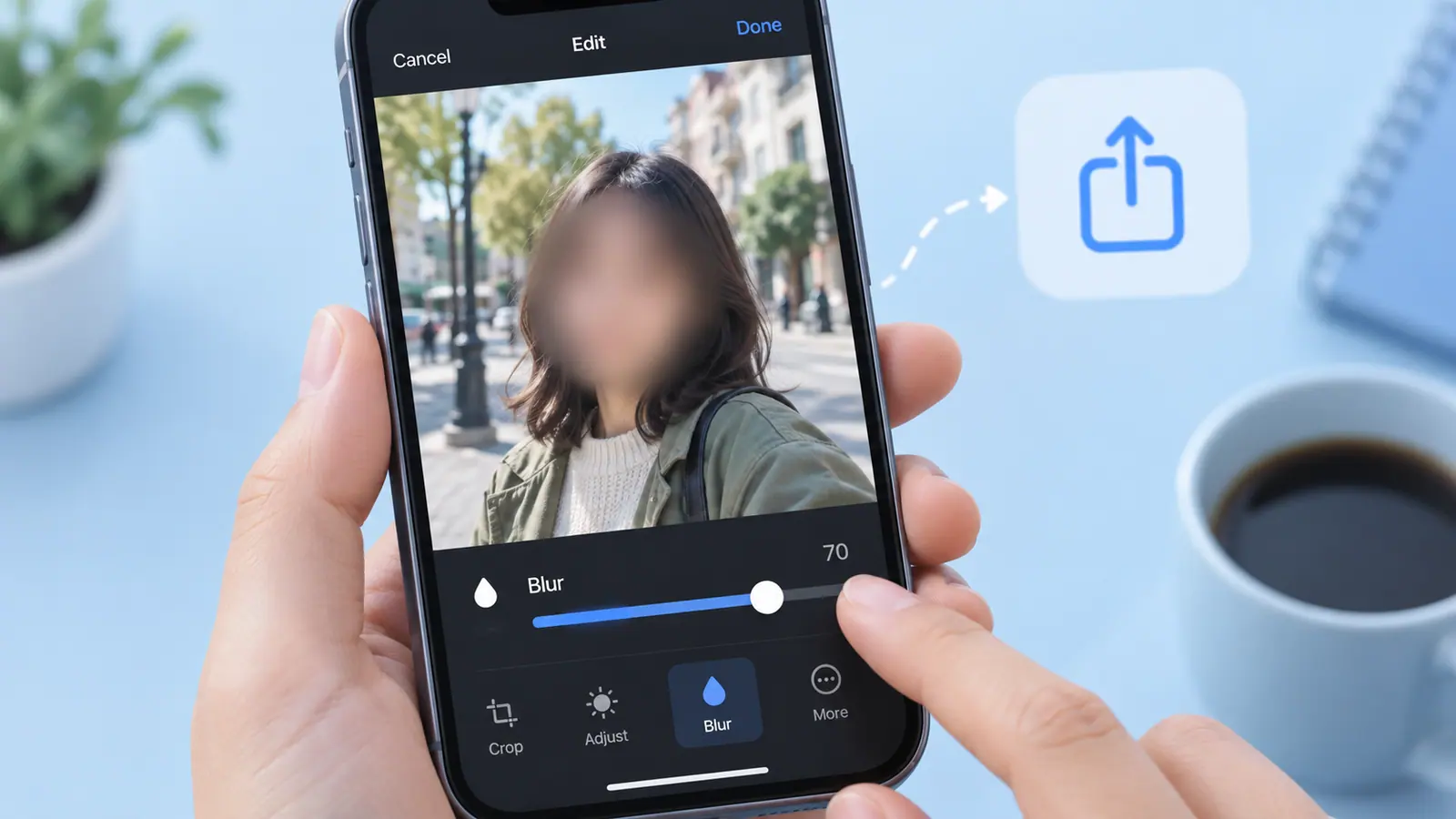
To blur a face in an iPhone photo, create an edited copy, place an obscuring region over the face, and inspect the saved result before sharing it. Use an app that supports the effect you need and make the covered area large enough for the intended output. Blur is a visual treatment, not a guarantee of anonymity: clothing, surroundings, metadata, or other visible details can still identify someone. If reliable concealment matters, consider a sufficiently opaque cover and review the entire image, while keeping the original separate.
Decide what needs to be hidden
A face is only one way a person can be recognized. Look for name badges, uniforms, reflections, signs, tattoos, and location clues before editing. If a strong privacy outcome matters, a crop or an opaque cover may be more appropriate than a light blur.
Work on a copy
Open the image in a tool that supports the masking you need, such as Face Blur & Censor Photo. Select the face carefully, adjust the effect, and export a separate flattened image. Do not assume a mask that looks sufficient in a thumbnail is sufficient when enlarged.
Review the delivery file
Reopen the exact exported copy, zoom in, and check every face and reflection. Ensure you are attaching that file rather than the editable project or original. Check whether the chosen sharing route includes location information and remove it where appropriate.
Blurring is not a guarantee of anonymity or an irreversible privacy technique in every circumstance. Consider the complete context and the recipient. Keep the unedited original in a location with access limited to the people who should have it.
Decide what must be hidden
Look beyond the most obvious face. A mirror, a framed photograph, a badge, or a phone screen may show another identifying detail. The appropriate edit depends on why you are sharing the picture and who will see it. A casual background blur and deliberate identity protection have different requirements.
Keep the source separate from the delivery copy. If the editor saves a reversible project, export the intended flattened image and inspect that export rather than sharing the project by mistake.
Place and inspect the effect carefully
Select the face area, adjust the region so its edges cover the identifying features, and preview at ordinary viewing size. If the chosen blur still leaves the person recognizable, do not assume making the file smaller solves the problem. Use an appropriate stronger treatment or avoid sharing the image.
Open the saved file from Photos or Files and zoom in. Check that the effect is present, that no accidental selection was left uncovered, and that the image you are about to send is the edited copy. A thumbnail can hide mistakes that are obvious in the full-resolution file.
Review metadata and context separately
Blurring pixels does not establish what location or other metadata remains in a file. Follow removing photo location before sharing for the supported iPhone sharing controls. Consider whether landmarks, captions, or filenames reveal the same information visually.
For screenshots containing account details or text, see redacting a screenshot rather than treating a face-blur tool as a complete redaction system. For moving faces, use the video blur workflow; covering one still frame does not cover a timeline.
Can I safely reverse blur later?
Keep a separate original if you need an unedited version. Do not rely on reversing an exported blur, and do not interpret reversibility or apparent irreversibility as a general security guarantee.
Should I delete the original immediately?
Only make a deletion decision after considering your own retention and backup needs. Editing for sharing and managing your private source library are separate tasks.
Sources & further reading
- Apple · Checked Oct 1, 2026