How it works
Select one JPEG or PNG, choose a maximum width, and set JPEG quality from 10 to 100. Start with 80 and inspect text, edges, and faces before lowering it. The tool never enlarges an image. Transparent areas become white because JPEG does not support transparency.
Example: preparing an image for an upload
If a form requests an image no wider than 1600 pixels, choose a 1600-pixel maximum width and begin at quality 80. Inspect the preview and resulting byte size. If the form also has a byte limit, adjust quality and compare again; a width limit alone cannot guarantee a file-size limit.
What stays on your device
The browser decodes your image and creates a new JPEG locally. No file is uploaded to SFByte. Up to 25 MB, 40 million pixels, and 16,000 pixels per side are accepted. Very large images can still exceed a device’s available memory. Cancel discards the pending result; it does not modify your original.
A smaller result is not guaranteed
Re-encoding an already efficient image can make it larger. The result displays both sizes so you can decide whether to use it. Preserve the original for printing or future editing. Browser canvas exports generally omit the original file’s metadata; this tool does not provide a metadata audit or a guarantee of anonymity.
How compression works
The browser reduces dimensions proportionally when necessary, then encodes a JPEG at the selected quality. Pixel count equals width × height, but compressed bytes depend on scene detail and encoding. A quality setting of 80 does not mean an 80% reduction in bytes.
Common questions
Can this output PNG or preserve transparency?
The output is JPEG. Transparent pixels become white; use your original PNG when transparency is required.
Will the result always be smaller?
No. An already compressed image can grow when encoded again. Compare the displayed sizes before downloading.
Is the original overwritten?
No. The tool creates a separate download. Cancel discards the pending result.
A repeatable size-reduction workflow
Start with the destination’s requirements. If an upload form specifies both pixel dimensions and a byte limit, write down both; satisfying one does not satisfy the other. Choose a maximum width that preserves enough detail for the task, then adjust quality only after inspecting the resized result.
For a photograph, look at faces, gradients, and detailed backgrounds. For a photographed document, inspect the smallest text and numbers. A reduction that makes an important amount unreadable is not a useful result even if it falls below the upload limit.
Keep a copy of the original and download each trial with a recognizable name. Compare the output size shown by the tool, then open the downloaded file once outside the page. This catches confusion between the original and the version you intend to submit.
Dimensions and quality answer different questions
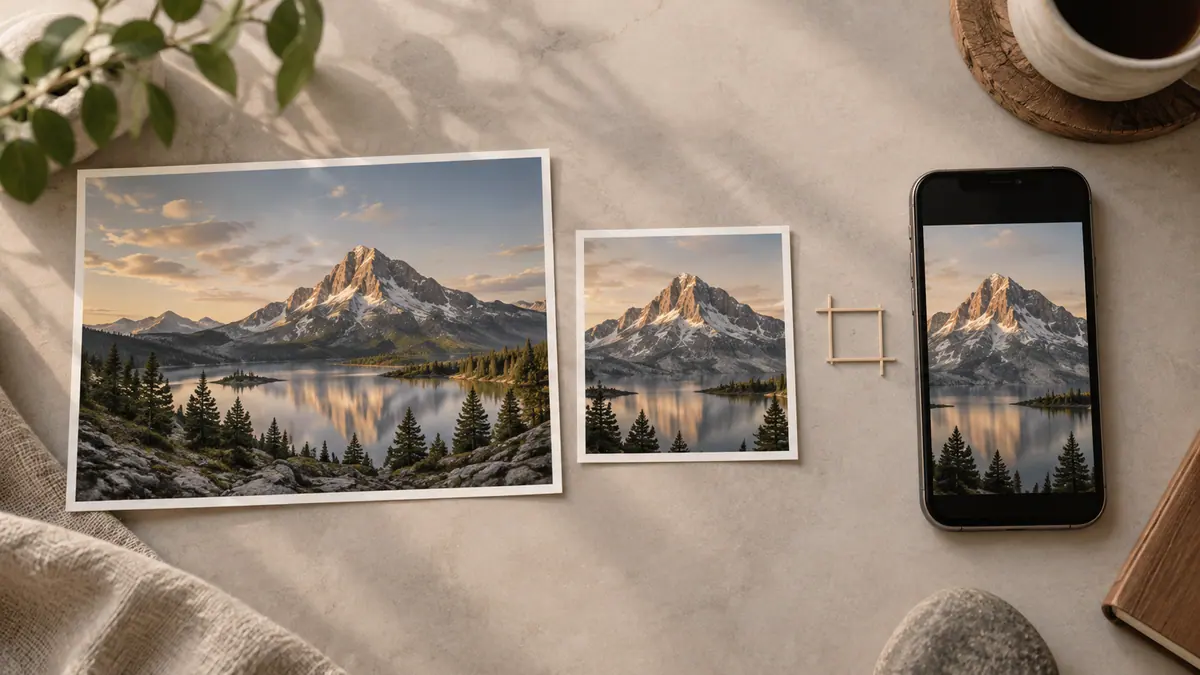
Reducing width and height removes pixels. Lowering JPEG quality changes how the remaining image is encoded. A 4000-pixel-wide photograph may have excess dimensions for a small web form, so resizing can help before aggressive quality reduction. A narrow screenshot with tiny text may already need every pixel it has.
The Photo Size Calculator explains pixel count and print size, but it cannot predict a compressed JPEG’s bytes. The Aspect Ratio Calculator helps preserve proportions if you are preparing a specific frame.
When JPEG is the wrong output
Keep an original PNG when transparent backgrounds matter. Line art, small interface text, and repeated re-encoding can also expose JPEG artifacts. This tool deliberately offers one output format; it is not a universal format converter or a lossless PNG optimizer.
If you are preparing images for a document packet, compress a copy, confirm legibility, and then use Image to PDF. For ordinary sharing, the photo preparation guide covers orientation and recipient checks. A smaller file is useful only when the person receiving it can still use it.