How to Reduce PDF File Size on iPhone
Reduce a PDF on iPhone by exporting a smaller copy in Preview where that option is available, or by reducing oversized source images before rebuilding an image-based document. The best method depends on what is inside the PDF. Photographs often offer more room for reduction than a short document made of text. Keep the original, compare the actual output size, and read the smallest text before sending. Do not assume a smaller file preserves form fields, searchable text, signatures, or image detail; check the features that your recipient needs.
Identify what is taking the space
Start with the actual PDF, not a thumbnail or the size of a ZIP containing it. In Files, inspect the document’s information and note its size and page count. A ten-page photo packet and a ten-page text report can have very different sizes. If the PDF contains full-resolution camera images, reducing those images may help. If the document is already mostly text, an aggressive conversion may offer little benefit and can make the result less useful.
Write down the recipient’s size limit and leave some headroom. If email is the immediate problem, the large PDF attachment guide explains why message encoding and other attachments also matter. This page focuses on creating a smaller usable document, regardless of delivery service.
First try an export from the document itself
- Keep an unchanged original under a clear name.
- Open a copy in Preview on an iPhone version that includes its PDF export controls.
- Choose PDF as the output and adjust the file-size control if your version presents it.
- Save a new document with a suffix such as sharing-copy.
- Compare its size, page count, and legibility with the original.
Use Apple’s linked export instructions for the current controls. A slider is a starting point, not a quality guarantee. Inspect a page with small print, a page with a photograph, and any page with a filled field. If the smaller output breaks a required feature, retain the original and use a different route.
Rebuild a PDF made from your own photos
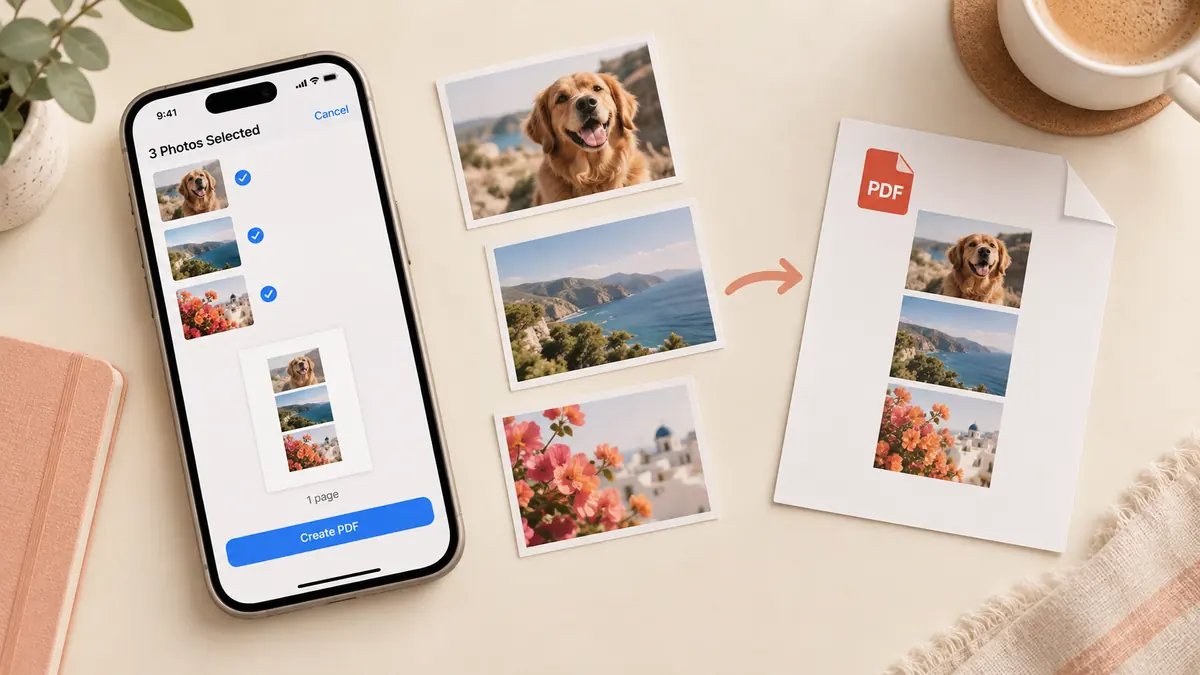
When you still have the source pictures, make reduced image copies before conversion. Image Compressor can resize and encode supported images in your browser. Use one representative page first. Crop empty desk space, preserve proportions, and avoid reducing small handwriting until it becomes hard to distinguish.
Create a new document with Image to PDF and compare it with the original. For example, ten pictures averaging 4 MB contain about 40 MB of source data. Reducing their average to 1 MB changes that input to roughly 10 MB. The final PDF size still depends on how images are encoded and packaged; this is arithmetic for planning, not an observed compression rate.
This method suits your own image packet. It is a poor substitute for preserving an existing text PDF, interactive form, or digitally signed document. Converting every page to an image can remove useful document structure.
Use a short quality checklist
Check that the page count is unchanged, pages remain in order, and the smallest relevant text is readable. Try selecting text if that mattered in the original. Open the file in the recipient’s likely viewer when possible. Inspect signatures visually, but do not confuse a visible signature image with validation of a certificate-backed signature.
Keep a note of the output setting beside the file. If the first attempt is too blurry, return to the original and make a less aggressive export. Recompressing the already damaged copy does not restore detail.
Common questions
Why did the file become bigger?
The export may have changed image encoding or document structure. A format conversion is not guaranteed to reduce size. Compare real files and keep the better result; do not overwrite a small original just because an option is named compression.
Does creating a ZIP solve this?
Already compressed images may shrink little inside ZIP. It also gives the recipient an archive to open rather than the requested PDF. Use ZIP when packaging files is useful, not as a promised reduction percentage.
What if I cannot meet the limit without losing readability?
Ask whether a controlled sharing link or a split submission is accepted. Removing a necessary page or making an account number unreadable is not a successful optimization. Retain the complete, readable source for a different delivery route.
Sources & further reading
- Apple · Checked Oct 1, 2026
- MDN Web Docs · Checked Oct 1, 2026