Why Can’t I Select Text in a Scanned PDF on iPhone?
If text in a scanned PDF cannot be selected, the pages may contain pictures of text without a searchable text layer. Optical character recognition, or OCR, can recognize characters and add usable text, but it is a separate step from packaging images into a PDF. First test a clear word in your viewer and confirm that the file is fully downloaded. For a short passage, supported iPhone Live Text features may help copy text from an image; that does not automatically create a searchable multipage PDF. Check recognized names, numbers, and punctuation against the original.
Find out what the document contains
Try selecting one distinctive word, then search for that word within the PDF. Repeat on a different page. A document can mix text pages with scanned image pages, so one successful selection does not prove the whole packet has a text layer. If selection works in another viewer, investigate the original viewer’s controls before processing the file again.
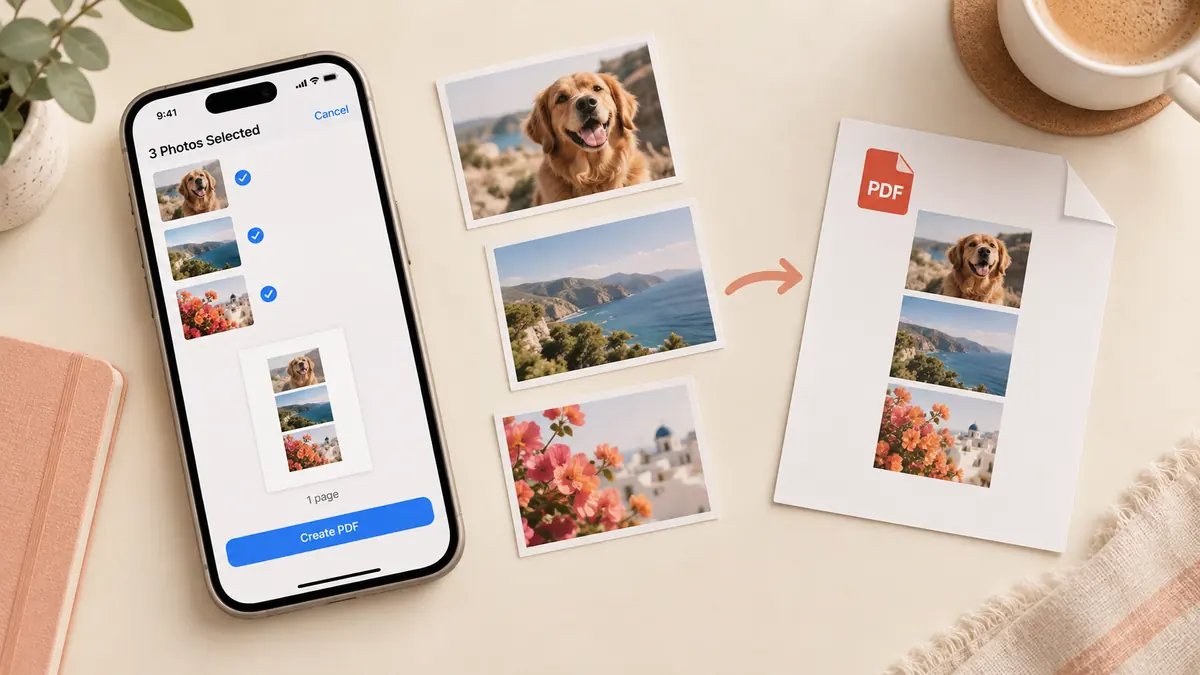
A PDF extension describes a document format, not a promise that its words are stored as text. A camera scan or an image conversion may look sharp while remaining image-only. Our photo-to-PDF guide explains the conversion stage; OCR solves a different problem.
Choose between copying a passage and processing the file
For a few words, use an available text-recognition feature on a readable source image. Apple documents Live Text for supported images, devices, and languages. Check the copied result before pasting it into a message or form. An order code with a zero and a capital O is an easy place for a mistake to go unnoticed.
For a document that must be searchable, choose an OCR workflow that explicitly exports a PDF with recognized text. Confirm the supported languages, input limits, and processing location. Adobe’s linked OCR documentation describes the concept and review step; it is not a claim that every desktop control exists in an iPhone app.
- Keep the original image PDF.
- Pick a clear representative page containing normal text and an important number.
- Run OCR with the correct language and orientation settings where available.
- Save a separate output, then search for words from more than one page.
- Copy a paragraph and compare its reading order with the scan.
- Check important figures manually before processing the remaining pages.
Improve the input instead of repeating a bad conversion
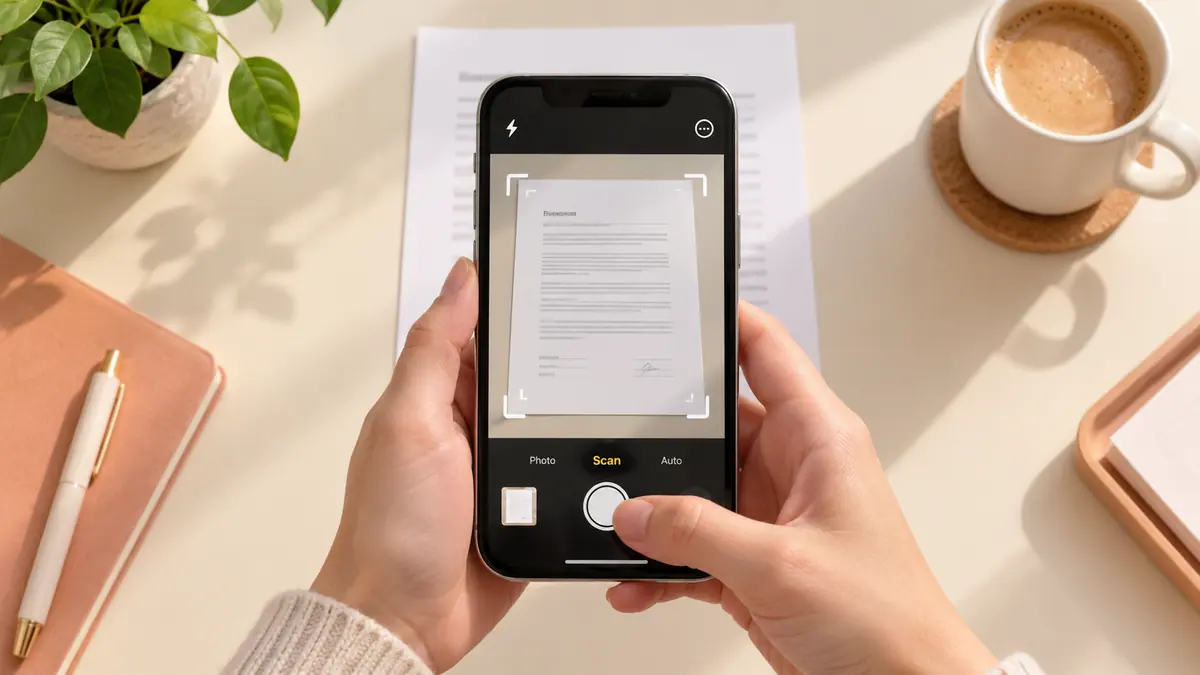
Straighten an angled capture, include all page edges, and avoid glare across the text. Small or faint characters are harder to recognize reliably. If you still have the paper, a better scan can be more valuable than repeatedly running the same blurred image through different tools. See scanning a readable PDF for capture checks.
Tables, columns, handwriting, and mixed languages deserve extra attention. An OCR result may identify individual words while putting them in the wrong order. Read a copied row across its headings, especially when numbers could be attached to the wrong product or date.
Keep confidential documents under control
Determine whether the OCR tool processes locally or sends a file to a service. Do not infer processing behavior from the word private in a product name. Use an approved workflow for work records and avoid experimenting with personal documents when a harmless sample can establish whether the tool works.
The SFByte Image to PDF tool creates a document from supported images in the browser. It does not perform OCR. Making the same image PDF again will not add recognized text just because the export finished successfully.
Common questions
Is searchable text the same as an accessible PDF?
No. Reading order, headings, descriptions of images, and other document structure may still need attention. OCR can be one step toward a usable document, not proof of accessibility.
Can an AI summarizer solve unreadable scans?
Only if its documented workflow accepts that input or an OCR step prepares it first. Do not assume that every summarizer can see text embedded in pictures. Verify any summary against the original, particularly qualifications and numerical results.
Does OCR replace the visible page?
That depends on the output method. Inspect both the page appearance and the searchable text. Preserve the original so you can resolve mistakes without relying on the recognition result as your only evidence.
Sources & further reading
- Official documentation · Checked Oct 1, 2026
- Apple · Checked Oct 1, 2026
- Apple · Checked Oct 1, 2026