How to Sign a PDF on iPhone
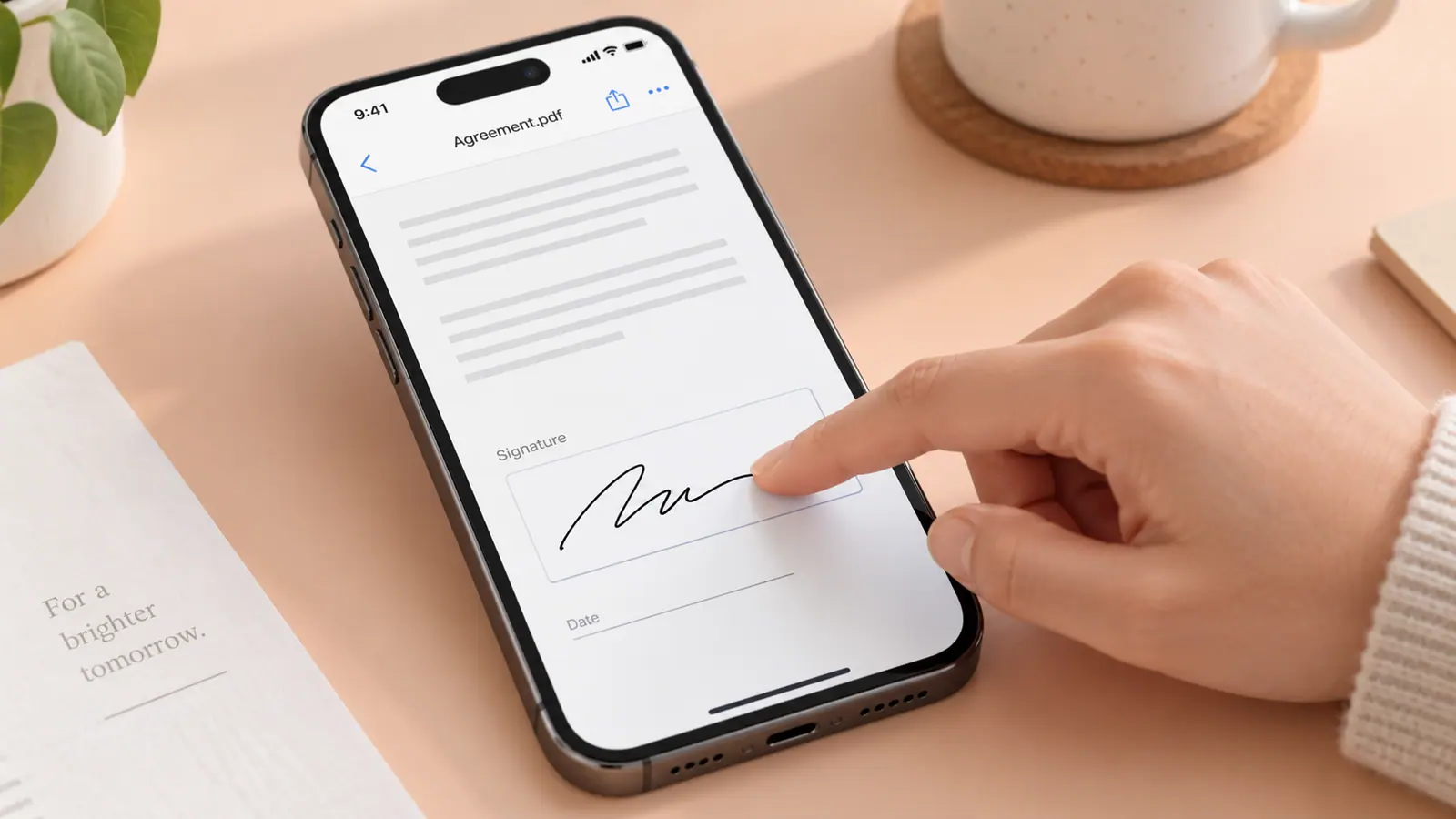
To sign a PDF on iPhone, open the document in a compatible viewer, add a signature using its signing or Markup controls, position it in the correct place, and save a separate completed copy. Reopen the saved file before sending it. A drawn signature is not the same as a certificate-based digital signature, and a recipient may require a particular signing service or process. Follow the recipient’s instructions first. This guide covers preparing and checking the document, not determining whether a signature satisfies a particular legal requirement.
Check the recipient’s requirement
A drawn signature placed on a page is different from a certificate-backed digital signature or an identity-verified signing service. Ask which format the recipient accepts before editing a form. Do not assume that a visible signature satisfies every agreement or regulated process.
Add a visible signature
On supported iPhone versions, Preview provides PDF form filling and signature controls. Open a copy of the PDF, find the signature tool, create or select your signature, and position it inside the intended field. Zoom in so the signature does not cover the label or adjacent text.
For repeated PDF work, PDF Fill & Sign Editor is another option; check the current app listing for supported features.
Verify what you are sending
Save with a name such as application-signed-copy.pdf. Close the document and reopen that saved file to make sure the signature remains in place. Check all pages, dates, and required fields, not just the last page. Send the exported document rather than a screenshot of its signature area. Keep an unsigned original for corrections and avoid putting a reusable signature image in a public folder.
Read the document before placing the signature
Check that the file is complete and that you understand which person is expected to sign each area. Do not place a signature over explanatory text, a field for someone else, or a page that was not part of the intended document. Keep the blank source so you can restart cleanly if needed.
Use a separate copy for practice when you are unfamiliar with the controls. Zoom in to position the signature without covering adjacent fields, then zoom out to inspect the whole page. A signature that looks correctly placed at high zoom can still appear too large relative to the form.
Verify the file the recipient will receive
After saving, close the editing view and open the file from its destination folder. Check the signature, date, entered text, and page order. If you send a cloud link, confirm its permissions; if you attach a file, ensure it is the completed copy rather than the original blank form.
A useful filename distinguishes a completed copy from a blank template without exposing unnecessary personal information. Avoid attaching several similarly named trials. The project file naming guide provides a repeatable approach.
Correct mistakes without obscuring them
If an annotation can still be edited, correct it in the supported editor and save a new checked copy. If it has been flattened into the page, go back to the unsigned source rather than drawing a white rectangle over the error and assuming the underlying data is gone. A document with protected or cryptographic signatures may need a different process.
When fields or marks disappear in another viewer, use PDF annotations missing after sharing to compare the source, saved export, and recipient’s view. Do not repeatedly sign different copies until you lose track of which one is final.
Can I fill the form and sign it in one workflow?
Often, but fields and annotations are separate document features. Complete the PDF form checks before placing the final signature and reviewing the result.
Is a screenshot of the signed page enough?
Use the format the recipient asks for. A screenshot may omit pages, reduce readability, or lose document features; it is not a universal replacement for a completed PDF.
Sources & further reading
- Apple · Checked Oct 1, 2026