How to Play MP3 Files Offline on iPhone
To play MP3 files offline on iPhone, start with audio files you own or have permission to use, make sure the full files are downloaded, and import them into a player that supports local audio. A song title in a cloud folder or a streaming app does not prove that another player can use it offline. Check several tracks with network access disabled before traveling, including the end of a track and playback after reopening the app.
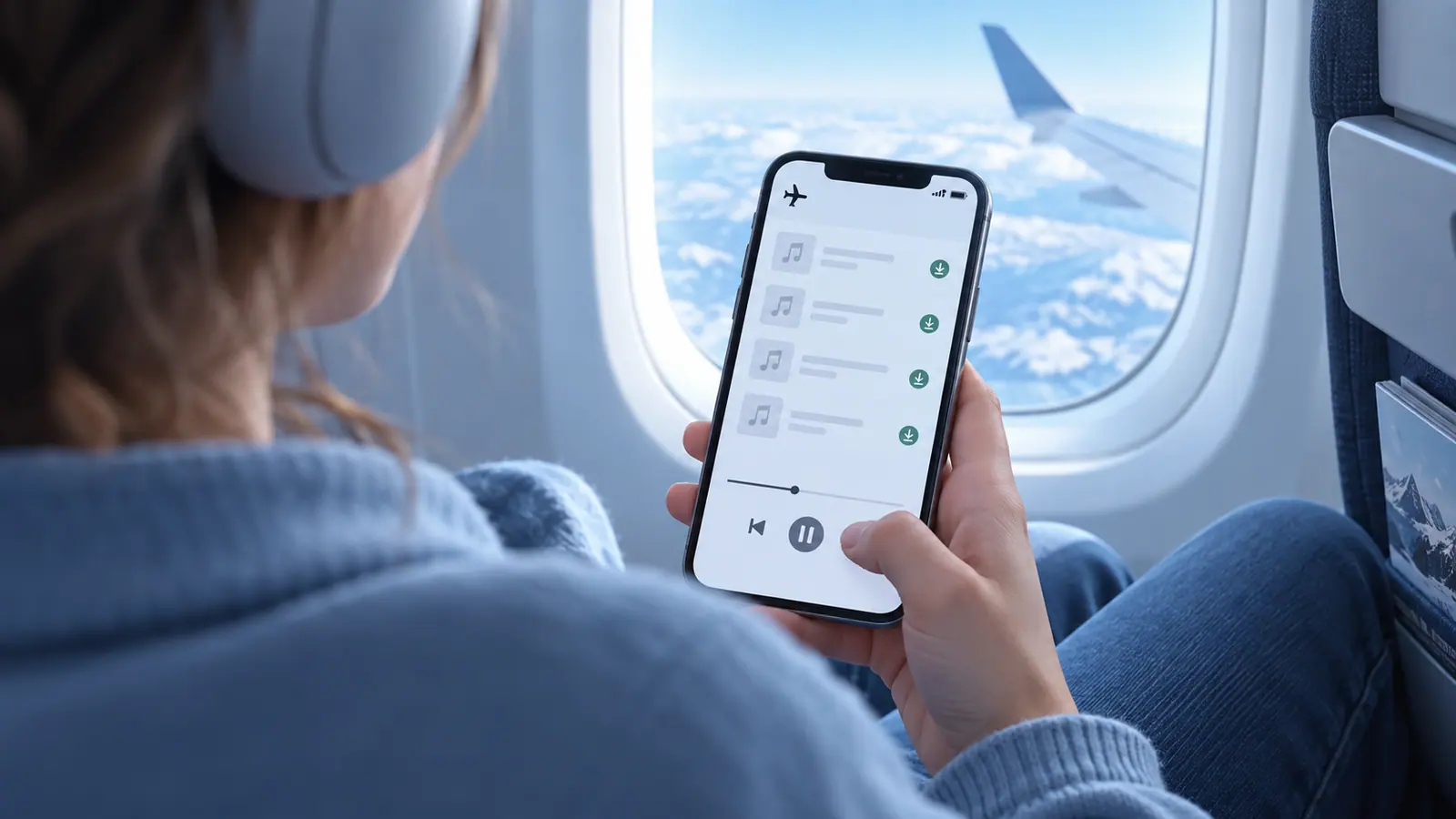
First identify what you actually downloaded
| What you have | What it means for this task |
|---|---|
| An ordinary MP3 file you can access | A candidate for a compatible local player |
| A cloud file represented by a name or thumbnail | Confirm that its full contents are on the phone |
| A streaming service’s in-app download | Follow that service’s playback rules; do not assume it is an exportable MP3 |
| An attachment or link | Save the actual permitted file before relying on offline access |
This guide is about local audio files. It does not provide a method to remove protection from subscription downloads or extract a streaming catalogue.
Make the files available locally
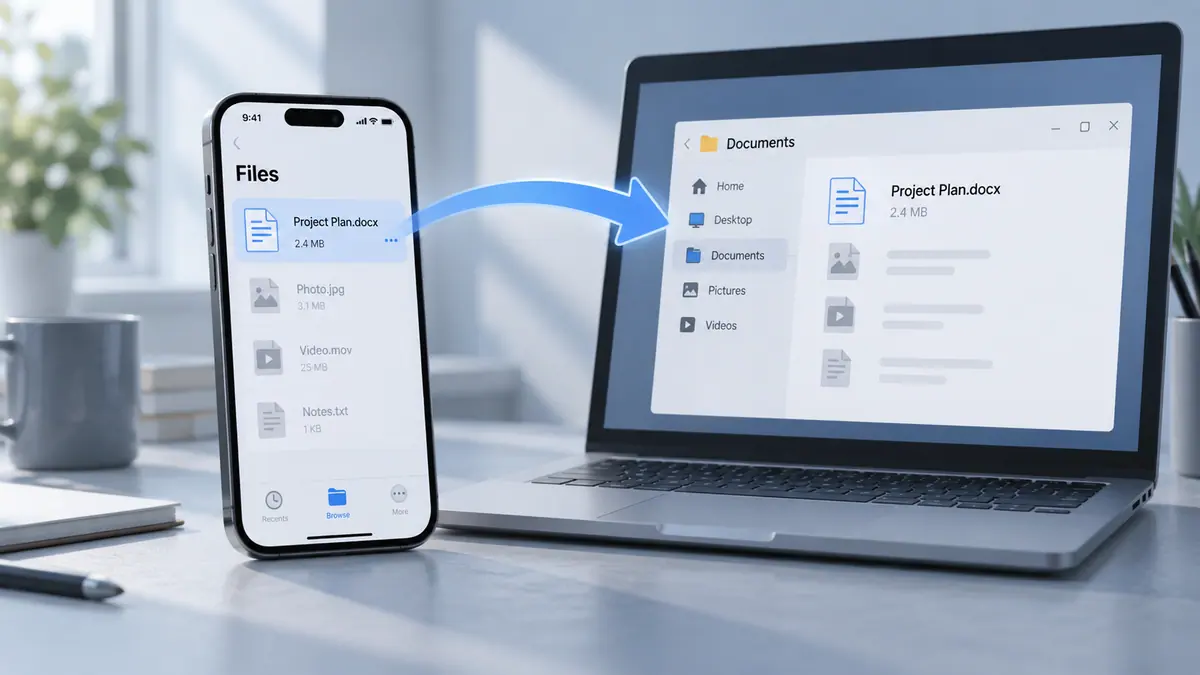
Locate the files in Files and confirm their actual storage location. For supported cloud files, Apple’s guide describes touching and holding an item and choosing Keep Downloaded. Apple explains the offline-file control here.
Use a small folder before importing your entire library. Include one long recording, one ordinary song and a file with a less familiar name or format. Check that these open before moving on. A useful filename and a visible size help distinguish the real file from a shortcut or web page.
Import a small playlist into your player
Offline Music Player: MP3Zen is developed by SFByte. Its current listing describes importing local audio through Files and sharing workflows, along with playlists, background playback and lock-screen controls. Use the import route offered by your installed version; this article does not invent button labels that have not been checked on a device.
After importing, compare the expected tracks with the displayed library. Check the track order and whether similarly named files are genuinely duplicates. For a spoken series, a simple numbered filename can make it easier to verify the intended order before building a playlist.
Run an offline check before leaving
At a convenient time when you do not need connectivity, disable Wi-Fi and cellular access. Do not assume a single status icon proves every connection is off. Then use this practical check:
- Open the player and start a track from the imported folder.
- Seek near the end, then play another track that was not just previewed online.
- Lock and unlock the screen and check whether the behavior matches your needs.
- Close and reopen the app, then confirm the imported files remain accessible.
- Re-enable the connectivity you need when finished.
These are checks for the reader to perform, not SFByte test results. A five-second opening that plays from a cache is weaker evidence than successfully opening several full local files.
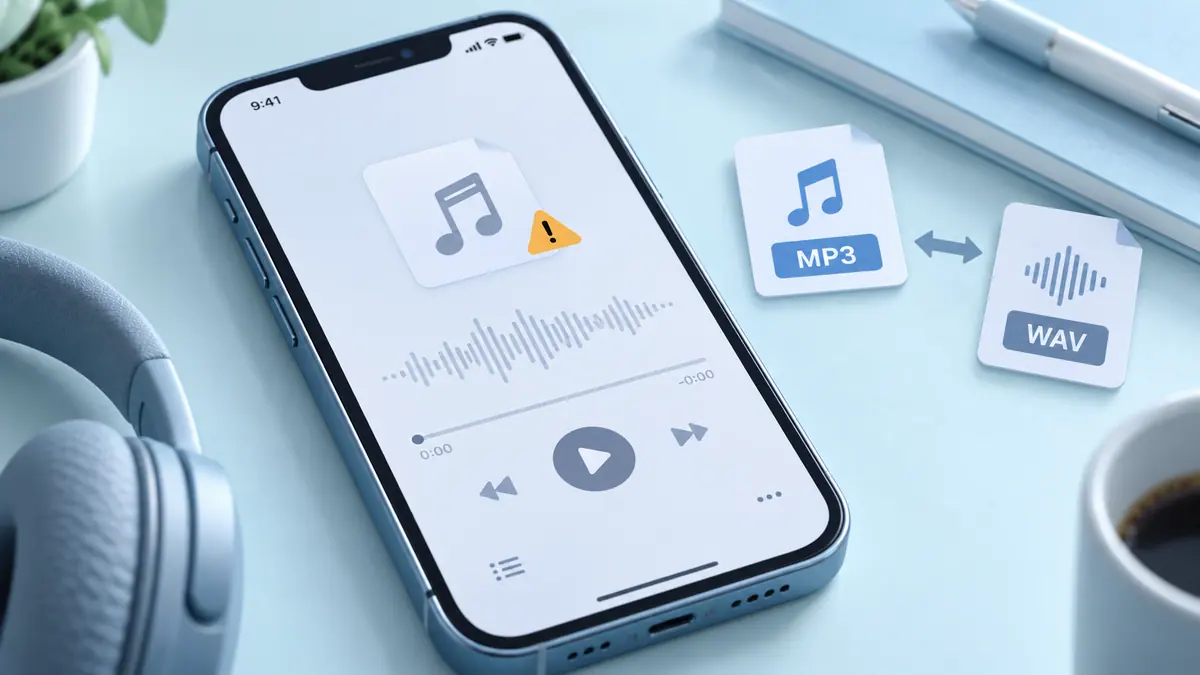
When a track appears but will not play
Return to the source and establish whether the file is complete and supported. If only one file fails, keep a copy of it and compare it with one that works. If everything fails only while offline, investigate whether the files were actually stored locally.
Use the audio-file troubleshooting guide for format and file checks. Renaming another format to .mp3 does not convert it. Do not repeatedly delete and re-import your entire library without first identifying a smaller reproducible example.
Budget storage for the trip
An hour of constant-bitrate audio at 128 kbps contains approximately 57.6 MB of audio data; at 320 kbps it is about 144 MB, before metadata. These are arithmetic estimates, not measured MP3Zen storage use. The audio duration calculator and bitrate/size guide help plan from the values you know.
Keep an independent copy of your music or recordings. Before removing app data or replacing the phone, check the app’s export and backup behavior rather than assuming an imported library can be reconstructed from memory. For the broader travel checklist, see planning phone storage for a trip.
Sources & further reading
- Apple Support · Checked Oct 3, 2026
- App Store — developer listing · Checked Oct 3, 2026