How to Compress a Video on iPhone
To make an iPhone video smaller, first decide whether you can shorten it or must keep the full recording. Photos can trim unwanted duration; iMovie can export using a different resolution or frame rate when available; a compression app can offer another export workflow. Save a separate copy, inspect its actual file size, and watch the result before deleting anything. For a hard attachment limit, duration and bitrate matter more than the filename. The calculations below help set a budget; they are not measured iPhone compression results.
Choose the method around the result you need
| Your situation | Start here | What changes |
|---|---|---|
| Only the middle of the recording matters | Trim a copy in Photos | The duration and included content |
| You need the whole clip at a smaller delivery resolution | Export from iMovie | Export settings, subject to the project and device |
| You want a dedicated compression workflow | Use a compression app | The controls available in that app and plan |
| A long recording must remain clear | Consider a private file link | The delivery route, without forcing a tiny attachment |
Record the original duration and file size before choosing a method. A smaller number is not a useful improvement if the export cuts off the explanation, loses audio, or makes the text unreadable.
Method 1: keep only the useful section in Photos
Open the video in Photos, choose Edit, and move the ends of the timeline to the section you need. Preview it, tap Done, and choose Save Video as New Clip to keep a separate original. These controls are documented in Apple’s trimming instructions.
Use this when a recording includes a long lead-in or irrelevant ending. It changes the story’s duration, so do not compare its percentage reduction with a full-length re-encode as if both methods preserved the same content. A shorter clip may still exceed the destination’s limit; check its saved size.
Method 2: export a delivery copy from iMovie
Prepare a movie project containing the clip. From the project, choose Share → Share Video → Options. Select an offered resolution and, when available, a frame rate. Return to the sharing options and save the video to Files or the photo library. Apple documents these controls in its iMovie export guide.
Available frame-rate and HDR controls depend on the media. Do not promise a setting that is absent from the current project. A 1080p delivery copy is worth considering when the recipient does not need a 4K editing master, but the resolution name alone does not guarantee a particular file size.
Export one sample before processing a long recording. Keep the original project and source until you confirm the copy opens on the recipient’s device. Changing HDR or frame rate can affect appearance or motion as well as the delivery size.
Method 3: use a dedicated compression app
Video Compress & Shrink Video is developed by SFByte. Its listing describes a free tier for single videos up to two minutes with exports up to 1080p; longer videos and 4K export are listed as premium features. Check the current offer and installed controls before choosing it for a ten-minute recording.
Select the source, choose the available compression or export setting, and save a separate result. If the app provides presets rather than an exact bitrate field, treat the calculated budget below as a check on the result, not as a setting you can necessarily type into that app. This guide does not claim a measured export time or a guaranteed percentage reduction.
How to make a video under 25 MB
For a worked example, reserve 10% of a 25 MB limit and allocate 128 kbps to audio. That leaves a planned media budget of 22.5 MB. Divide the byte budget by the clip duration, convert bytes to bits, then subtract the audio bitrate.
| Full clip duration | Total bitrate budget | Video budget after audio |
|---|---|---|
| 1 minute | 3 Mbps | 2.872 Mbps |
| 5 minutes | 0.6 Mbps | 0.472 Mbps |
| 10 minutes | 0.3 Mbps | 0.172 Mbps |
These are calculated targets, not measured exports or recommended quality settings. The ten-minute budget is particularly restrictive. If faces, captions or motion become difficult to see, send a shorter selection or a controlled-access link instead. The reserve is a planning choice; variable bitrate and overhead can still change the final file size.
Use the target-size calculator with your actual duration and limit. Email and messaging limits vary by service, account and sending method; 25 MB is an example, not a universal allowance.
Compare the saved files before sending
Open the saved output and inspect the same moments in source and result: a moving subject, fine detail, a dark area and any small writing. Watch at the size the recipient will use, and listen at the beginning and end. Note whether dimensions, orientation and duration changed.
Calculate reduction as (original bytes − output bytes) ÷ original bytes × 100. A negative result means the new file is larger. Keep elapsed export time separate from playback duration. A quality score is a human judgment that needs a stated viewing method; it cannot be inferred from file size.
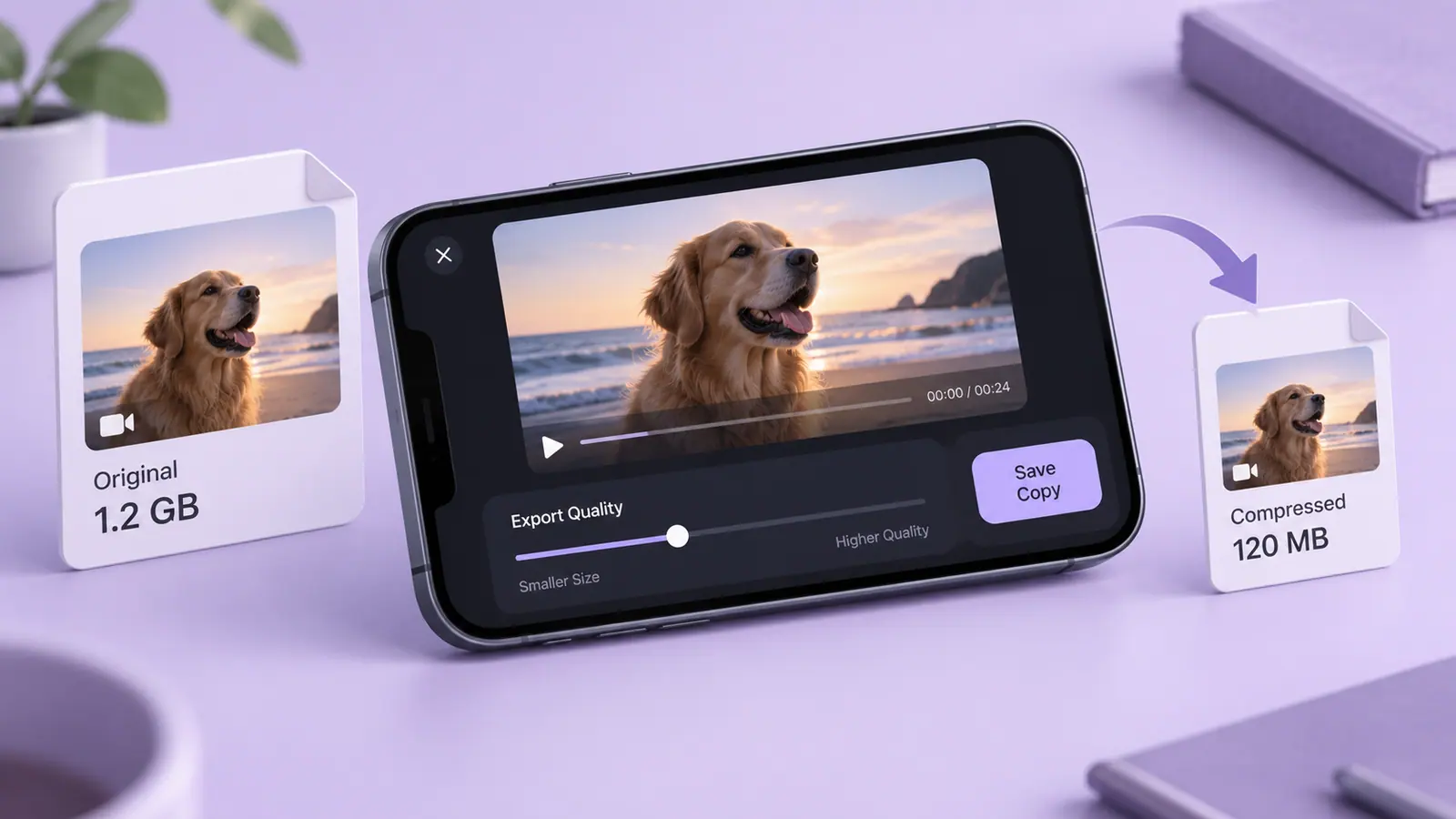
SFByte has not yet published a controlled device benchmark for this guide. There are no invented before/after measurements or device screenshots here. The cover illustration is conceptual; the linked instructions are source-based.
If the result is still too large or looks wrong
If the output exceeds the limit, first confirm its actual size and duration. Then change one setting at a time. If it is small enough but blurry, use the compression-quality checklist before lowering bitrate again.
If it will not open, review MOV versus MP4 and the codec inside. Renaming an extension does not convert the video. For a large recording that needs to stay usable, compare the large-video delivery options. Keep the original until the recipient can open the intended copy.
Sources & further reading
- Apple Support · Checked Oct 3, 2026
- Apple Support · Checked Oct 3, 2026
- App Store — developer listing · Checked Oct 3, 2026