Why Did My Compressed Video Lose Quality?
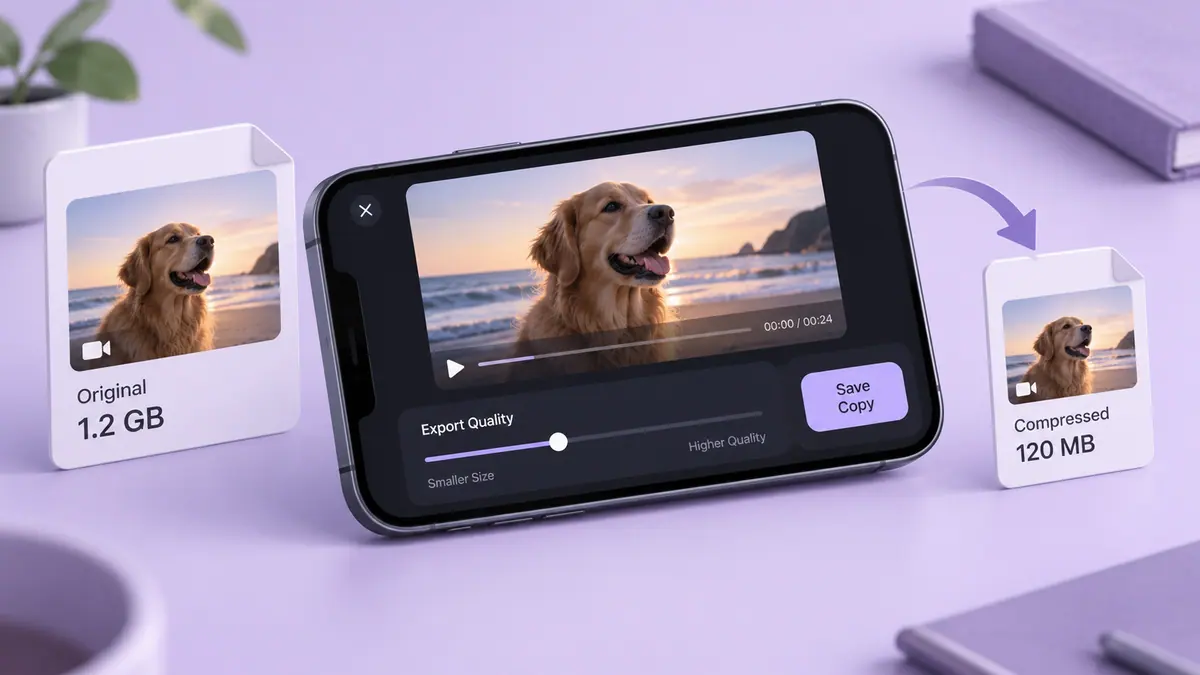
A compressed video can look blurry when its export discards too much spatial or motion detail for the material being shown. Compare the original and the saved export at the same viewing size, then check resolution, bitrate, repeated re-encoding, and the recipient’s playback version. Increase only the setting that addresses the problem and try a short sample. If the source itself is out of focus or already heavily compressed, a larger export cannot restore the missing captured detail. Keep that distinction clear before spending time on repeated conversions.
Identify where the damage appears
Watch the exported file rather than an editor’s preview. Blocks around moving objects, smeared texture, and unreadable captions point to different priorities than a clip that is simply the wrong shape. Compare the same moment with the original at a similar viewing size.
Change one decision
Try a higher bitrate for the difficult section. If the destination imposes a strict size limit, shorten the clip, reduce unnecessary dimensions, or simplify the frame before pushing compression further. Increasing every setting at once makes it hard to learn which change helped.
For a screen recording, a tighter crop around the useful area may preserve readable labels better than retaining a full screen at a very low bitrate. For a family moment, smooth faces and natural motion may matter more than background detail.
Return to the original
Avoid making the next attempt from the already compressed export. Repeated lossy exports can discard additional information. Name copies with a setting or version number, compare them, and keep only the delivery version you intend to send. If the uploaded result looks worse than your local file, the destination may have applied another conversion.
Compare like with like
Use the original local file and the new local export, rather than comparing a full-resolution source with a messaging thumbnail. View both at the intended display size and pause at the same moment. Check whether the issue is soft detail, blocky motion, unreadable text, or a crop that has enlarged a small area.
A service may process an upload into several playback versions. If the local export looks acceptable but the shared version does not, check the actual downloaded or selected playback quality before changing the source edit.
Change one setting at a time
If the export dimensions are too small, a higher bitrate alone cannot restore discarded pixels. If dimensions are appropriate but fast motion breaks apart, a higher bitrate or a different supported codec may help. Make a sample from a demanding part of the clip, not just a still opening shot.
Choosing video bitrate provides the decision framework. 1080p versus 4K explains when extra resolution may be useful. Neither provides a universal setting that guarantees identical quality for every recording.
Return to the best available source
Each lossy re-encode can introduce additional changes. When trying another setting, return to the original or the highest-quality project export rather than repeatedly compressing the previous small copy. Keep notes on the settings so you can identify which version improved the result.
If you cropped heavily, reconsider the framing before enlarging the remaining pixels. If the source is out of focus, explain the limitation or use another take where possible. A larger file is not proof of a more informative picture.
What if the better export exceeds the limit?
Reduce duration, divide the material appropriately, or choose a suitable transfer link. The large-video sharing guide covers the route decision, while the Video Size Calculator estimates a new budget.
Is a quality percentage comparable across apps?
Not reliably. Different encoders and interfaces can interpret a quality slider differently. Judge the saved output, not just a matching number in two applications.
Sources & further reading
- MDN Web Docs · Checked Oct 1, 2026