YouTube Announces Conversational Editing: What to Check Before Export
YouTube’s September 23 creator announcement describes a Gemini-powered editing assistant for Shorts and YouTube Create, with conversational suggestions alongside manual timeline controls. Treat the announcement separately from what is available in your account today. Before using any assisted edit for a real project, keep your source clips, check the proposed cut, and review the exported file. A shorter timeline is useful only if it preserves the intended meaning, readable visuals, and necessary sound. SFByte has not tested the announced assistant.
Source announcement:
The announced change
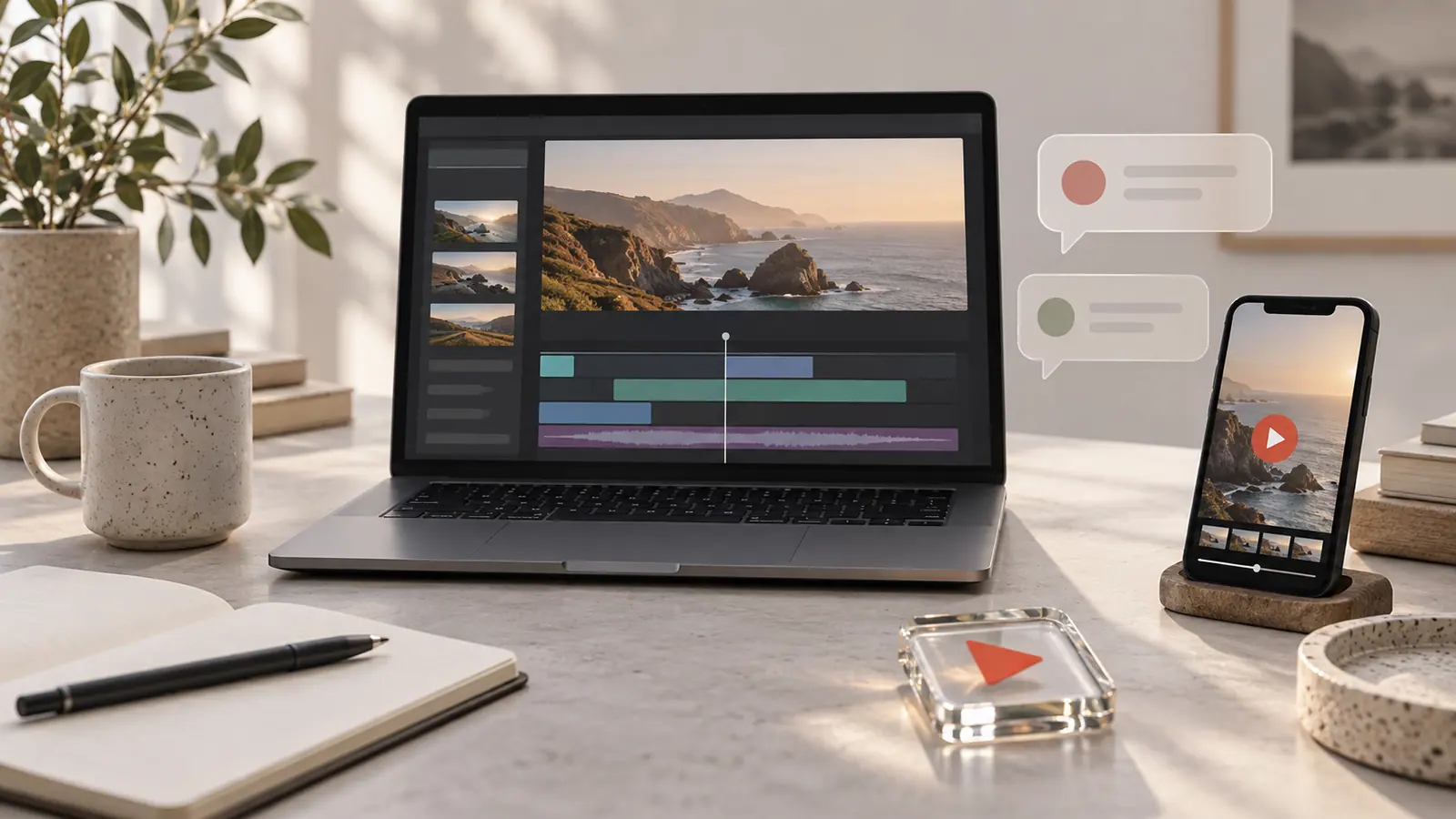
YouTube describes conversational editing that can help with rearranging or trimming clips and aligning music. Its wider announcement includes other tools with separate rollout conditions. Check the product interface and official announcement for the feature you intend to use; do not assume every item in the announcement arrived together.
Decide what a good edit must preserve
Before asking an assistant to shorten a video, write down the parts that must remain: a complete explanation, a visible result, an instruction that changes the meaning, or a credit. This gives you a concrete review target. A fluent suggestion can still remove the pause or context that makes a demonstration understandable.
Keep the source files and a version of the project before the assisted change. Compare the proposed sequence with your intended story. If a cut changes the relationship between two statements, restore the necessary context rather than accepting a smoother but misleading result.
Check the timeline and the exported file
Watch the first and last seconds of each changed section. Listen for clipped words, overlapping music, and abrupt volume changes. Read captions at ordinary viewing size. Check whether a crop hides the part of the demonstration the viewer needs to see.
Then save an export and play that file outside the editor. A preview alone does not verify the deliverable. Compare duration, orientation, and sound with the project. If audio disappears during export, use our silent video export checklist before rebuilding the whole edit.
Plan a shareable version
Changing the cut may change duration but does not guarantee a particular file size. Use the Video Size Calculator to estimate a delivery budget, then check the actual export. For footage that remains too large, create a separate compressed sharing copy after approving the edit.
Do I need an AI editor to do this?
No. Trimming and arranging a timeline are established editing tasks. The useful comparison is whether an assisted workflow saves time while preserving the result you intend. Keep manual review in the workflow either way.
Is an announcement proof that my account has access?
No. Check the relevant product and its current eligibility information. This article covers the announced direction and a review workflow, not a confirmed rollout to every user.
Sources & further reading
- YouTube · Checked Oct 2, 2026