Guide · Video
How to Compress a Video on iPhone
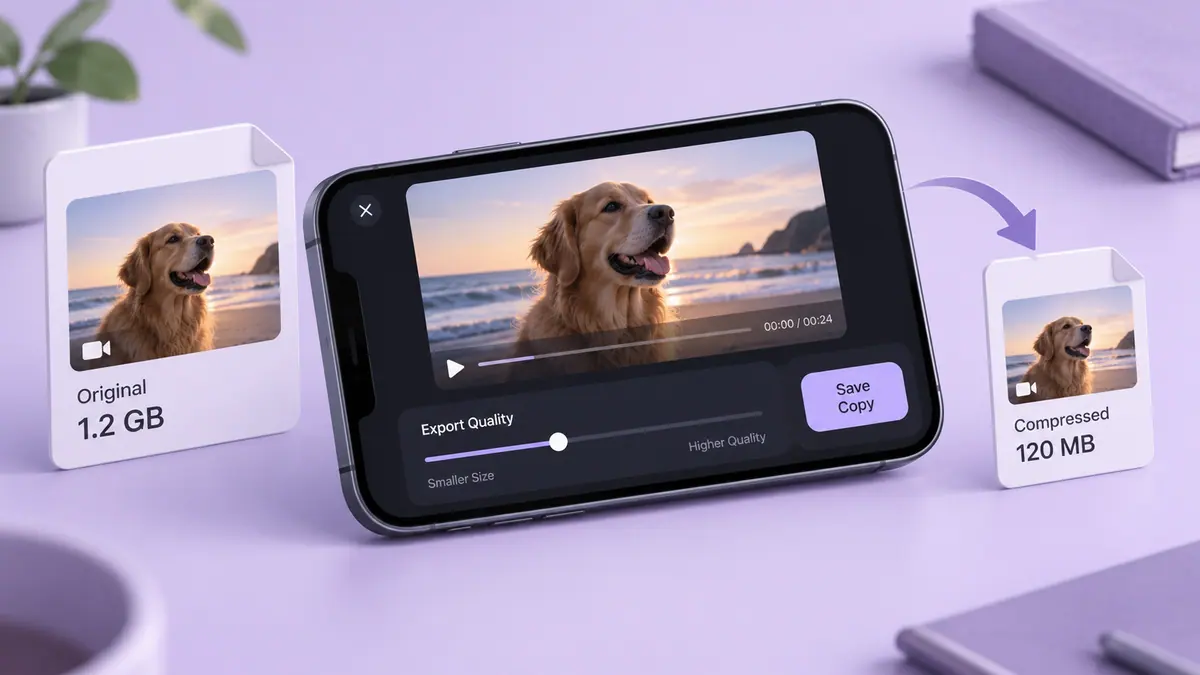
Choose Photos trimming, an iMovie export or a compression app. Work backward from a 25 MB limit and check size, sound and visible detail.
5 min readRecord, edit, compress, and share video with fewer surprises.
An iPhone video workflow has three separate decisions: how to capture the original, how to edit it, and how to deliver the finished copy. A high-quality recording gives you room to crop and edit, but it may be much larger than the version you want to send. Keep the source clip while you experiment with shorter duration, different dimensions, or a lower export bitrate.
Start with the recipient. A clip for email has a size limit; a social post has framing requirements; an archive needs an original you can edit later. Resolution alone does not determine file size, and changing an extension does not convert the codec inside a file. Use the calculator to plan a target, then inspect an actual export for moving detail, readable captions, smooth motion, and clear audio.
Use the guides below for a specific task, then follow the related tools and apps when they fit your workflow. Each article links to its sources and separates a general explanation from instructions that depend on a particular app or device.
Choose Photos trimming, an iMovie export or a compression app. Work backward from a 25 MB limit and check size, sound and visible detail.
5 min read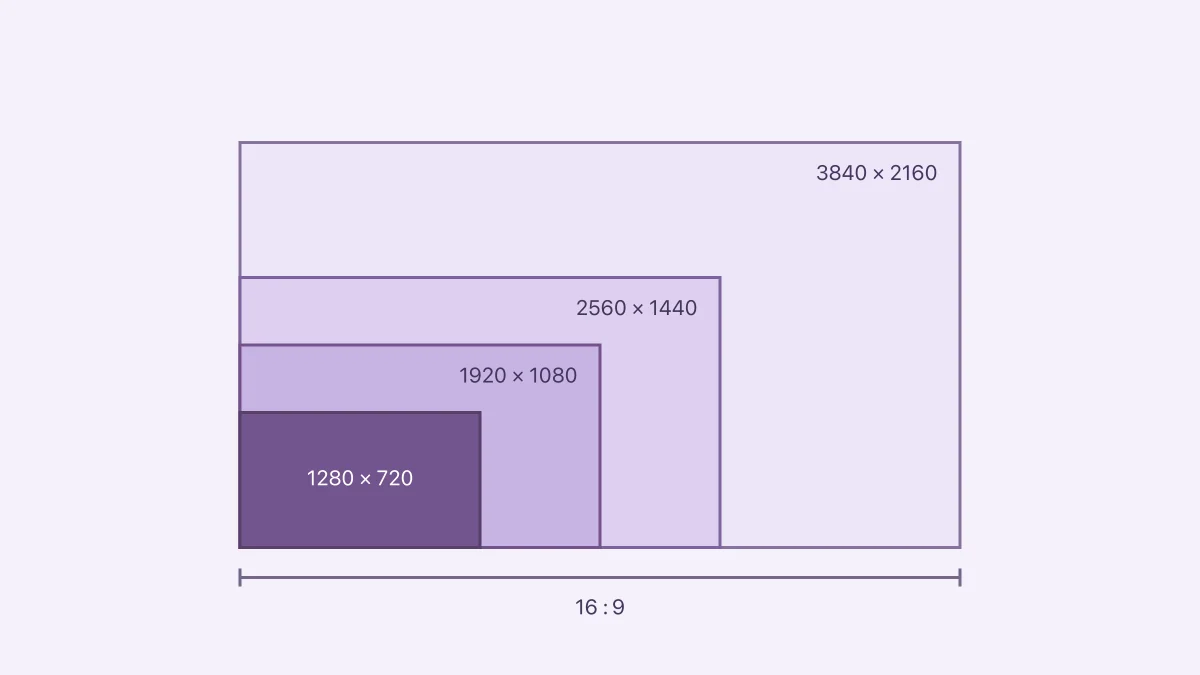
1280×720 is 16:9, commonly called 720p HD. Use the calculator, compare 1080p, 1440p and 4K, and resize without stretching or confusing ratio with resolution.
4 min read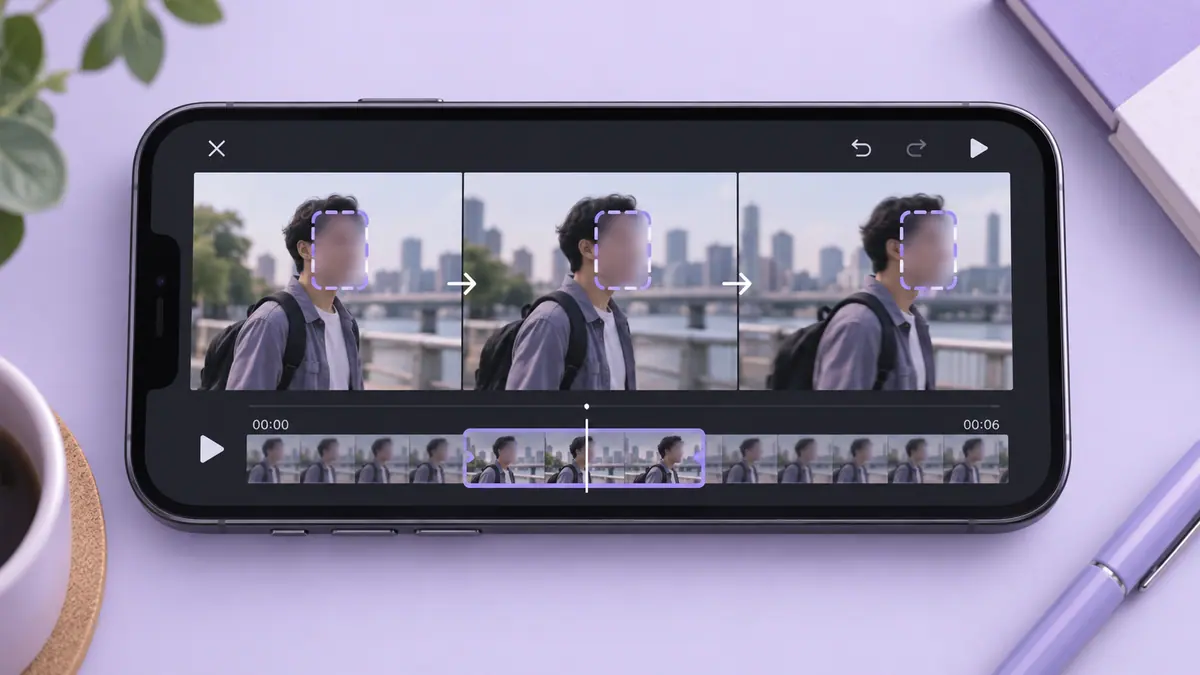
To blur a face throughout a video, cover the face for every part of the clip in which it appears, adjust the mask as the subject moves, and inspect the exported result rather than only the editor preview.
4 min read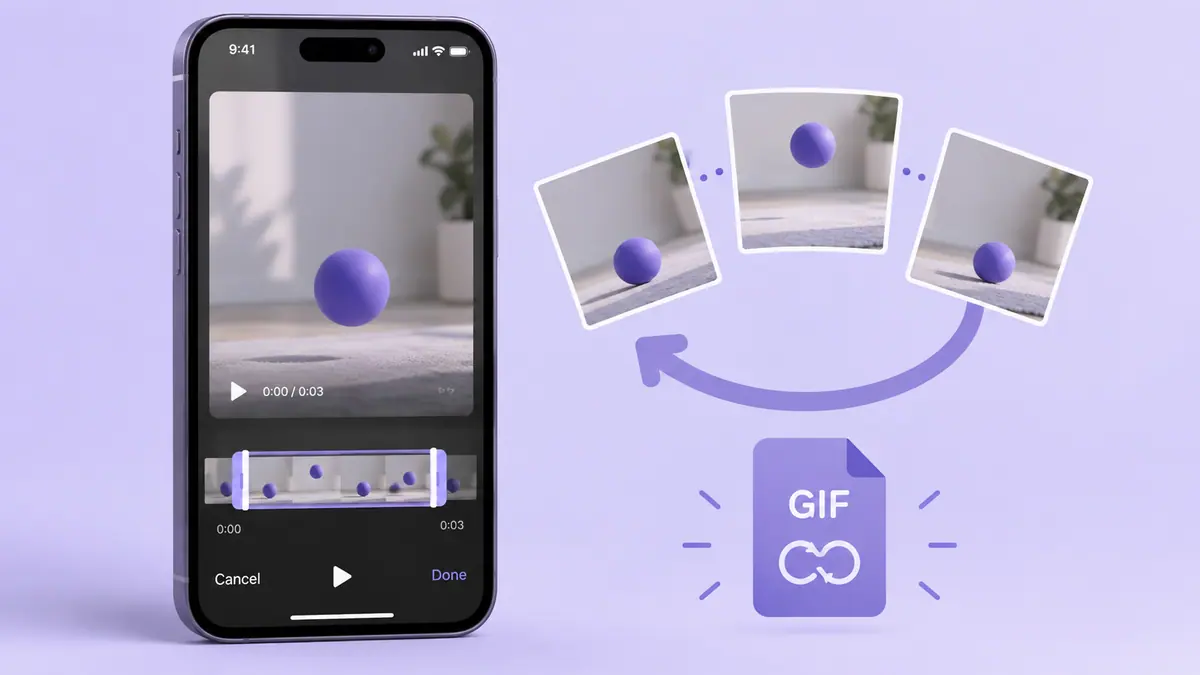
Create a GIF from an iPhone video by choosing a short section, setting the start and end points in a converter, previewing the loop, and saving a new GIF.
4 min read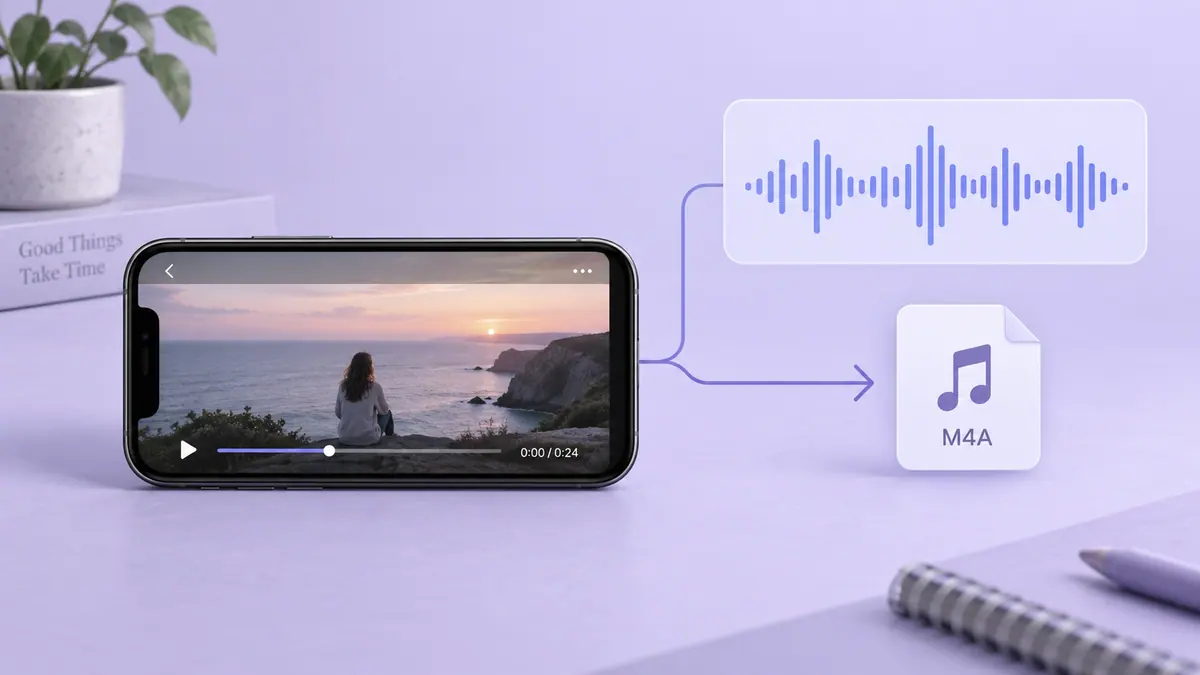
To extract audio from an iPhone video, open a local video file in an audio converter, select the part you need, choose an available output format, and save the audio to Files.
4 min readTo keep future iPhone recordings smaller, choose a resolution and frame rate appropriate for the destination, consider High Efficiency capture where supported, and record only the duration you need.
4 min readCheck duration and actual byte size, then decide whether a shorter selection, smaller delivery copy, or transfer link suits the recipient.
Compare the original, project, and saved export. Check audio, orientation, and format compatibility one change at a time.
1280×720 is 16:9, commonly called 720p HD. Use the calculator, compare 1080p, 1440p and 4K, and resize without stretching or confusing ratio with resolution.
4 min readTo keep future iPhone recordings smaller, choose a resolution and frame rate appropriate for the destination, consider High Efficiency capture where supported, and record only the duration you need.
4 min read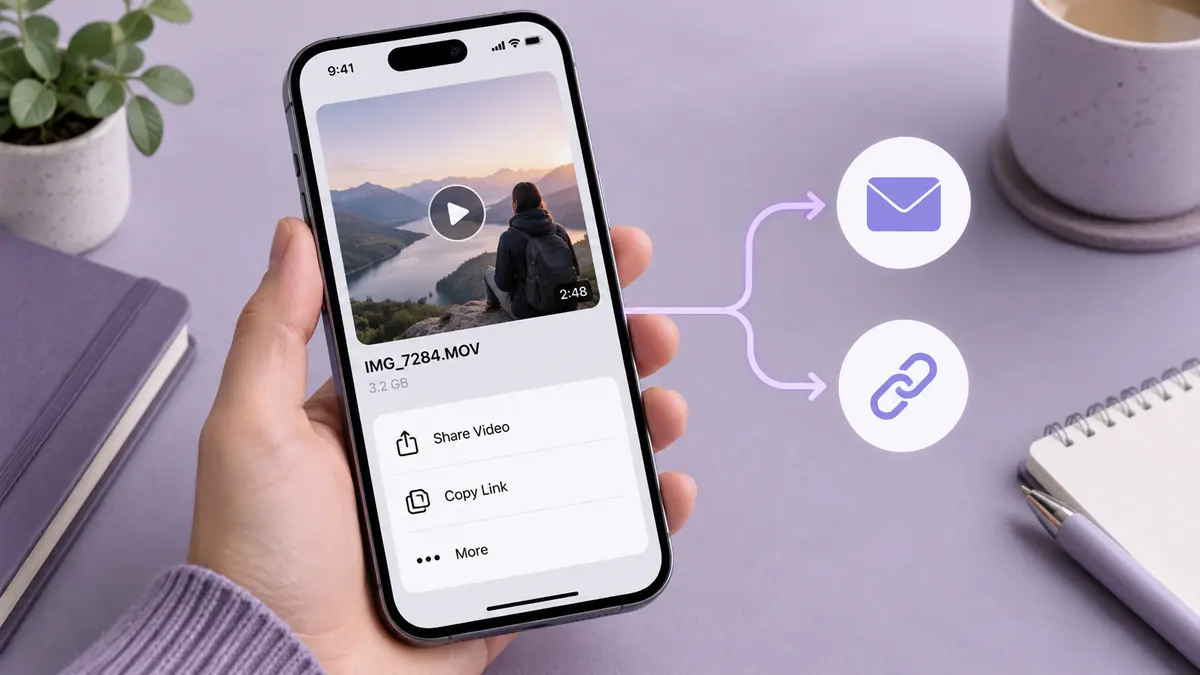
Send a large iPhone video by choosing the delivery route before changing the file: a supported nearby transfer, a controlled sharing link, or a smaller exported attachment.
4 min readMatch the recording dimensions to your edit, destination, and available storage.
1 min readCompare 30 and 60 frames per second on iPhone: motion, slow motion, lighting, file size and recording tradeoffs, with clearly labelled calculations.
5 min readCalculate 1, 5, 10, 30 and 60 minutes of 4K video storage in GB. Compare 24/30/60 fps examples without mistaking export estimates for iPhone recordings.
5 min readUse duration and a target size to set a starting point, then judge the actual result.
1 min readWork backward from the attachment allowance instead of guessing an export preset.
1 min readMake a delivery copy that keeps the important detail and check what the recipient receives.
1 min readThe container name is only part of the answer when a video will not open.
1 min readDuration and bitrate do most of the work. Here is how to make sense of the numbers before sharing a video.
3 min readInspect motion, text, and repeated exports to find the first setting to change.
3 min read
To blur a face throughout a video, cover the face for every part of the clip in which it appears, adjust the mask as the subject moves, and inspect the exported result rather than only the editor preview.
4 min readSlow down a video by reducing its playback speed in a video editor and exporting a new copy.
4 min readSpeed up a regular iPhone video in iMovie or return a Slo-mo section toward normal playback in Photos. Check duration, audio and the saved export.
5 min readWhen an exported video has no sound, compare the original, the editor preview, and the saved export before changing anything.
4 min read
Choose Photos trimming, an iMovie export or a compression app. Work backward from a 25 MB limit and check size, sound and visible detail.
5 min readRemove unused time while keeping an original you can return to.
1 min read
Create a GIF from an iPhone video by choosing a short section, setting the start and end points in a converter, previewing the loop, and saving a new GIF.
4 min read
To extract audio from an iPhone video, open a local video file in an audio converter, select the part you need, choose an available output format, and save the audio to Files.
4 min readFind an image or video aspect ratio and calculate a matching height at a new width.
Free browser toolEstimate audio playing time from a file size and constant bitrate.
Free browser toolKnow the size before you hit send. Estimate a video file from its duration and bitrate.
Free browser tool Video
VideoDraw frame-by-frame animations and work from your own videos.
View app Video
VideoTurn short video moments into printable flipbook pages.
View app Video
VideoTurn a video clip into a GIF for sharing.
View app Video
VideoAdd blur or censoring to selected areas of a video.
View app Video
VideoSelect video frames and create a printable flipbook.
View app Video
VideoCreate edited videos with music and beat-based timing.
View app Video
VideoMake smaller delivery copies of large video files.
View app Video
VideoSpeed up or slow down a video and export a new copy.
View app Video
VideoExtract a separate audio file from a video.
View app Video
VideoConvert the audio in a video into a separate file.
View app Video
VideoArrange photos into videos for social sharing.
View app
YouTube’s September 23 creator announcement describes a Gemini-powered editing assistant for Shorts and YouTube Create, with conversational suggestions alongside manual timeline controls.
3 min read
What Final Cut Camera 2.4 changes, which controls depend on the device, and how to plan recording, editing and sharing before a shoot.
3 min read