Guide · Video
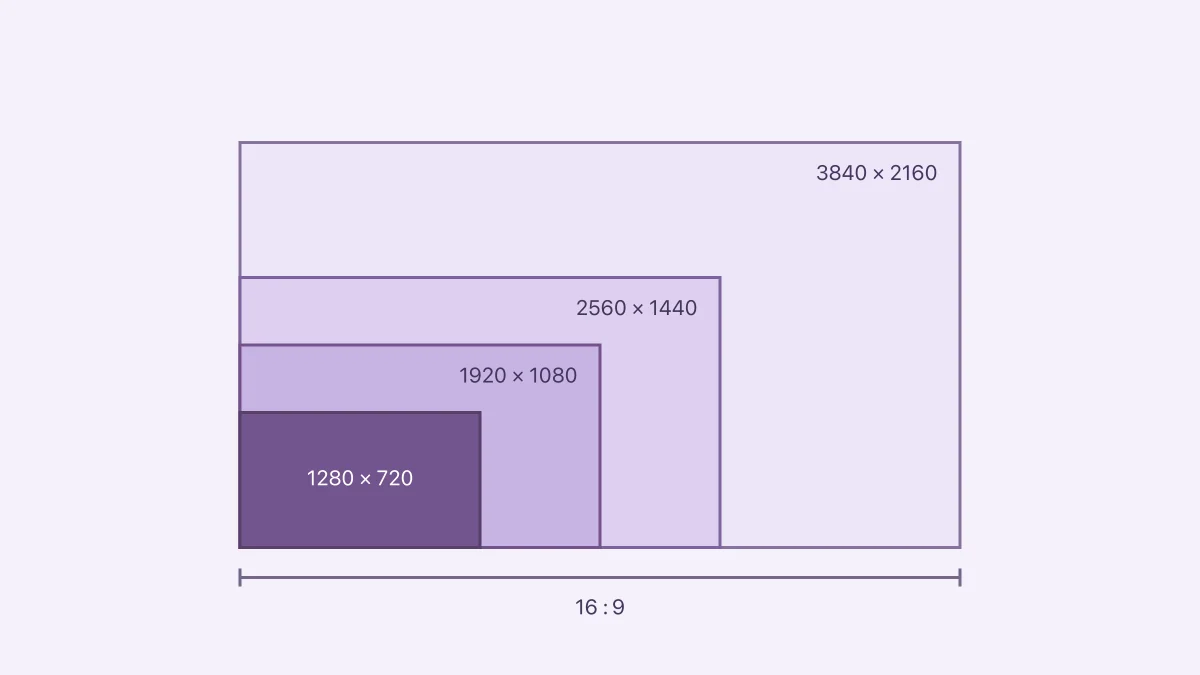
1280×720 Aspect Ratio Explained: Is 720p 16:9?
1280×720 is 16:9, commonly called 720p HD. Use the calculator, compare 1080p, 1440p and 4K, and resize without stretching or confusing ratio with resolution.
4 min readRecord, edit, compress, and share video with fewer surprises.
1280×720 is 16:9, commonly called 720p HD. Use the calculator, compare 1080p, 1440p and 4K, and resize without stretching or confusing ratio with resolution.
4 min read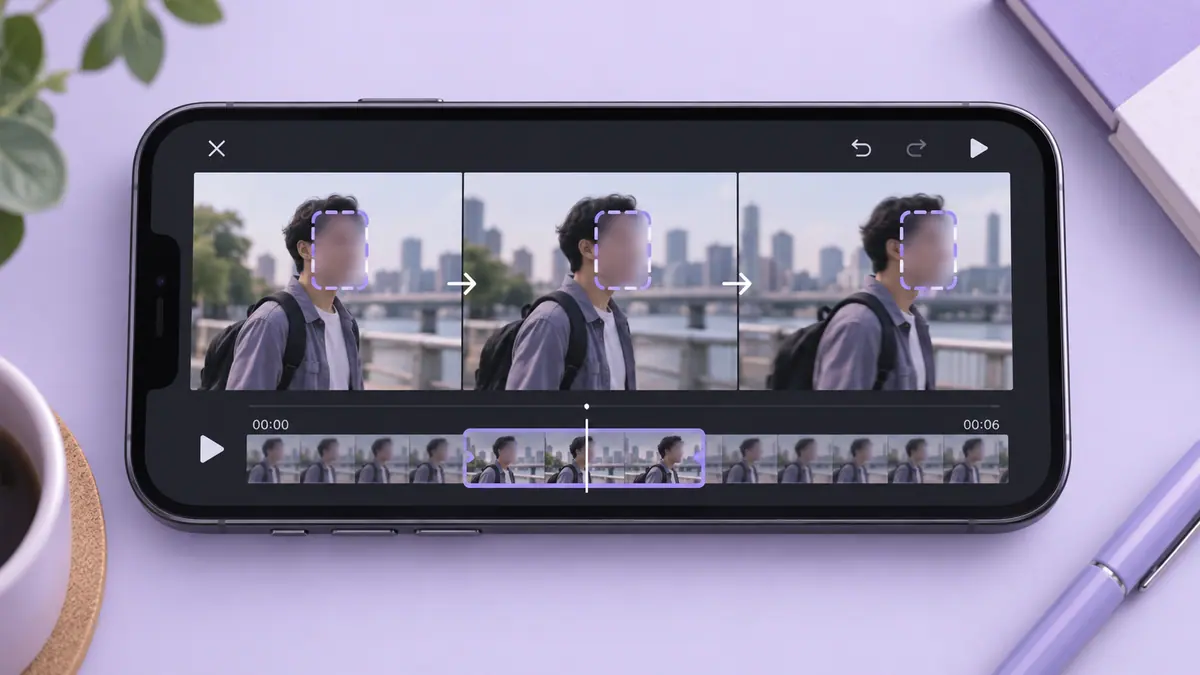
To blur a face throughout a video, cover the face for every part of the clip in which it appears, adjust the mask as the subject moves, and inspect the exported result rather than only the editor preview.
4 min read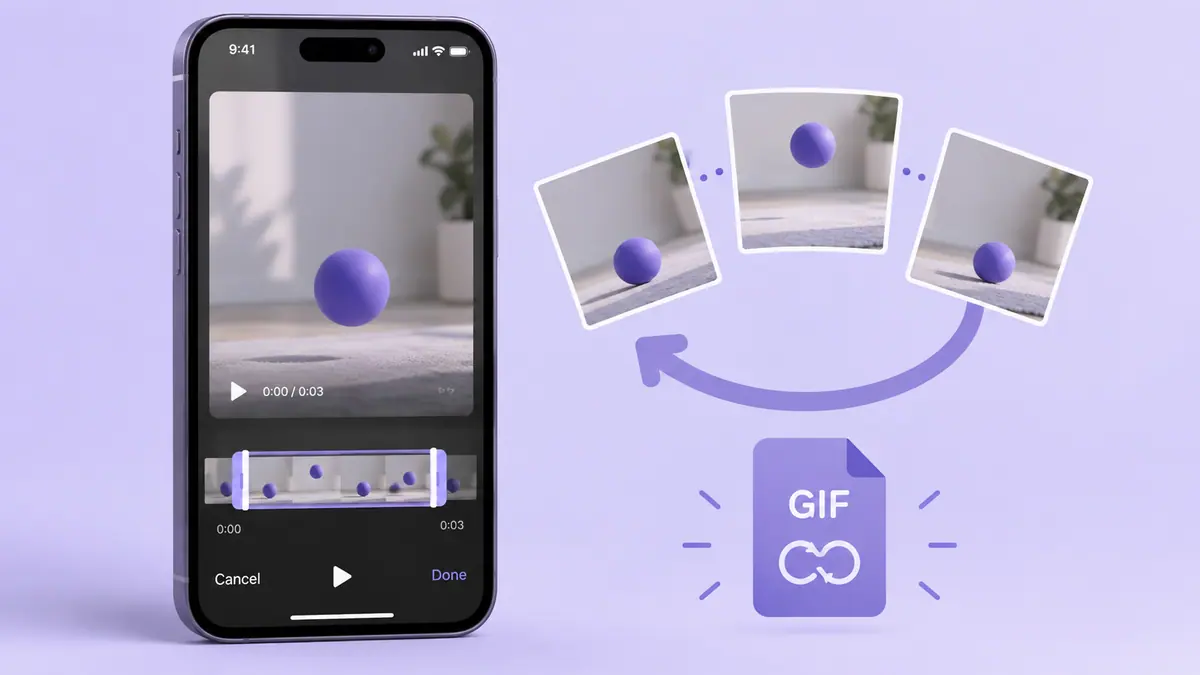
Create a GIF from an iPhone video by choosing a short section, setting the start and end points in a converter, previewing the loop, and saving a new GIF.
4 min read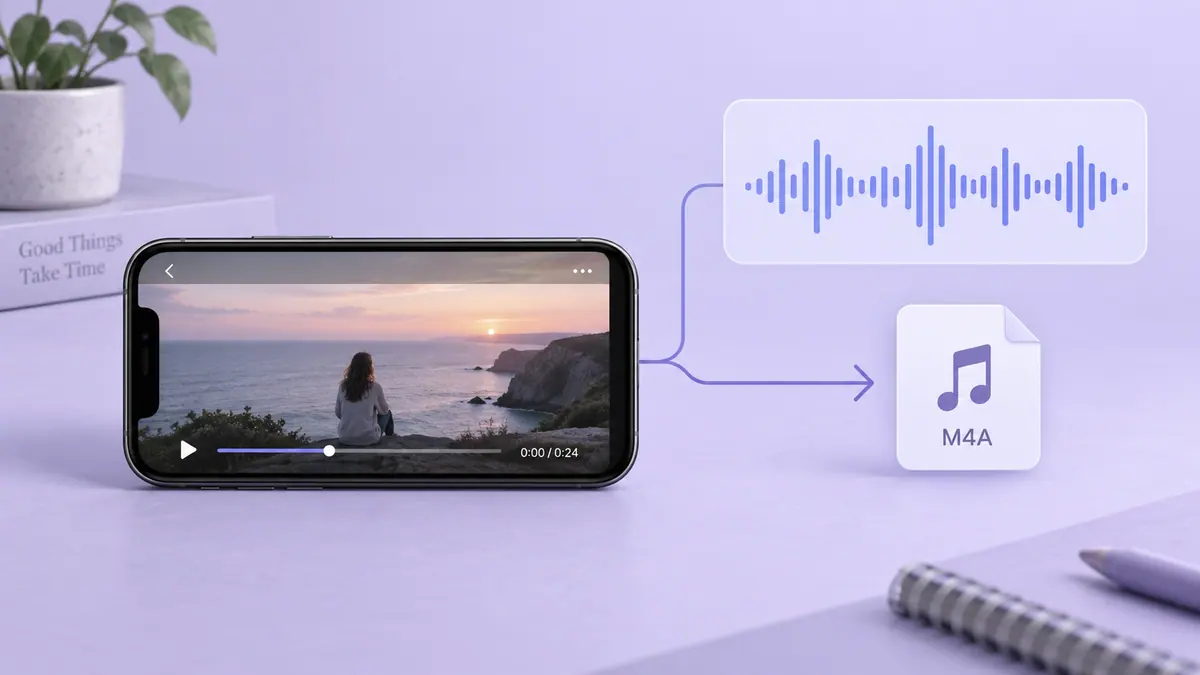
To extract audio from an iPhone video, open a local video file in an audio converter, select the part you need, choose an available output format, and save the audio to Files.
4 min readTo keep future iPhone recordings smaller, choose a resolution and frame rate appropriate for the destination, consider High Efficiency capture where supported, and record only the duration you need.
4 min read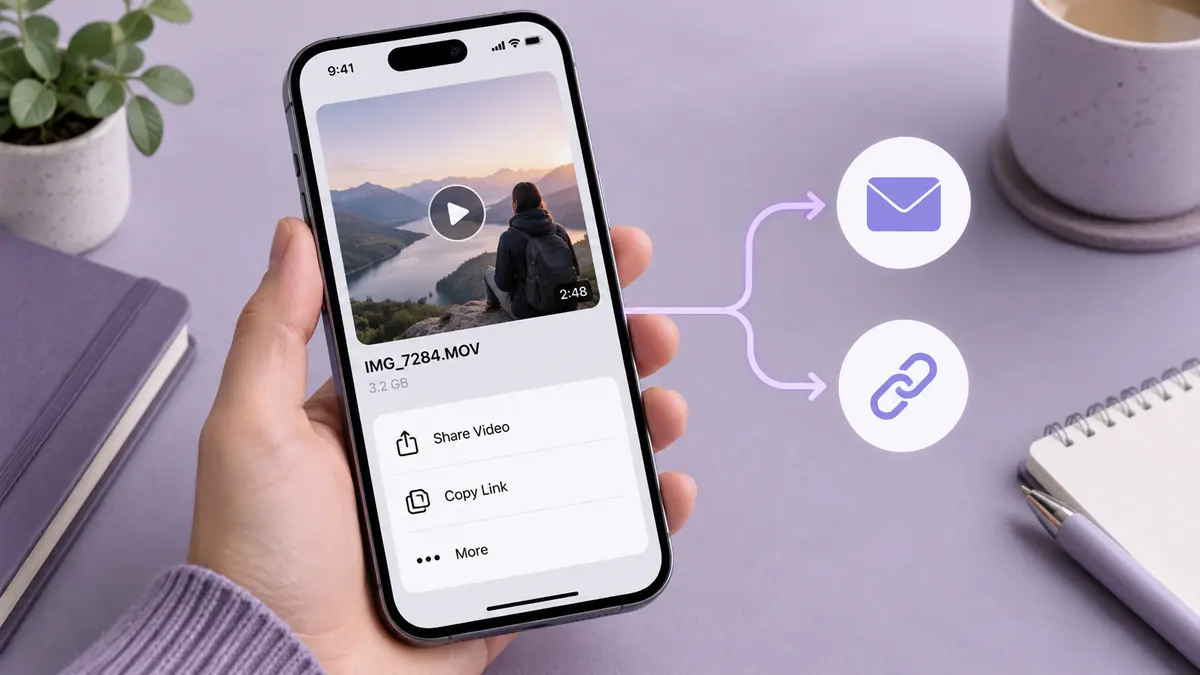
Send a large iPhone video by choosing the delivery route before changing the file: a supported nearby transfer, a controlled sharing link, or a smaller exported attachment.
4 min readSlow down a video by reducing its playback speed in a video editor and exporting a new copy.
4 min readSpeed up a regular iPhone video in iMovie or return a Slo-mo section toward normal playback in Photos. Check duration, audio and the saved export.
5 min readWhen an exported video has no sound, compare the original, the editor preview, and the saved export before changing anything.
4 min readMatch the recording dimensions to your edit, destination, and available storage.
1 min readCompare 30 and 60 frames per second on iPhone: motion, slow motion, lighting, file size and recording tradeoffs, with clearly labelled calculations.
5 min readCalculate 1, 5, 10, 30 and 60 minutes of 4K video storage in GB. Compare 24/30/60 fps examples without mistaking export estimates for iPhone recordings.
5 min readUse duration and a target size to set a starting point, then judge the actual result.
1 min read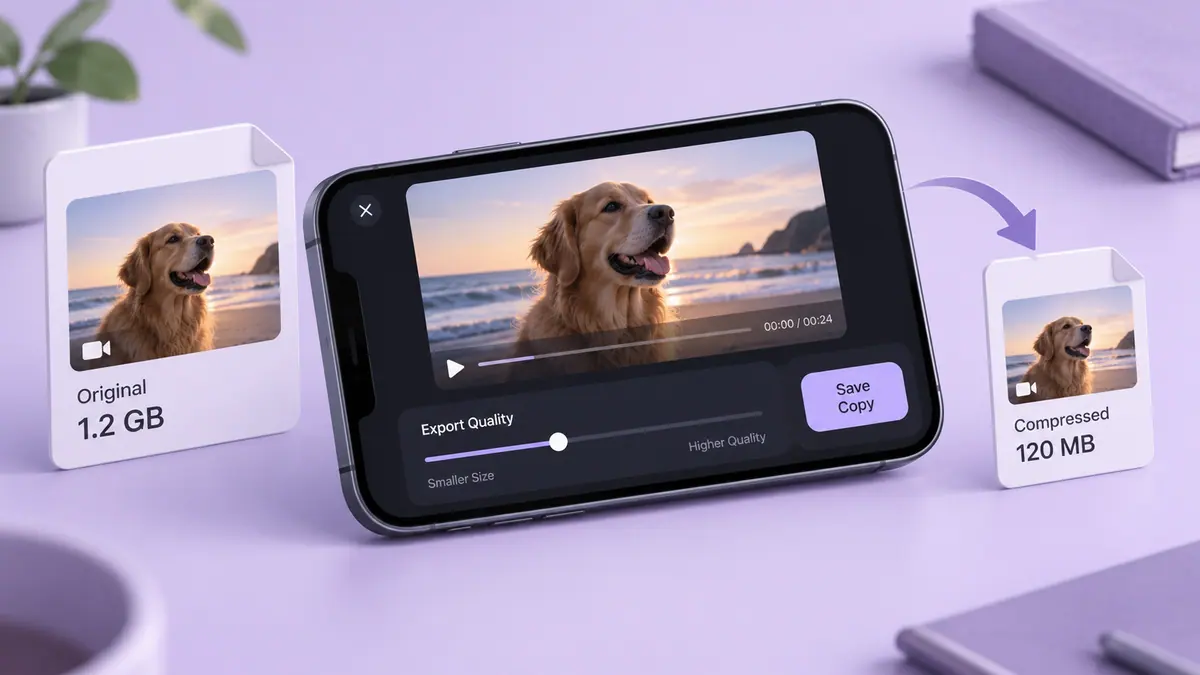
Choose Photos trimming, an iMovie export or a compression app. Work backward from a 25 MB limit and check size, sound and visible detail.
5 min readWork backward from the attachment allowance instead of guessing an export preset.
1 min readMake a delivery copy that keeps the important detail and check what the recipient receives.
1 min readRemove unused time while keeping an original you can return to.
1 min readThe container name is only part of the answer when a video will not open.
1 min readDuration and bitrate do most of the work. Here is how to make sense of the numbers before sharing a video.
3 min readInspect motion, text, and repeated exports to find the first setting to change.
3 min read