How to Extract Audio from a Video on iPhone
To extract audio from an iPhone video, open a local video file in an audio converter, select the part you need, choose an available output format, and save the audio to Files. Listen to the saved file before sharing it. This works on an audio track that exists in your video; it cannot recover sound that was never recorded. Keep the video original and check the receiving app’s supported formats. A streaming-service download is not the same as a transferable local video, and converting a file does not grant permission to redistribute its soundtrack.
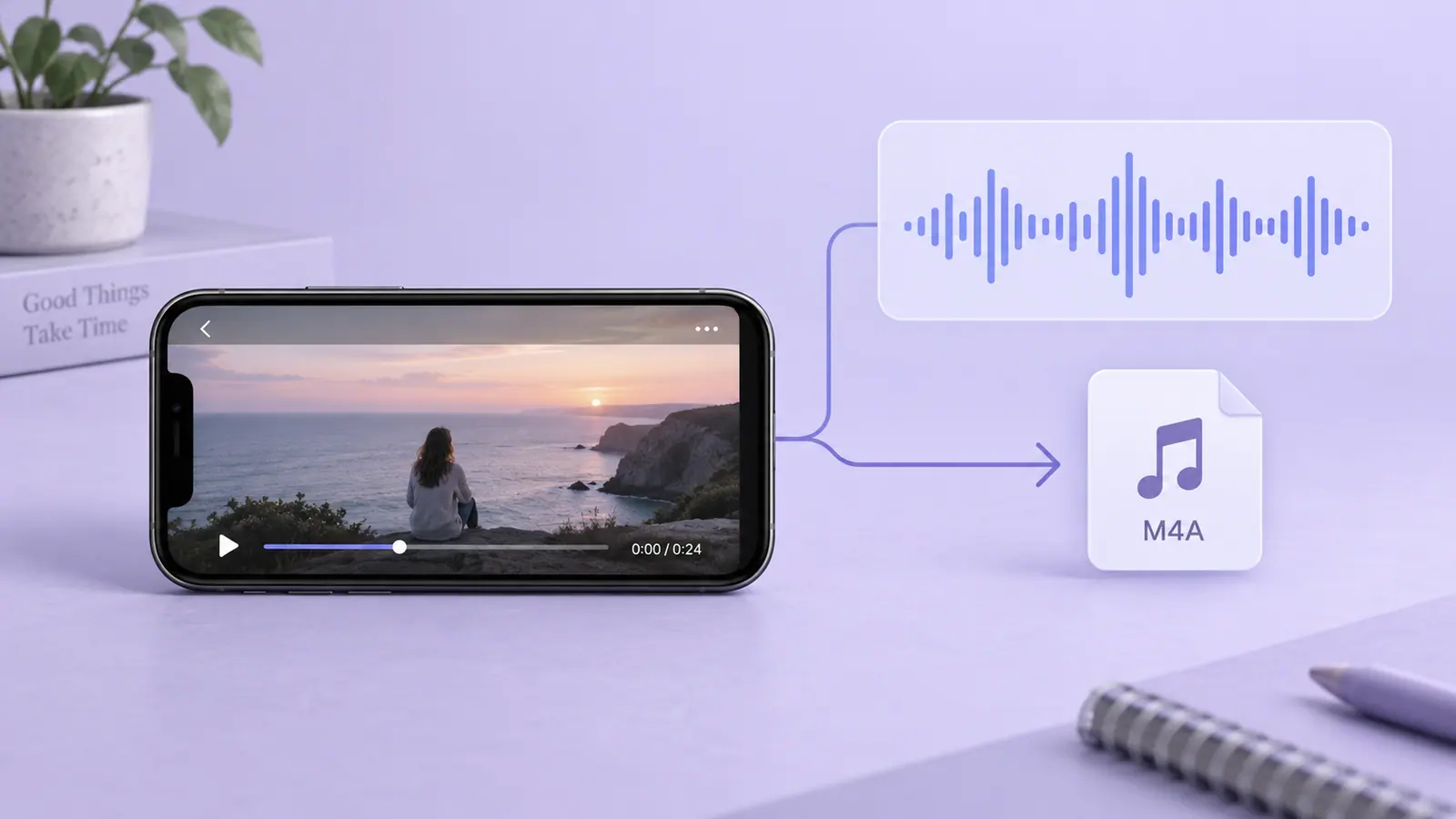
From a video clip to a separate recording
- Play the original and confirm that its soundtrack is audible.
- Make the video available locally in Photos or Files; wait for any cloud download to finish.
- Import it into your converter and select the required interval.
- Choose an audio format supported by the receiving player or editor.
- Export a separately named file to a folder you can find again.
- Play the beginning, middle, and end of that saved audio file.
The App Store listing for Video to MP3 Converter, Audio describes imports from Photos and Files, trimming, and local conversion. It lists MP3 and other expanded conversion features under Premium. Check the current purchase screen before assuming a particular format, duration, or batch operation is free. The steps above describe the workflow, rather than unverified button positions in a particular app version.
Decide whether you need MP3
MP3 is a common delivery choice when the recipient specifically requests it. An audio-only container such as M4A may also suit a player that supports its audio codec. A filename extension alone does not describe every encoding detail: a media container holds one or more encoded tracks.
Changing the letters at the end of a filename does not convert the audio. Nor does selecting a higher output bitrate restore detail missing from the original soundtrack. For a spoken note, judge whether the words remain clear. For music, listen for changes around cymbals, sustained notes, and quiet passages. These are listening checks, not measured quality guarantees.
Export only the useful interval
For a lecture excerpt or your own voice note, trimming silence or unrelated footage usually makes the result easier to use. Include enough context that the clip does not misrepresent the speaker. Leave a short natural pause at the start and finish rather than cutting through a word.
A ten-minute track at a constant 128 kbps contains about 9.6 MB of encoded audio before container overhead. This is arithmetic, not a prediction for every export. Variable bitrate and additional metadata can change the result. The Audio Duration Calculator helps relate duration, bitrate, and file size; our MP3 bitrate guide explains the choice in more detail.
When conversion produces silence
First listen to the video outside the converter. Check playback volume and the audio output device, then compare another known-working video. If only one original is silent, its audio may be missing or unsupported. If the original plays but the exported file does not, try a supported format and a short sample before repeating a long conversion.
An editor can also have a muted clip or a separate music track that was not included in an earlier export. Go back to the project when it is available. Repeatedly converting a silent file cannot restore a track that is absent. See why a video export has no sound for that separate troubleshooting path.
Save and share the actual file
Give the export a descriptive name and open it from Files, not just the converter’s preview. If you share a cloud link, confirm the recipient can access it. If you attach the file itself, check the attachment limit and avoid sending an entire private recording when a short excerpt is sufficient.
Can I extract audio from any online video?
This guide concerns video files you can lawfully access and convert. A link, subscription, or offline cache does not necessarily provide an exportable source or redistribution rights.
Does the video disappear?
Extraction should create another file. Keep the source until you have verified the result and any backup; do not treat successful export as an instruction to delete it.
Sources & further reading
- MDN Web Docs · Checked Oct 1, 2026
- Apple · Checked Oct 1, 2026