Final Cut Camera 2.4: Aperture Controls on iPhone 18 Pro
Final Cut Camera 2.4, announced September 29, adds variable-aperture control for the iPhone 18 Pro camera and reorganizes access to filming controls. Apple also describes additional monitoring and professional output features with iOS 27. Before an important recording, separate the controls your phone supports from the file format your editor and recipient need. A useful test is one short sample taken through capture, import, editing, and export. This is a source-based workflow guide, not an SFByte camera test.
Source announcement:
What Apple announced
Apple’s Final Cut Camera announcement describes aperture adjustment and aperture/shutter-priority options on iPhone 18 Pro. The redesigned app makes ISO, shutter angle, and white balance easier to reach. It also adds exposure overlays and improved focus peaking.
With iOS 27, Apple lists video scopes, clean SDI output, and genlock offset. These are capture and monitoring capabilities; they do not mean that every phone, accessory, or editing app has identical support.
Before a real shoot, make a small workflow test
Choose a scene similar to the work you plan to record. Include movement and the lighting you expect. Write down the settings instead of trying to remember them after changing several controls.
Then take the sample through the actual destination:
- Save the original capture.
- Open it in the editor you intend to use.
- Make a small edit and export a separate copy.
- Play the exported file on the receiving device.
Check sound, orientation, visible detail, and duration. This catches workflow mismatches before you have a long recording that is difficult to move.
Plan storage independently from exposure
Aperture is not a file-size setting. For a chosen recording mode, duration and the resulting data rate determine the storage you need. Our Video Size Calculator lets you estimate a budget from a bitrate and duration; it does not predict a camera’s undocumented codec settings.
If the file is larger than expected, read why iPhone videos can be large. Keep capture quality and sharing size as separate decisions.
Deliver a copy suited to the recipient
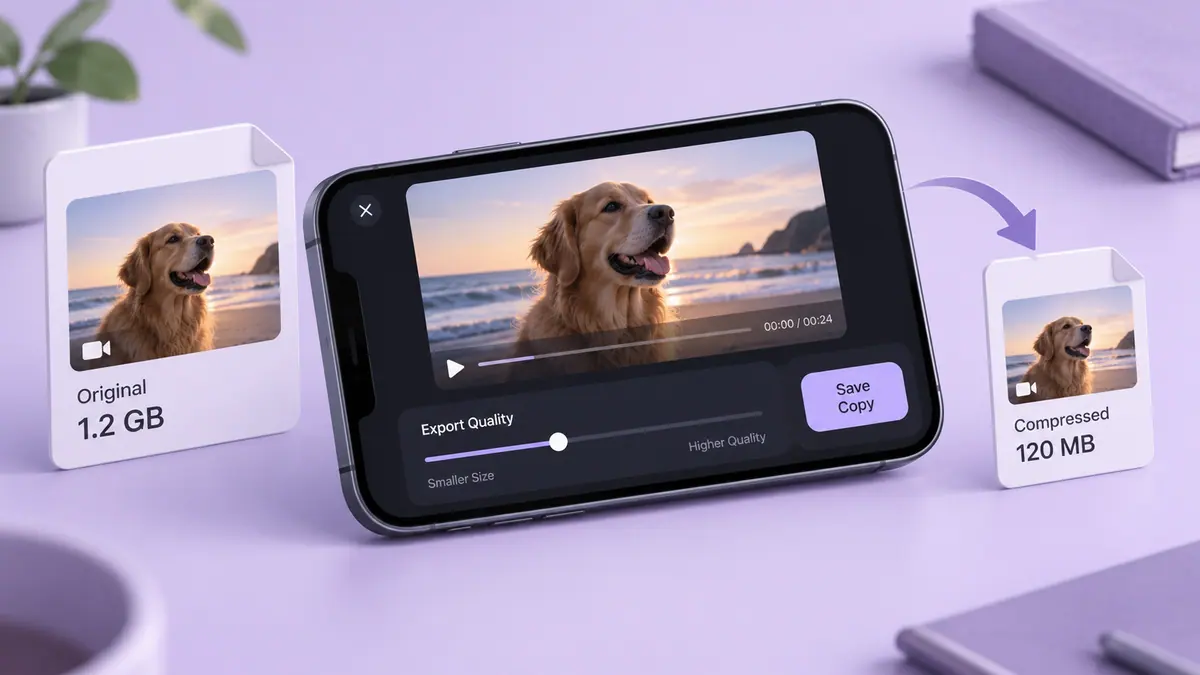
A full editing master may be unnecessary for a message or review link. Use the iPhone video compression workflow to make a smaller delivery copy while retaining the source. Check the new file at its destination before removing anything.
A speed change is another editing decision, not a substitute for choosing capture settings. See how to speed up a video on iPhone if the final sequence needs different pacing.
Working with iPhone footage regularly?
The SFByte Video hub links practical capture, editing, and sharing guides. An editor such as VibeCut may be relevant later in your workflow; check its current import and export support with a sample. We are not claiming that it exposes Apple’s new aperture controls or supports every professional format.
Sources & further reading
- Apple Newsroom · Checked Oct 3, 2026