How to Convert a Video Clip to a GIF on iPhone
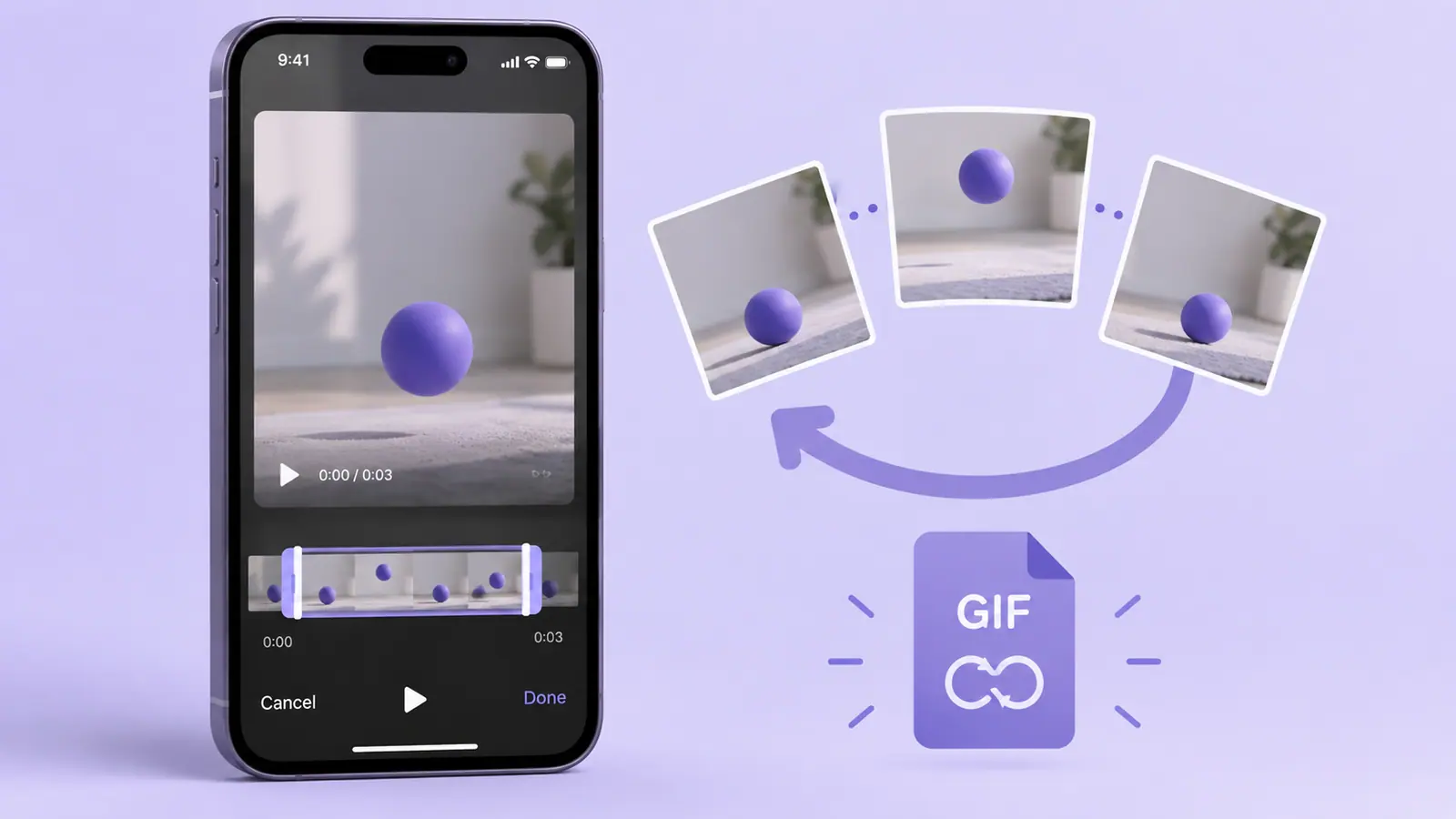
Create a GIF from an iPhone video by choosing a short section, setting the start and end points in a converter, previewing the loop, and saving a new GIF. Use a brief action or reaction that makes sense without sound. GIF is not simply a smaller video format: its color and animation characteristics can produce a larger or less detailed file than a modern video. Keep the source clip, check the exported animation in the intended destination, and shorten or resize it if the result is too large or hard to read.
Choose a moment that works as a loop
A useful GIF usually communicates one action. Select a reaction, a repeated movement, or a short demonstration with a clear beginning and end. A long spoken explanation is a poor fit because the GIF does not carry the original audio. If words are essential, a captioned video may be more suitable.
Watch where the final frame jumps back to the first. A sudden change can be intentional for a reaction, but distracting in a smooth demonstration. Adjust the selected range before worrying about export quality.
Convert the selected video section
- Keep the original video in a safe location.
- Open a converter that accepts your clip’s format.
- Select the start and end of the intended moment.
- Preview the complete loop, including the jump back to the beginning.
- Choose available size or quality controls appropriate to the destination.
- Save the GIF and reopen it in the app where you plan to use it.
GIF Maker: Video to GIF Make is an SFByte option. Its recorded listing describes choosing a video range, previewing it, and creating a GIF. Export limits and paid features can change, so check the current app instead of assuming every length and quality option is free.
Use dimensions to preserve the point
A large frame can make a GIF unnecessarily heavy when it will appear in a small message. A frame that is too small can make labels unreadable. Crop to the relevant subject before shrinking if your workflow supports it. Keep proportions rather than stretching a face or product to fill the destination.
The Aspect Ratio Calculator supplies matching dimensions; it does not convert the media. If the source is landscape and the destination is portrait, planning a portrait crop helps decide between cropping and borders.
Understand the quality tradeoffs
GIF’s color representation differs from modern video. Smooth gradients, dark scenes, and detailed textures may look different after conversion. A successful export is not proof that the format suits the image. Compare the result with the source at the size the recipient will see.
Longer duration and larger dimensions generally give an animation more data to carry. Different converters handle frames and encoding differently, so there is no universal seconds-to-megabytes rule. If the GIF is too large, shorten the moment, reduce dimensions, or reconsider whether a short video is the better delivery format.
Test the actual sharing route
Some destinations display a GIF as an animation, some show a static preview, and some convert it. Send a small test through the intended route and inspect the received result. Do not conclude that the source GIF is broken solely because a file picker displays one frame.
Keep a clearly named output so it is not confused with the source video. If you need to change the selection later, return to the original rather than converting the GIF back and forth through other formats. Trimming a video can help prepare the exact action before conversion.
Common questions
Why is the GIF silent?
GIF does not preserve the video’s audio track. Use a video format when sound is necessary, or communicate the essential text separately.
Why is the GIF larger than the original video?
Modern video compression and GIF encoding work differently. The source can be smaller even with sound. Choose the format for the recipient’s use, not from an assumption that an animation is always lighter.
Can I use any downloaded video?
Use material you own or have permission to reuse in that context. A file being available to download does not establish reuse rights.
Can a GIF recover detail from a blurry source?
No. Start with the clearest source available and keep the action brief. A conversion cannot recreate detail that was not captured.
Sources & further reading
- Apple · Checked Oct 1, 2026
- MDN Web Docs · Checked Oct 1, 2026