How to Trim a Video on iPhone
Remove unused time while keeping an original you can return to.
Decide what the clip needs to show
Watch once before editing and identify the first and last useful moments. Leave enough context for the viewer to understand what is happening. Cutting immediately before a spoken word can make an otherwise clean clip feel abrupt.
Trim in Photos
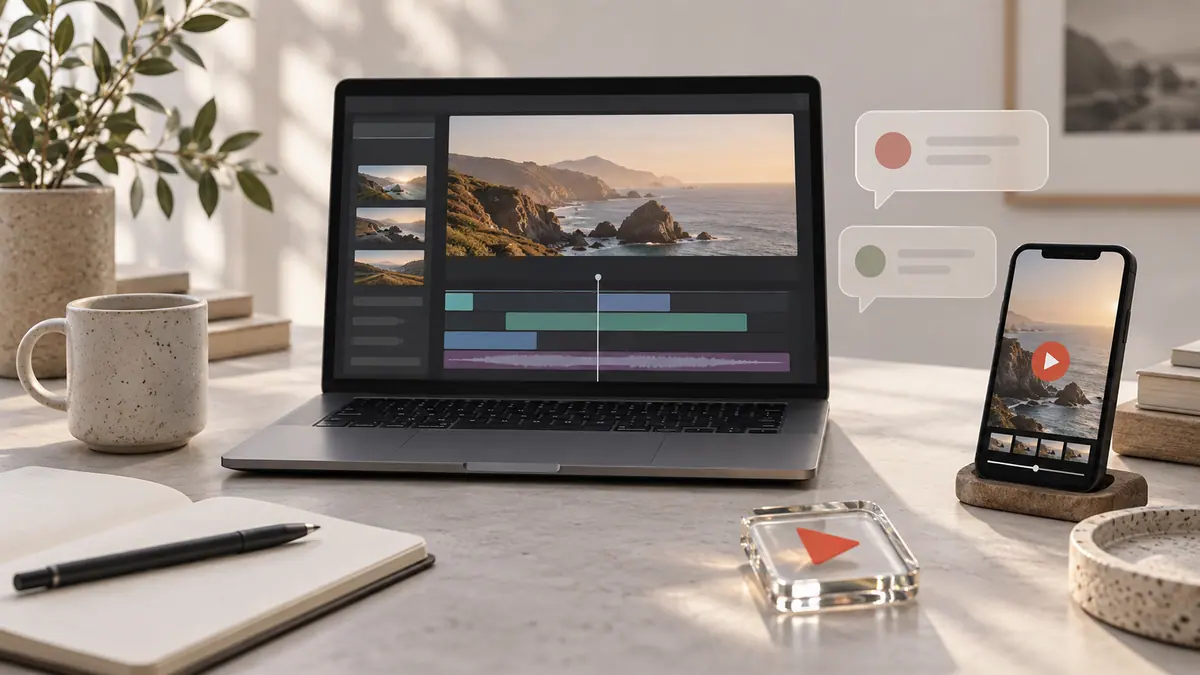
Open the video in Photos and choose Edit. Use the timeline’s start and end controls to select the portion you want. Preview the selection and save using the available options for your iOS version. Preserve an original or a separate copy when you need a reliable way back.
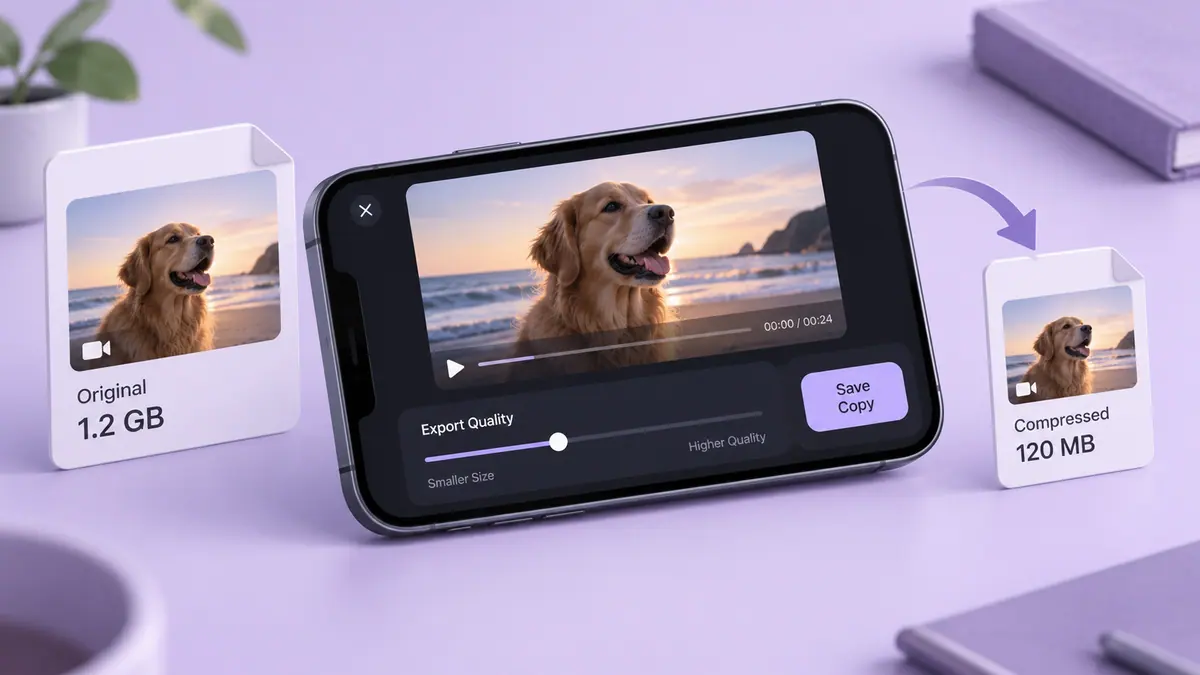
Trimming changes the duration; it does not automatically give you precise control over export bitrate. If a trimmed file is still too large, follow How to compress a video after you have settled the edit.
Check the seams
Play the beginning and end of the saved result with sound on. Confirm that a gesture is complete, a sentence is not cut off, and the last frame is the one you intended. For several clips intended to be combined later, label the versions clearly so another editor can distinguish a trimmed delivery copy from the source.
Sources & further reading
- Apple · Checked Oct 1, 2026