How to Record Smaller Videos on iPhone
To keep future iPhone recordings smaller, choose a resolution and frame rate appropriate for the destination, consider High Efficiency capture where supported, and record only the duration you need. Make a short sample and check compatibility before changing settings for an important event. These choices affect new recordings, not videos already in your library. For existing files, create a compressed sharing copy instead. There is no single file size for every 4K or 1080p minute: codec, recording mode, motion, and the camera’s bitrate decisions also affect the result.
Start with what the video is for
A clip for a quick message has different needs from footage you plan to crop heavily or edit for a large display. Decide what detail and motion you need to preserve before selecting the smallest available setting. If the moment cannot be recorded again, keep a capture quality that leaves reasonable editing room and make a smaller delivery copy later.
Avoid changing settings midway through an important recording session without checking the result. The available resolutions, frame rates, and recording modes vary by iPhone model and software version.
A practical settings check
- Open Settings, then Camera, and review the available Record Video options.
- Choose a resolution that suits the intended display and editing needs.
- Choose a frame rate for the subject’s motion rather than automatically selecting the highest one.
- Review Camera’s Formats settings and supported High Efficiency capture.
- Record a short representative sample and play it on the receiving device or app.
- Check the saved sample’s size and leave enough free space for the full session.
Apple documents High Efficiency capture using HEVC for video on supported devices. Most Compatible uses H.264 for new camera video. Some recording modes require particular formats. Check your actual camera options; not every model offers the same combinations.
Resolution is one part of the decision
A 1080p frame has fewer pixels than a 4K frame. That can allow a smaller recording, but it is not a fixed byte-saving ratio because the encoder and recording mode also matter. If you intend to crop or stabilize substantially, discarding detail at capture may limit the final result.
For a simple screen-sized explanation, unnecessary resolution may add transfer time without helping the recipient. For text or detailed demonstrations, inspect a sample at the size the viewer will actually use. See 1080p versus 4K for this tradeoff, rather than treating either resolution as universally correct.
Frame rate should match the action
A higher frame rate records more moments per second. It can help with motion or a later slow-motion edit, but it may require more data and different lighting compromises. A mostly stationary talking clip may not need the same capture settings as a fast action sequence.
Do not confuse recording frame rate with playback speed. Reducing a playback-speed control later creates a different editing effect. Slowing a video explains why stretching ordinary footage cannot recover unrecorded motion detail.
High Efficiency and compatibility
HEVC can store video efficiently, but a receiving workflow must support the codec and its particular video settings. Test the exact destination when compatibility matters, especially with older devices or specialized upload forms. Automatic conversion during sharing may also make the delivered file different from the original capture.
Renaming a MOV file to MP4 does not change its encoding. If a recipient cannot play the sample, use a supported export or capture setting for that workflow. Keep the original until the recipient confirms the delivery is usable.
Estimate a recording session
Make a sample with similar movement and lighting, then use its size as a rough planning reference. Ten minutes of recording will not necessarily be exactly ten times a one-minute sample, but this is more informative than assigning every 4K video one universal size.
The Video Size Calculator gives a separate bitrate-based estimate. The Storage Calculator helps reserve room for additional recordings and export copies. Both are planning tools, not measurements of your camera’s future output.
Does changing Camera settings shrink old videos?
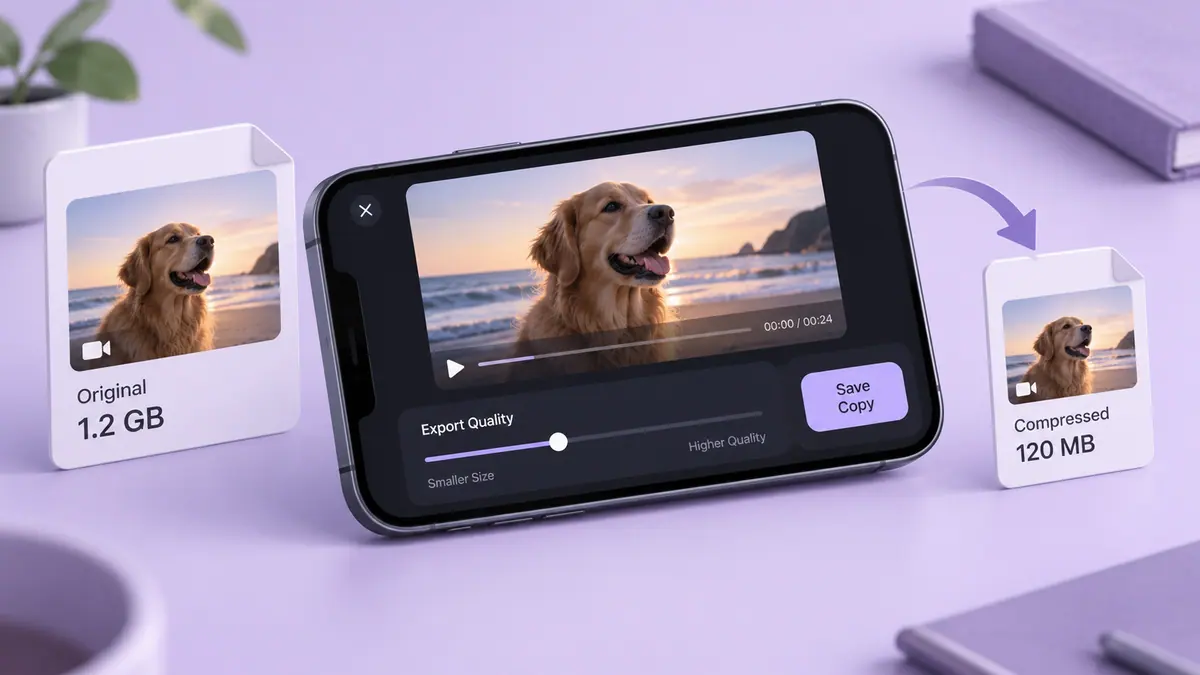
No. To reduce an existing recording, follow how to compress a video on iPhone, save a new copy, and inspect it before removing anything.
Is the smallest file always the best choice?
No. A file that no longer shows useful detail has failed its purpose. Choose a usable result first, then reduce avoidable duration or excess delivery quality.
Sources & further reading
- Apple · Checked Oct 1, 2026
- Apple · Checked Oct 1, 2026
- MDN Web Docs · Checked Oct 1, 2026