How to Send a Large Video From iPhone
Send a large iPhone video by choosing the delivery route before changing the file: a supported nearby transfer, a controlled sharing link, or a smaller exported attachment. Check what the recipient can open and whether the original quality is required. If an attachment limit is the problem, trim unnecessary footage and compress a separate copy toward a realistic size target. A sharing link may preserve more useful detail than forcing a long recording into a tiny file. Verify access, playback, and sound at the destination, and keep the original until delivery is confirmed.
Choose a route for the recipient
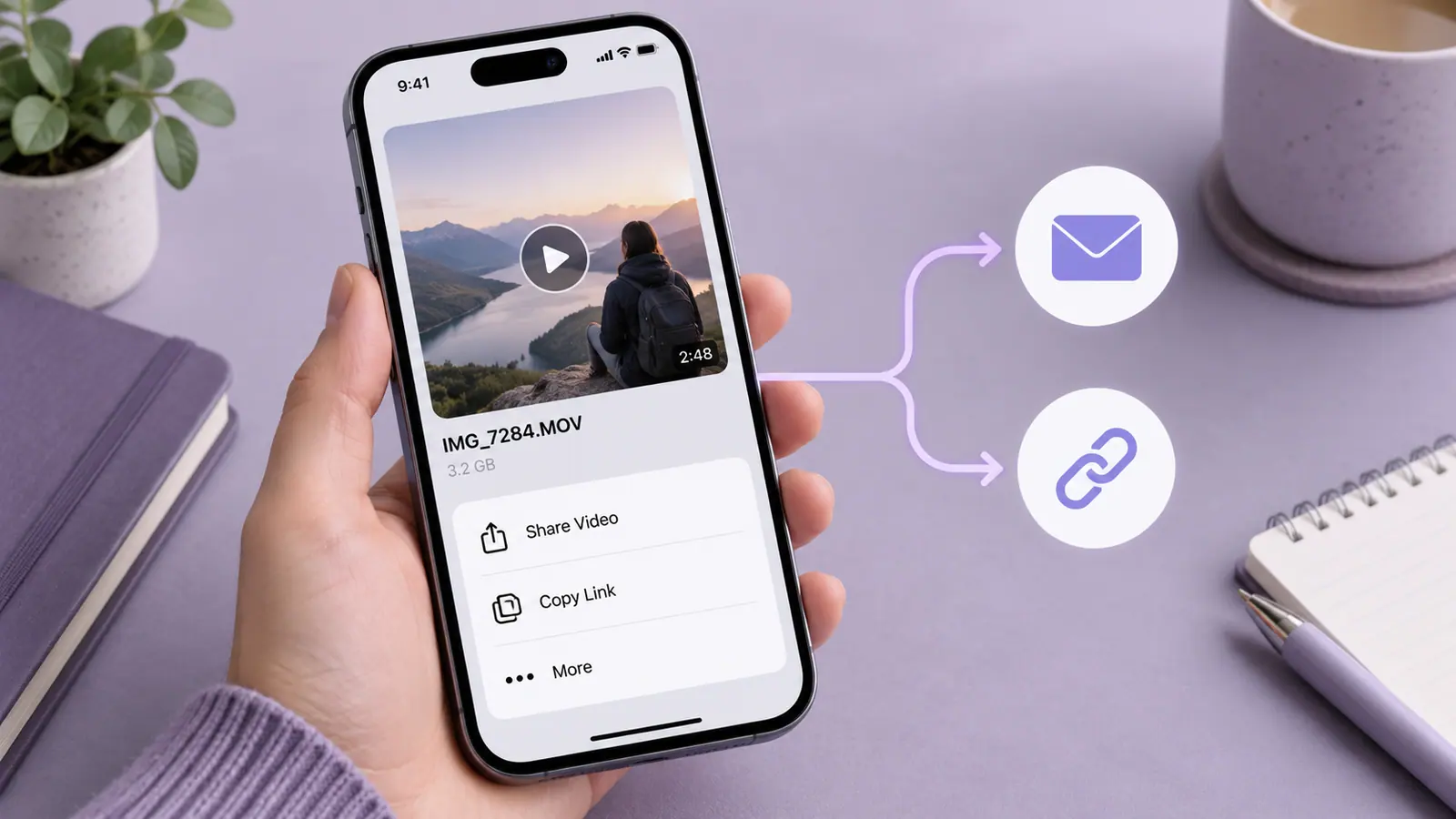
If the person is nearby and has a compatible device, a documented local sharing route may avoid an attachment limit. If they are remote, a storage link can be more suitable for a long recording. If they must upload the file into a form, the form’s actual format and size requirements determine the export.
Ask whether the recipient needs to edit the original, watch a reference copy, or keep an archive. Those are different jobs. A compact viewing copy can be excellent for a quick review while being unsuitable as the only source for later editing.
Prepare a small test before the whole delivery
- Check the source duration, actual file size, and intended destination.
- Confirm the recipient’s supported format and any current upload allowance.
- Choose a local transfer, access-controlled link, or compressed attachment.
- Try a short sample through that route.
- Open the delivered sample and inspect picture, sound, and permissions.
- Send the final file only after the route works as intended.
Service limits change and can differ by account or sending method. Use the current interface or official help for the destination rather than relying on a universal maximum quoted for every app.
When a smaller attachment is the right choice
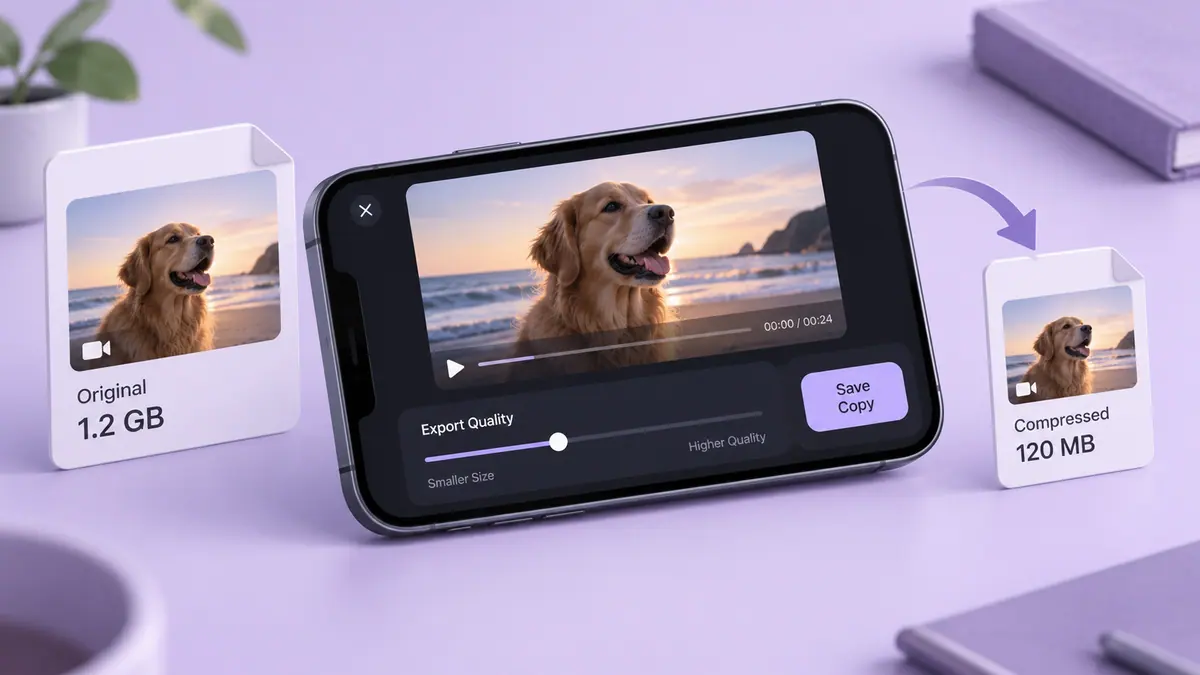
Start with the useful duration. Removing a long pause can preserve more detail than compressing the entire clip heavily. Then estimate a combined bitrate for the target size: decimal megabytes multiplied by eight, divided by duration in seconds. Leave margin for audio and container overhead.
The Video Size Calculator lets you compare scenarios. Video Compress & Shrink Video is an SFByte option for producing a delivery copy. Follow compressing a video on iPhone and inspect a difficult moving section rather than judging one preview frame.
For email specifically, making a video small enough for email covers attachment overhead. For messaging, compare a recipient-side copy because the service may apply another conversion after your export.
When a link is more appropriate
Use a destination whose access controls match the content. Check who can open the link, whether sign-in is required, and whether access expires. A link that works while you are signed in may still fail for the recipient. Test with the intended access conditions before relying on it for a deadline.
Do not make private media public simply to avoid a permissions error. If the recipient needs an original for editing, confirm the download route and whether the service preserves the original file or offers only a converted viewing stream.
Check compatibility separately from size
A smaller file can still use an unsupported codec. MOV versus MP4 explains why a filename extension is not the whole story. Renaming an extension does not convert the media inside it.
After delivery, play the beginning and end, listen for missing audio, and inspect any text that must be legible. Compare duration and expected content. A successful upload message proves less than a recipient opening the correct final version.
Common questions
Should I use ZIP for a large video?
Already compressed video may shrink little in an archive. ZIP can package related files, but it is not a reliable way to fit a large clip into a small allowance.
Can I delete the original after uploading?
Confirm a usable, independently retained copy first. A temporary sharing link or account-specific upload is not automatically a long-term backup.
Why does the received version look worse?
The destination may have re-encoded it, or the recipient may be watching a low-quality preview. Compare a downloaded copy where possible before making another export from an already compressed file.
Sources & further reading
- Apple · Checked Oct 1, 2026
- MDN Web Docs · Checked Oct 1, 2026
- MDN Web Docs · Checked Oct 1, 2026