How to Free iPhone Storage Without Deleting Everything
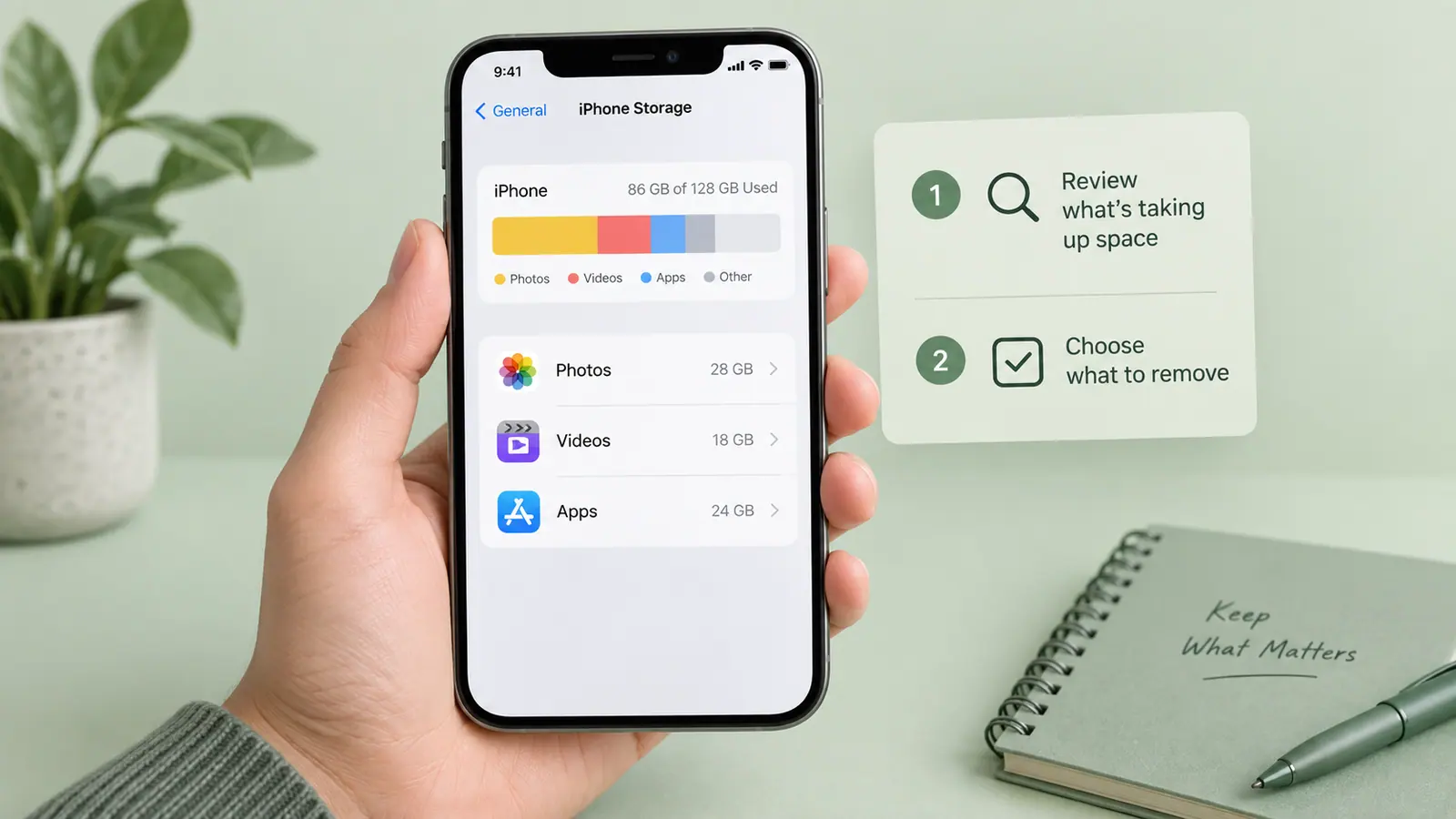
Free iPhone storage by targeting replaceable downloads and checked duplicate exports before removing valuable originals. Start with Settings → General → iPhone Storage, identify the largest relevant category, and choose one reversible action. Depending on your setup, that may mean removing an offline download, offloading an app through iOS controls, moving a verified copy elsewhere, or using photo storage optimization. Keep enough headroom for your next task and recheck the result after each change. A factory reset or a library-wide deletion is not the normal first step for a storage warning.
Work backward from the task that failed
A failed short download and a long video recording do not need the same amount of free space. Decide what you are trying to complete and estimate the additional room it requires. Leave space for temporary processing and an export, not just the final file. The Storage Calculator makes a capacity, usage, and reserve scenario explicit.
Use the storage display on the device for a local-space problem. Cloud quota is a separate issue. Read iPhone storage versus iCloud storage before paying for capacity that may not address the warning you saw.
Choose the safest large category first
- Note available device storage and the largest categories.
- Look for downloads you can legitimately obtain again, such as an offline episode you have finished.
- Check app-specific removal or iOS offload options and read what each action keeps.
- Move important large files only after confirming a separate copy opens correctly.
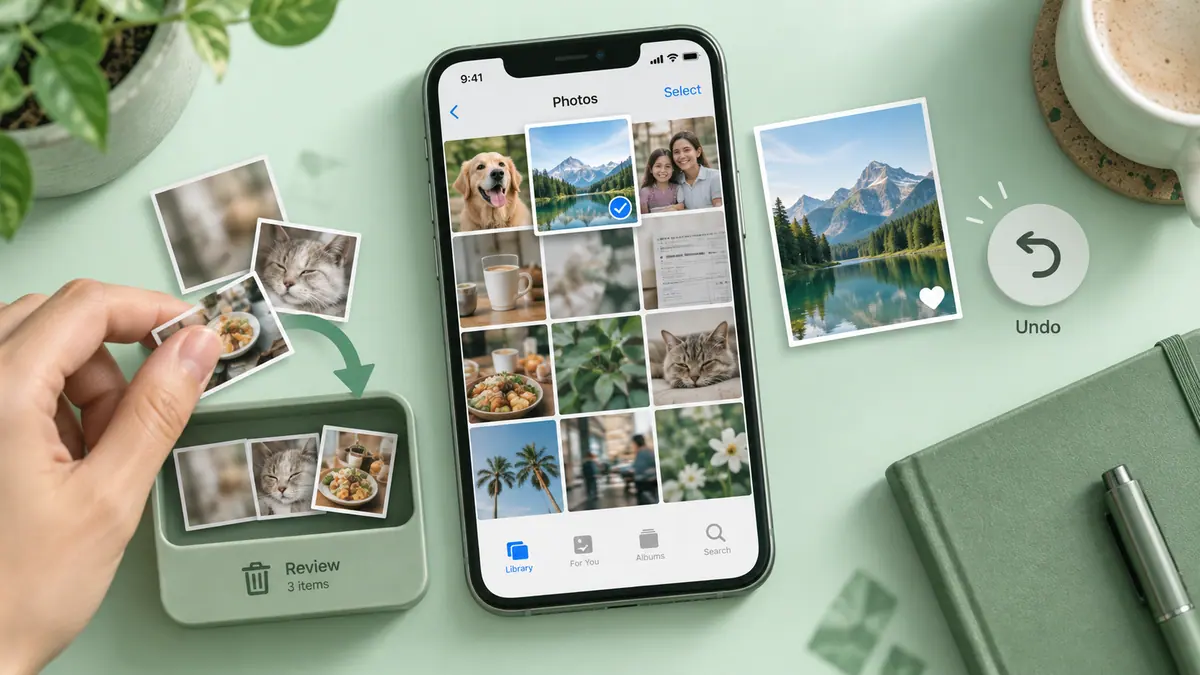
- Review unwanted photo or video exports in a small group.
- Return to the same storage screen and record the result.
A re-downloadable file is only replaceable if you still have the rights, account access, and a practical connection to obtain it. Before travel, keep tickets, maps, work files, and media that need to remain available offline. “Stored in the cloud” is not enough if you will have no network.
Preserve app data deliberately
Deleting an app can remove local data associated with it. Offloading, where iOS offers it, is a different operation with its own description of what is retained. Read the actual system message and check the app’s backup or export instructions for material you cannot recreate. Do not treat every app as a disposable download.
For a document app, verify an exported file in its destination. For a recording app, play the saved audio beyond the first few seconds. For a project editor, keep the editable project if a final rendered copy will not let you resume work later.
Make smaller delivery copies without losing the masters
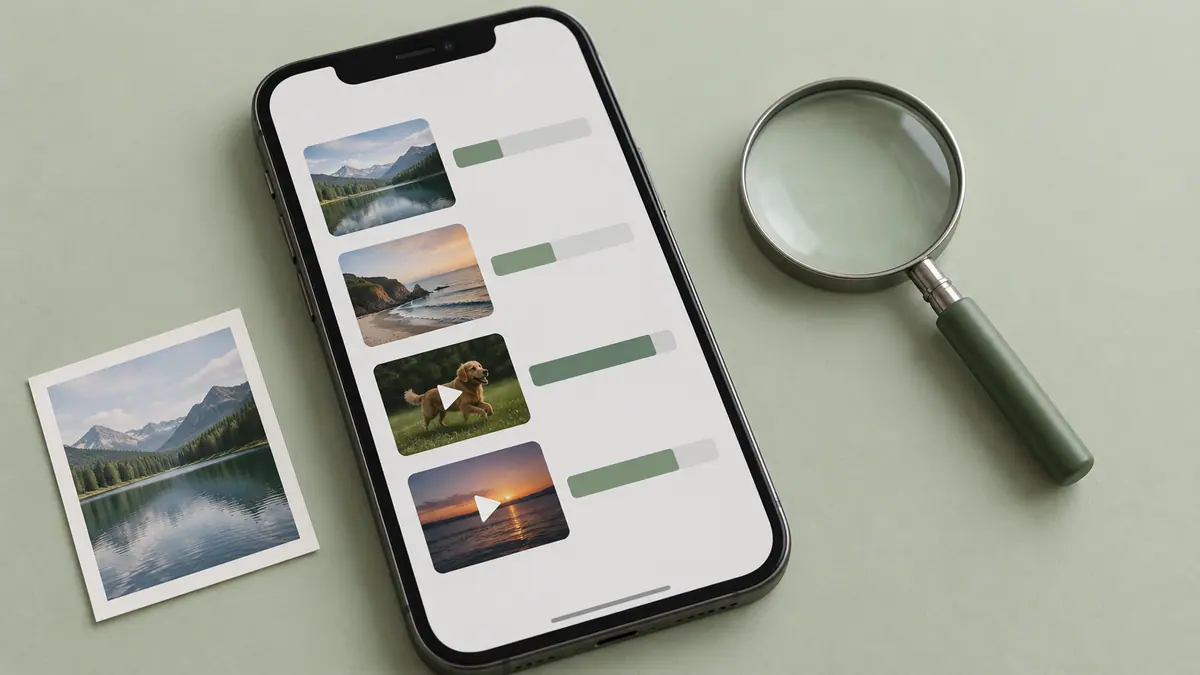
A smaller video can be useful for sharing, but initially you may have both the source and export on the phone. Follow the video compression guide and inspect the result before deciding what to retain locally. For archival material, an offloaded original and a small viewing copy may serve different needs.
If you review photos, a cleaner app’s suggested selection still needs your judgment. Photo Cleaner — Storage Cleaner is an SFByte option for unwanted and similar images. It cannot increase hardware capacity or decide which memory matters to you.
Do not force an instant change in a storage display
A device may need time to process or synchronize changes. If the number does not move as expected, check whether you changed the right category and whether deleted media remains in recovery storage. Avoid escalating from one uncertain result into many unrelated deletions.
Planning storage before a trip is useful even at home: reserve space for the next recording or export instead of immediately filling whatever you recovered. Revisit the largest category occasionally rather than relying on an emergency cleanup.
Common questions
Should I clear every app’s cache?
Use only documented controls in the relevant app. There is no universal promise that a cache-clearing trick is available, necessary, or permanent. Some content may be downloaded again during normal use.
Will a cloud upgrade solve the problem?
It depends on the warning and your storage workflow. More cloud quota does not add physical storage to the phone. Optimization or offloading must be understood separately.
When should I reset the phone?
A reset is not a routine substitute for identifying large files. If you suspect a persistent system problem, follow official support guidance and establish a verified backup before considering destructive troubleshooting.