How to Delete Unwanted Screenshots on iPhone
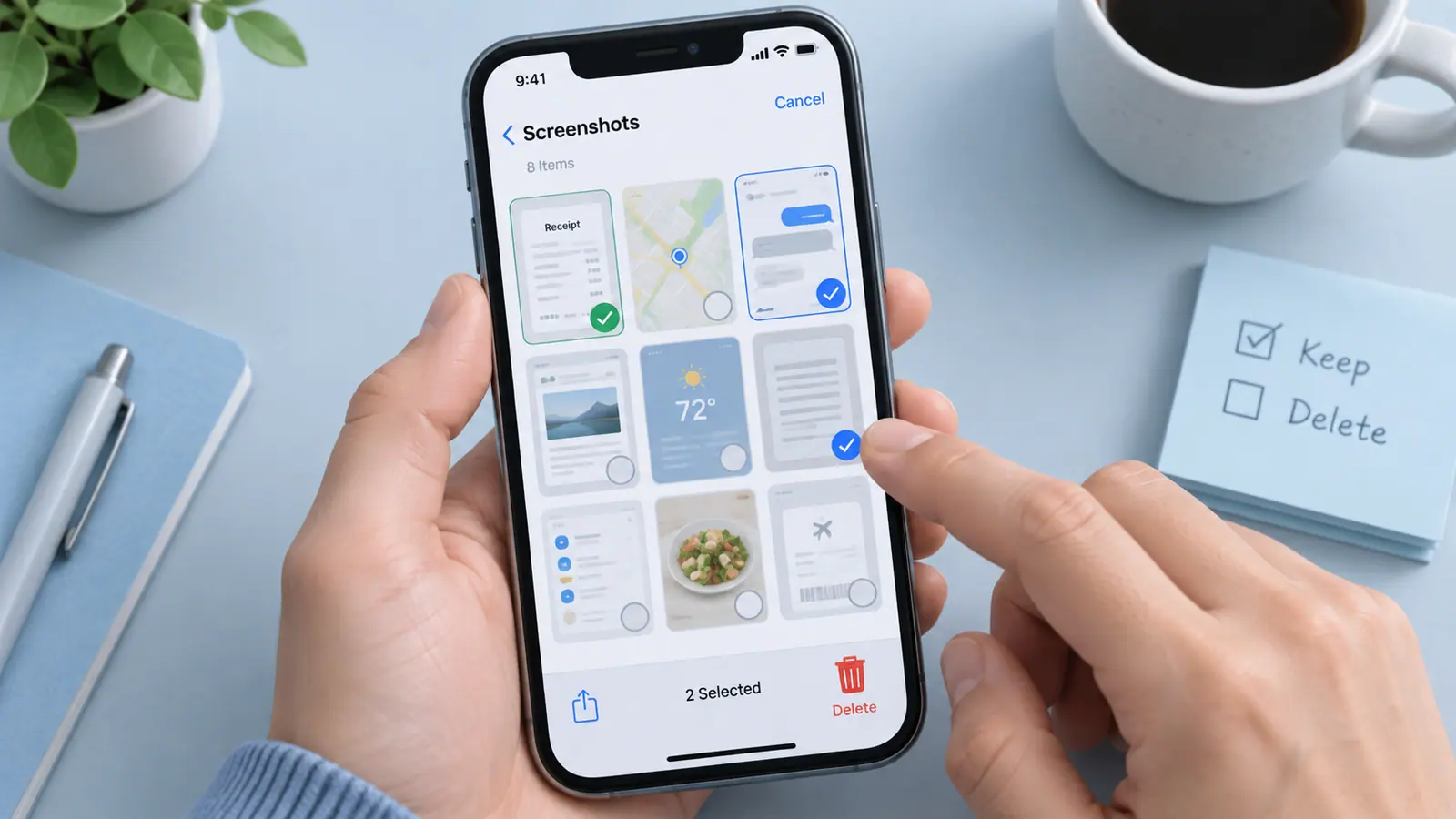
Delete unwanted iPhone screenshots by reviewing the Screenshots collection in Photos, keeping useful records elsewhere, and removing a small confirmed selection at a time. Screenshots can include tickets, receipts, support evidence, or account details, so selecting the whole category is rarely the best first step. If a screenshot is still needed as a document, save an appropriate copy before deletion. Check how iCloud Photos synchronization affects other devices, and treat Recently Deleted as temporary recovery rather than an independent backup. The goal is a useful library, not the largest possible deletion count.
Separate temporary references from records
Some screenshots become obsolete quickly: a shopping comparison, a route you already followed, or a finished conversation reminder. Others may still be useful evidence or contain a receipt you have not saved elsewhere. Review by event or date when possible so the context is fresh.
Do not treat all text-heavy images as disposable. A screenshot may be the only copy of information that has disappeared from an app. If a record matters, export or file it deliberately before removing the picture from the library. Our screenshot-to-PDF guide describes one way to package appropriate records.
Review the screenshot collection in small groups
- Open Photos and locate the Screenshots collection or media-type view available in your iOS version.
- Open uncertain items at full size before selecting them.
- Save any still-needed records to a clearly named destination and reopen those copies.
- Select a manageable group of confirmed unwanted screenshots.
- Read the deletion confirmation, then check the remaining library.
- Continue with another group only when the first selection is correct.
Photos: Fast Photo Organizer is an SFByte option with focused screenshot, favorite, video, and date views in its recorded features. A focused view can help you find a group; it does not decide whether each item is safe to delete.
Use a keep rule that is easy to apply
For example, keep active tickets until the event and any necessary reimbursement are complete. Move long-term reference documents to a named folder rather than leaving them mixed with temporary captures. For project evidence, follow the retention process that applies to that project.
A simple rule is more useful than a complicated classification you stop using. If you cannot decide about an image in a few seconds, place it in a review group and continue with the obvious items. Uncertainty is a reason to postpone that item, not to approve a whole batch.
Protect the information in retained screenshots
The image may reveal more than its central subject: account names, notifications, addresses, open tabs, and identifiers can appear around the edges. Before sending it to someone else, use the private screenshot sharing checklist. Converting a screenshot to PDF does not remove those details automatically.
When the purpose is a short note rather than visual evidence, saving the relevant information as text may be easier to find later. Check any text recognition carefully. Do not delete the only authoritative image while relying on an unverified transcription of a code or date.
Understand recovery and synchronization
Apple documents recovery through Recently Deleted within the normal recovery window. That is useful after an accidental selection, but it is not a long-term archive. Confirm whether your library is synchronized before assuming another device keeps a separate original.
If storage is your main concern, screenshot cleanup may save less than reviewing large video exports. Use finding large photos and videos to prioritize. A smaller, organized screenshot collection can still be valuable even when the recovered space is modest.
Practical questions
Can I delete all screenshots automatically?
An automatic rule cannot know which receipt, ticket, or record you still need. Review the proposed set and start small, even when an app offers bulk selection.
Why is a screenshot not in the expected view?
It may have been imported, edited, or saved in a way that changes how the library classifies it. Search by date or inspect the broader library rather than concluding that it was deleted.
Will removing it from an album erase it?
Removing an album association and deleting from the library are different actions. Read the command and confirmation so you perform the one you intend.