How to Back Up Original iPhone Photos Before Editing
Before editing valuable iPhone photos, keep a separate copy of the originals in a destination you control and verify that those files open correctly. Choose an export or transfer route that preserves the original format when that is your goal; a messaging copy or screenshot can be smaller and omit useful information. A synchronized photo library is convenient, but it is not automatically an independent backup against deletion. Check a small sample first, then transfer the collection and compare counts, dimensions, and any companion files your workflow needs.
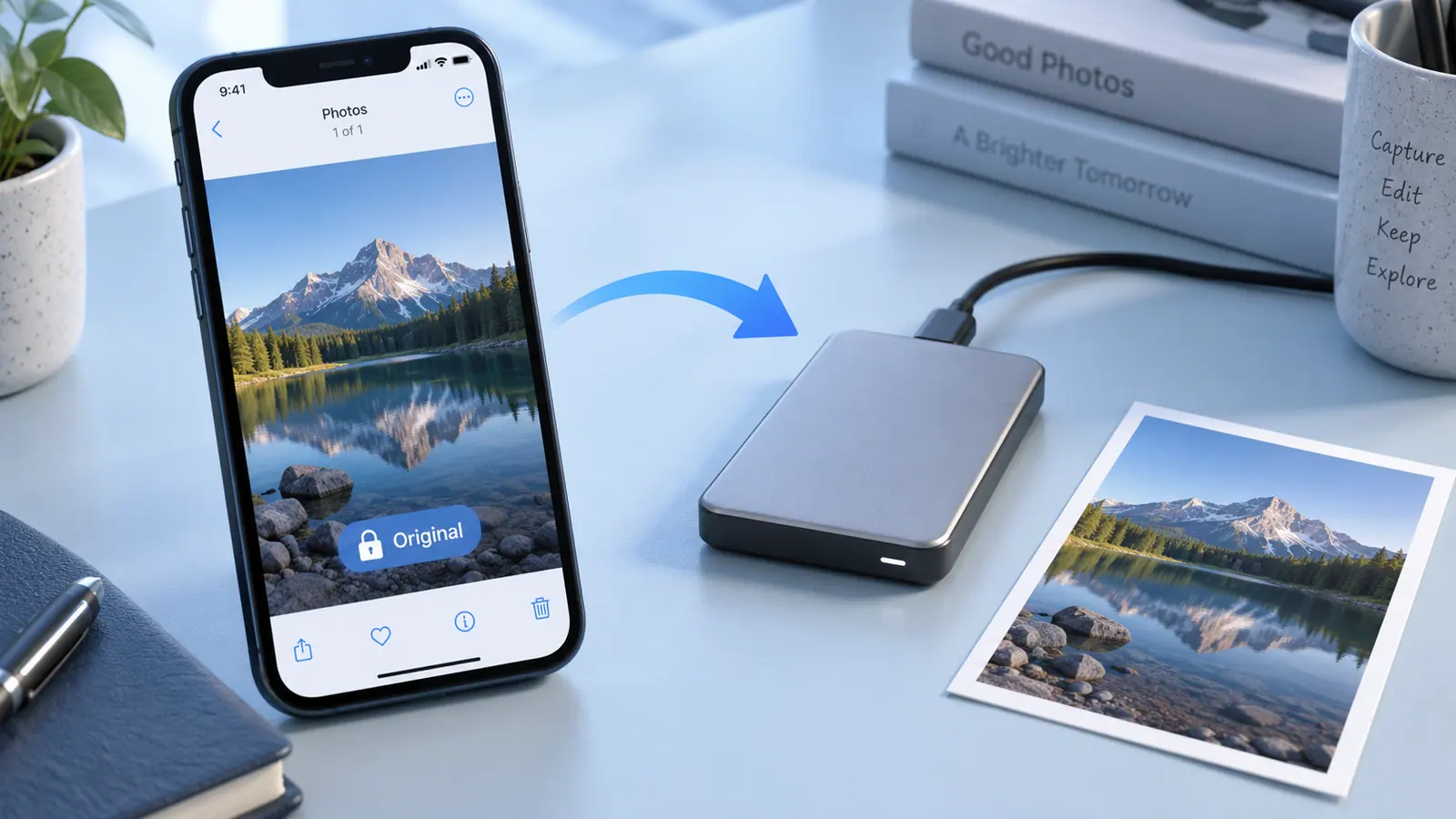
Define what you want the backup to preserve
An original capture, the currently edited appearance, and an editable project are different assets. Decide whether you need one or all of them. For a photograph you plan to re-edit, the original matters. For a finished family book, you may also want the exact exported appearance. For a Live Photo or another compound format, check which related components your destination retains.
Write down the reason for the copy: protection before cleanup, room for editing, or an archive outside a synchronized library. That reason helps you choose a destination and avoid mistaking another view of the same cloud library for a separate backup.
Prove the route with a small sample
- Choose several representative items, including an edited photo and a large file.
- Select an export or transfer method documented for your device and destination.
- Review options for original media or full photo data when the route offers them.
- Save into a clearly named destination folder outside the working collection.
- Open the transferred files and check their dimensions, appearance, and associated components.
- Copy the larger set only after the sample meets your needs.
Apple documents photo sharing options and computer transfer workflows. Those options differ across AirDrop, links, USB import, and other routes. Do not assume that an original-format option exists in every share destination or that its meaning is identical in every app.
Distinguish a separate copy from synchronization
Synchronization keeps a library consistent across places; that can include propagating deletion. A separate backup should still serve its intended purpose if you make a mistaken edit or removal in the working library. Understand the retention and deletion behavior of the destination you choose.
For a computer destination, follow transferring files from iPhone to PC for an appropriate starting route. Then use checking transferred files to verify the collection rather than relying only on a progress bar.
Keep originals and working exports easy to identify
Use folders or names that distinguish capture originals from resized sharing copies. Avoid placing a newly exported JPEG back into the originals folder without a clear label. Two similar filenames can conceal differences in resolution, format, editing history, or metadata.
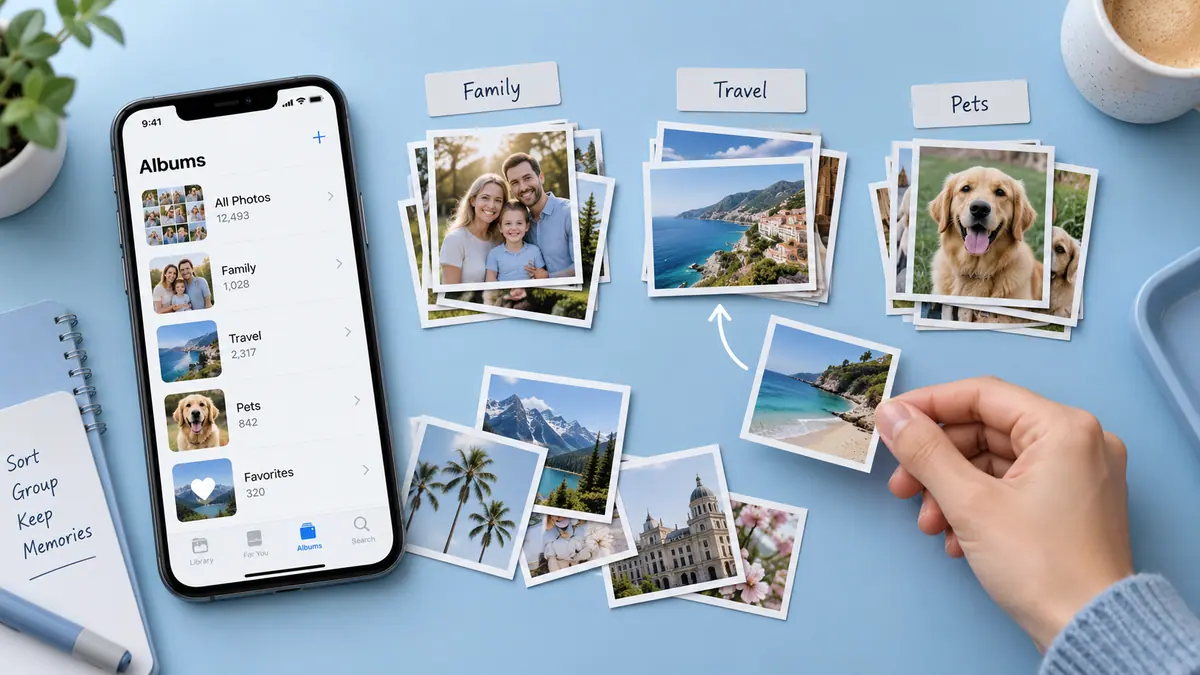
The file naming guide suggests a practical version pattern. For a large family library, organizing thousands of photos helps build useful views, but an album inside the library is not an independent backup location.
Make verification match the value of the material
At minimum, compare expected item counts and open a representative selection from the destination. Check the largest files, the beginning and end of the transfer, and any unusual formats. If a workflow preserves exact bytes and both ends support checksums, matching checksums provides stronger evidence than a thumbnail.
Converted exports will not have the same checksum as their originals. In that case, inspect the properties you intended to preserve and document that the copy is a conversion. For irreplaceable material, consider whether a second independent destination is warranted for your circumstances.
Practical questions
Can I delete the phone originals after one transfer?
Only after verifying the copy and understanding your backup arrangement. A single unchecked destination should not become the only copy of something you cannot replace.
Why are transferred files a different size?
The route may have converted the format, omitted companion data, or used different storage reporting. Investigate the difference rather than assuming either loss or success from size alone.
Does a photo organizer create this backup for me?
Check the app’s actual export and storage documentation. An app that organizes a private timeline is not automatically an independent backup system. This guide recommends a verification process, not an unverified promise about an app’s recovery behavior.