How to Recover Recently Deleted Photos on iPhone
Check Recently Deleted in Photos first when an iPhone picture was removed by mistake. Apple documents a normal 30-day recovery window, after which items are permanently deleted; availability also depends on what was actually removed and your library setup. Recover the correct selection, then verify that the photos open in your main library. If they are absent, look for an independent copy you already made rather than assuming a cleaner or organizer can recover permanently deleted data. Avoid further deletion while you establish which copy is missing.
Confirm that the picture was deleted
A photo missing from one album is not necessarily missing from the library. Search around the capture date, check relevant collections, and confirm which library or account you are viewing. If an app can see only selected photos, a permission change can look like a missing-file problem. The limited photo access guide explains that distinction.
Write down what happened: deletion in Photos, removal from an album, deletion inside another app, or a missing download. The recovery route depends on the event. Reinstalling an app or toggling synchronization repeatedly is not a good substitute for identifying it.
Check the built-in recovery area
- Open Photos and locate Recently Deleted in the current interface.
- Unlock the collection if your device requests it.
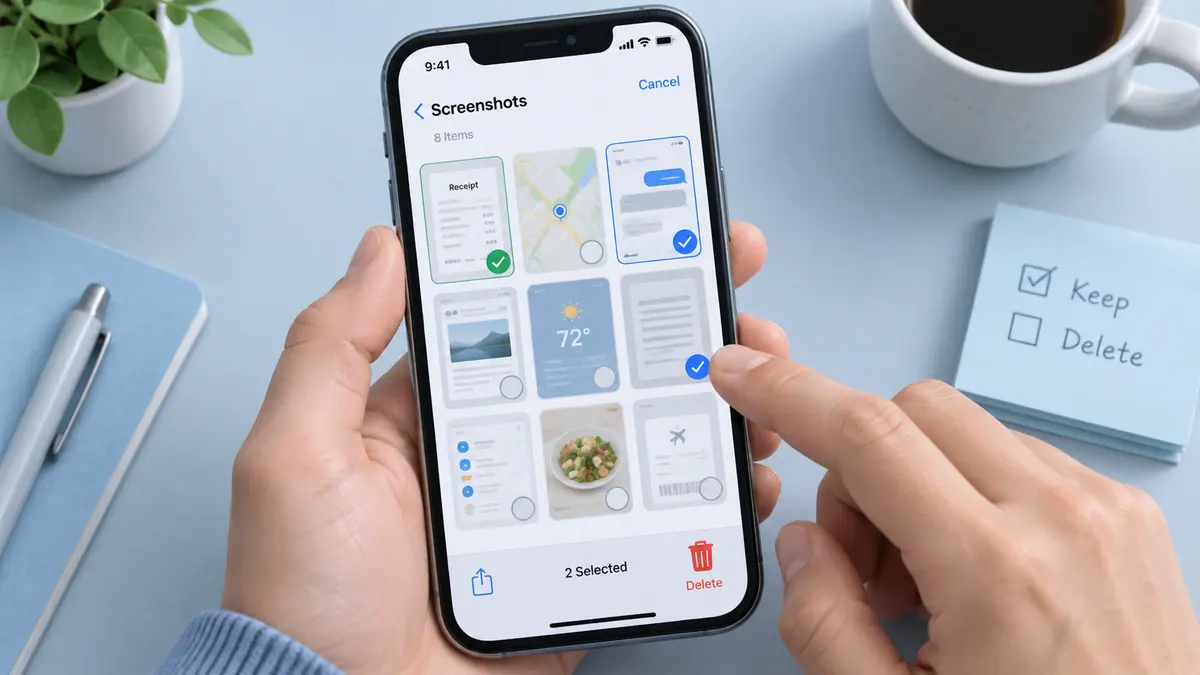
- Inspect thumbnails and dates to select the intended items.
- Use the available recovery action rather than permanent deletion.
- Return to the library and open the recovered photos or videos.
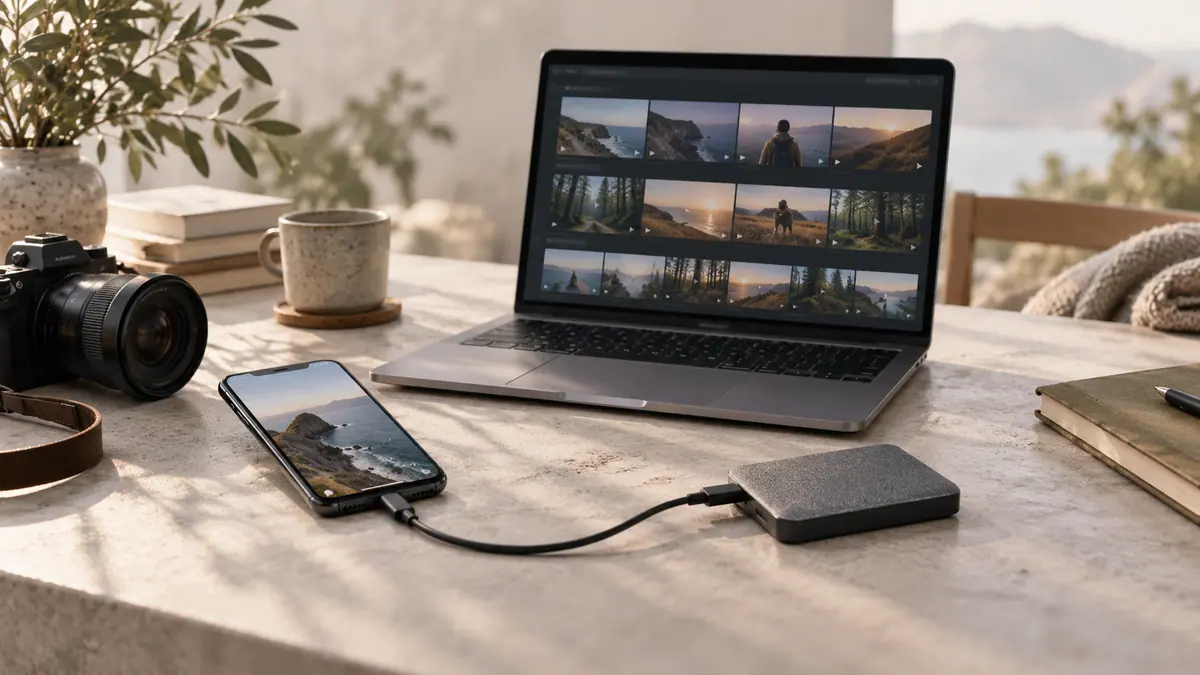
- Make an independent backup of material you cannot replace.
Apple’s deletion guide explains the recovery window. Do not assume an item will remain recoverable indefinitely, and do not empty the collection to troubleshoot a storage number while a recovery is still needed. Recover the valuable material first; diagnose storage separately.
Understand synchronized deletion
With a synchronized photo library, actions can affect other devices. Seeing the same library on an iPad or computer does not automatically mean it is an independent backup. Check for an actual separately stored file or backup made before the deletion.
If another device is involved, avoid making broad changes while uncertain about synchronization state. Follow the documented recovery process for the service you use. Do not disable or erase accounts casually in an attempt to force old pictures back onto the phone.
Look for copies you deliberately created
Consider a computer import, external drive, exported project folder, or document packet containing the image. A messaging attachment may be a reduced version rather than the original, but it can still preserve something useful. Label recovered copies according to what they are so a small messaging image is not confused with a full-resolution master.
Use the file transfer verification guide when restoring material from another location. Open representative files and check dimensions or duration where relevant. A filename and thumbnail alone do not prove that the complete data arrived.
Set expectations about recovery apps
A photo organizer is not automatically a data-recovery product. SFByte’s photo organization tools help browse and manage accessible library content; this guide does not claim that they retrieve permanently deleted files. Avoid granting broad access or paying for a guaranteed-recovery promise without evidence about your specific situation.
If no recovery area or independent copy contains the image, consult the storage provider’s official support information. Do not invent a recovery result, and do not assume a particular backup includes the missing item without checking its contents and date.
Questions after recovery
Will recovered pictures return to every album?
Verify the library and album views you rely on rather than assuming all organization is restored exactly as expected. Recreate an album association only after confirming the actual image is present.
What if the picture opens but looks small?
You may have found a reduced sharing copy. Check dimensions and look for the original export or backup if you need to print or edit it further.
How do I avoid the same problem?
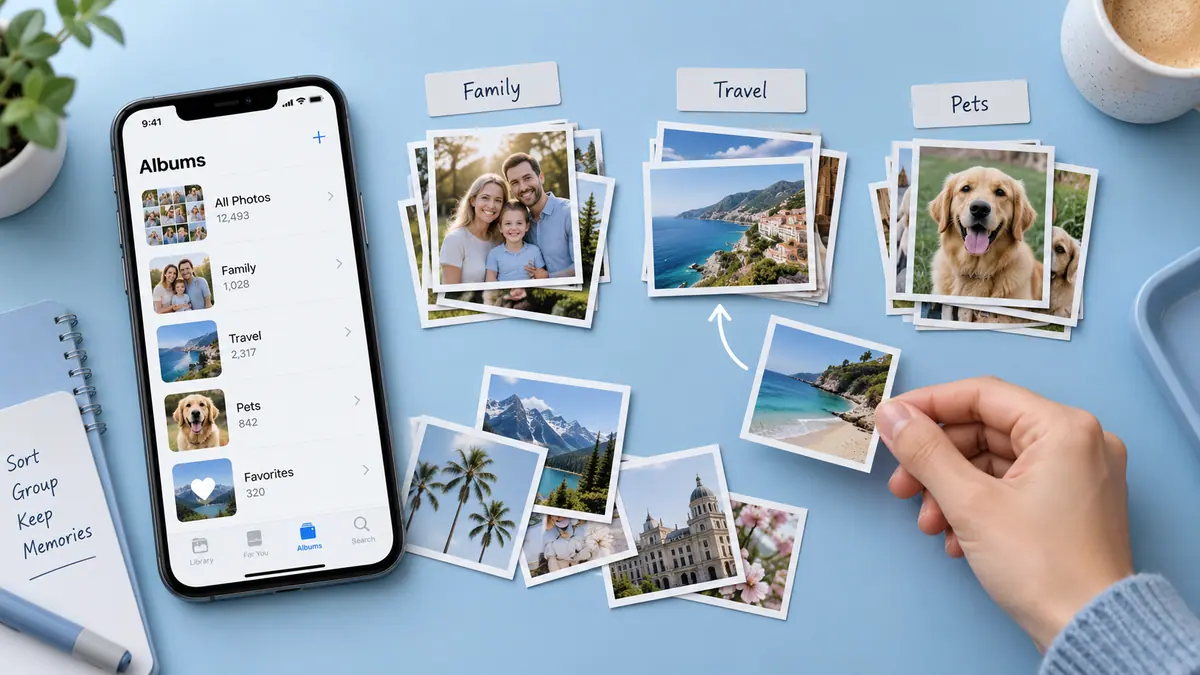
Use small review batches, retain a checked backup, and separate organizing from deleting. Cleaning up iPhone photos offers a deliberate sequence, while organizing a large library focuses on finding pictures without removing them.